
Helping your customers use Customer Portal
This article helps you easily update your help center with answers to common customer questions about editing orders in Customer Portal. You can copy and paste these examples into your helpdesk or FAQ, then adjust the wording to match your brand’s tone.
Getting Started
Suggestions
You can add these FAQs under sections like Orders, Changes & Cancellations, or Shipping & Delivery in your help center.
We'd recommend making sure to adjust the following information:
- The editing window
- The edits allowed
- The button copy from your order confirmation email
-
The section they should navigate to on their order status page. This will depend on the Customer Portal extensions you set up.
For example, if you've installed the "Change order block", customers should be directed to the "Change order" section.
But if you only added the "menu items", these will appear under the "Manage" button.
FAQ snippets you can use
Q: Can I change my order after placing it?
A: Yes! You can change your order for [Enter editing window duration] after it's placed. Just open your order confirmation email and click the View your order button. You can make your changes in the Change order section before your order ships and as long as you're within the time window.
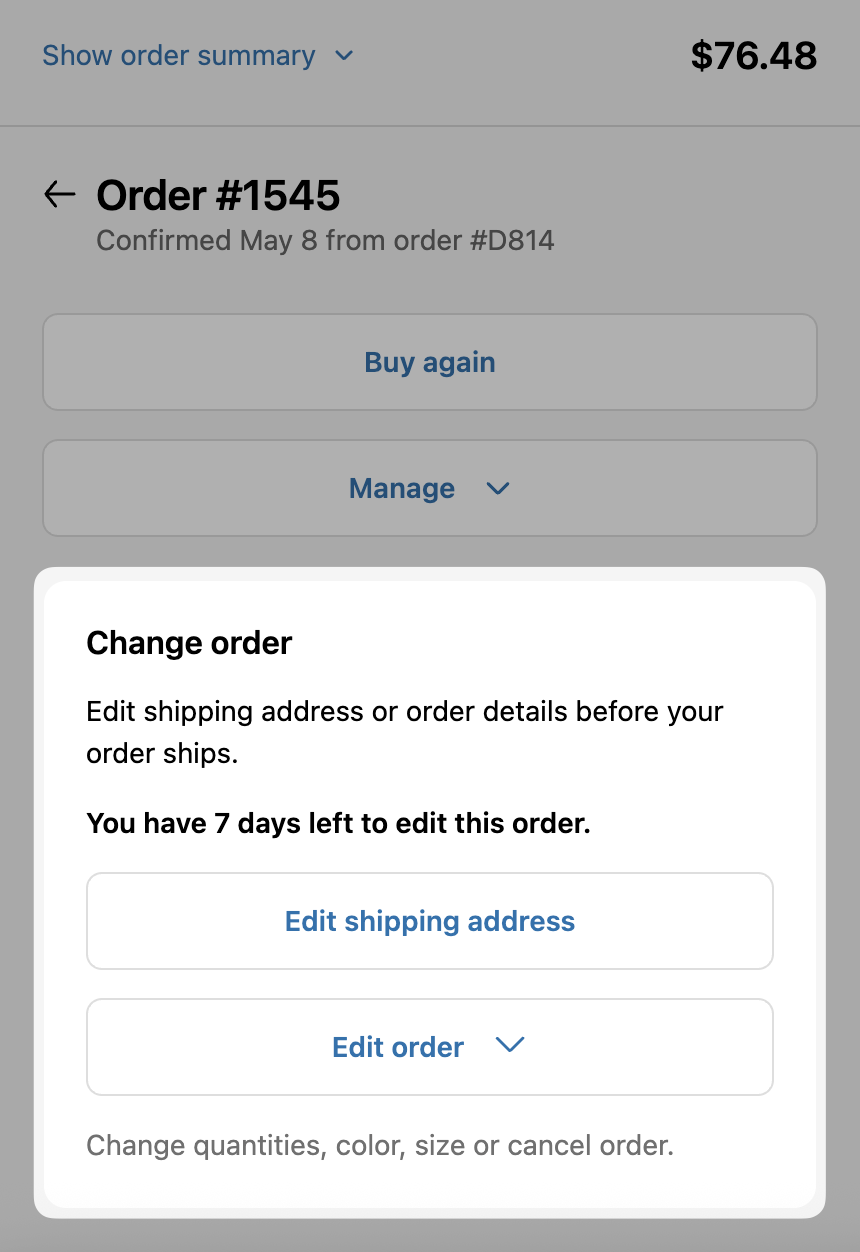
Q: How can I change my shipping address?
A: If your order hasn’t shipped yet, you can update your shipping address directly on your order status page. Click the View your order button in your order confirmation email. If changes are still allowed, you’ll see a Change Shipping Address button where you can update your information.
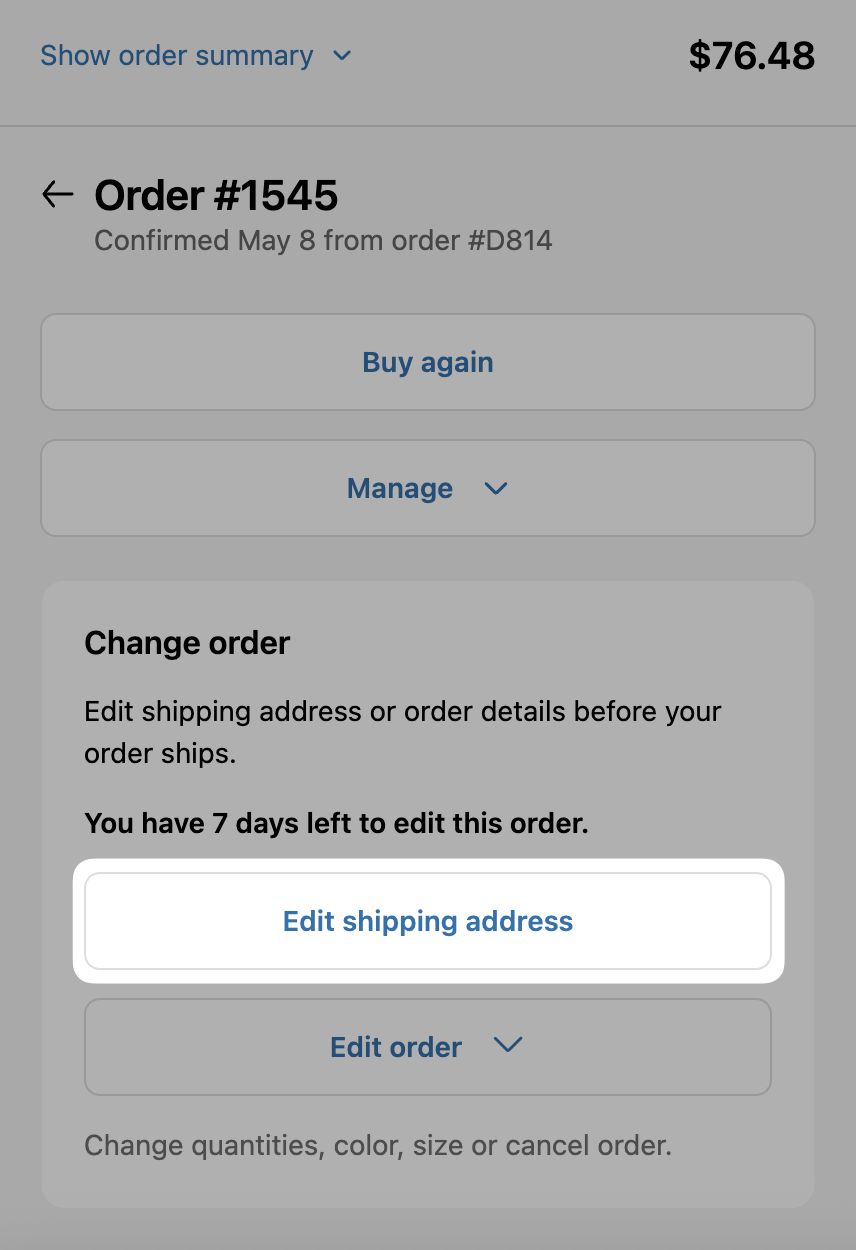
If you don’t see the option, your order may already be processing. In that case, please contact us as soon as possible.
Q: I ordered the wrong size/color. How can I change it?
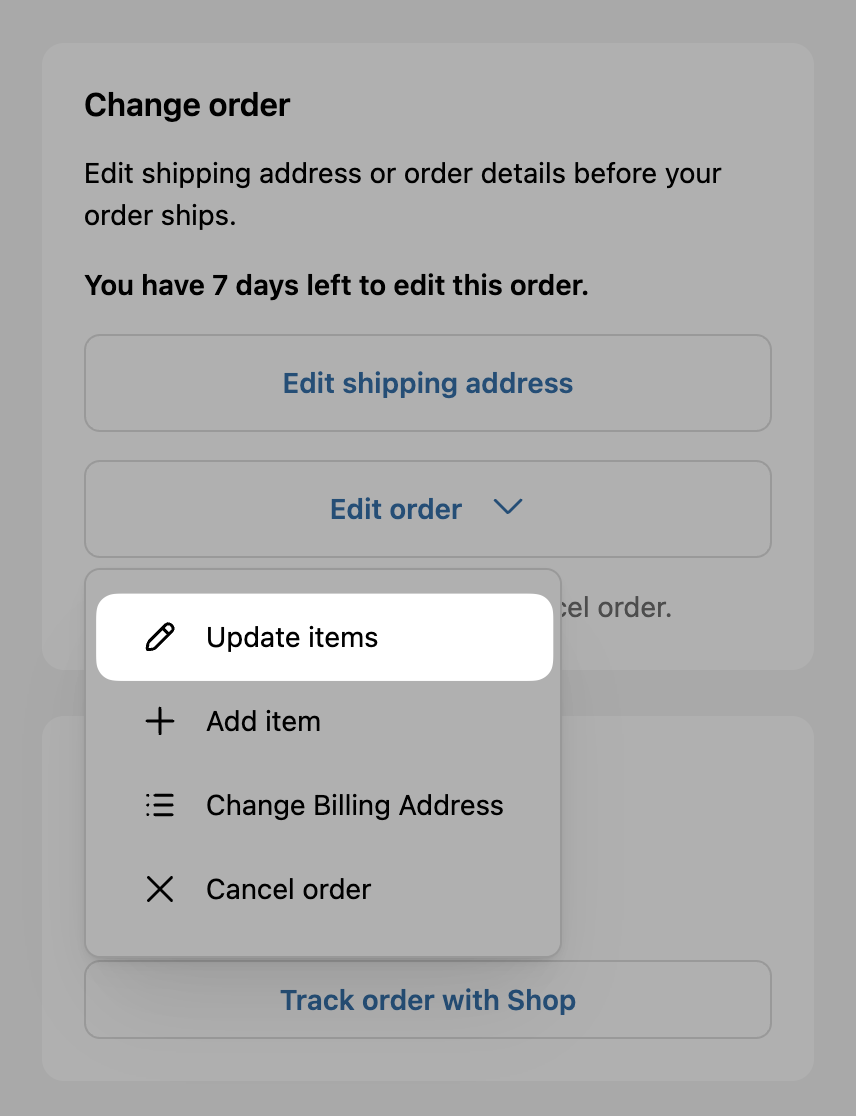
A: No worries—you can change the size or color of your item right from your order status page. Click View your order in your order confirmation email to make changes to your order. In the Change order section, select Update items, make your changes, and that’s it! You can update your order up until it has shipped, and as long as you're within the time window.
Q: I accidentally ordered the wrong item—what can I do?
A: Mistakes happen! Just go to your order confirmation email and click View your order. As long as your order hasn't shipped and you're still within the time window, you can make changes and swap the item. Just scroll to the Change order section and click Update items. Click Add item to add the correct item.
Q: I want to cancel my order. What should I do?
A: Open your confirmation email and click the View your order button. If cancellation is still available, you’ll see a Cancel Order button—click it to confirm.
If you don’t see that option, your order may already be processing. Please contact us as soon as possible.
Q: I forgot to add something to my order. Can I still add the item?
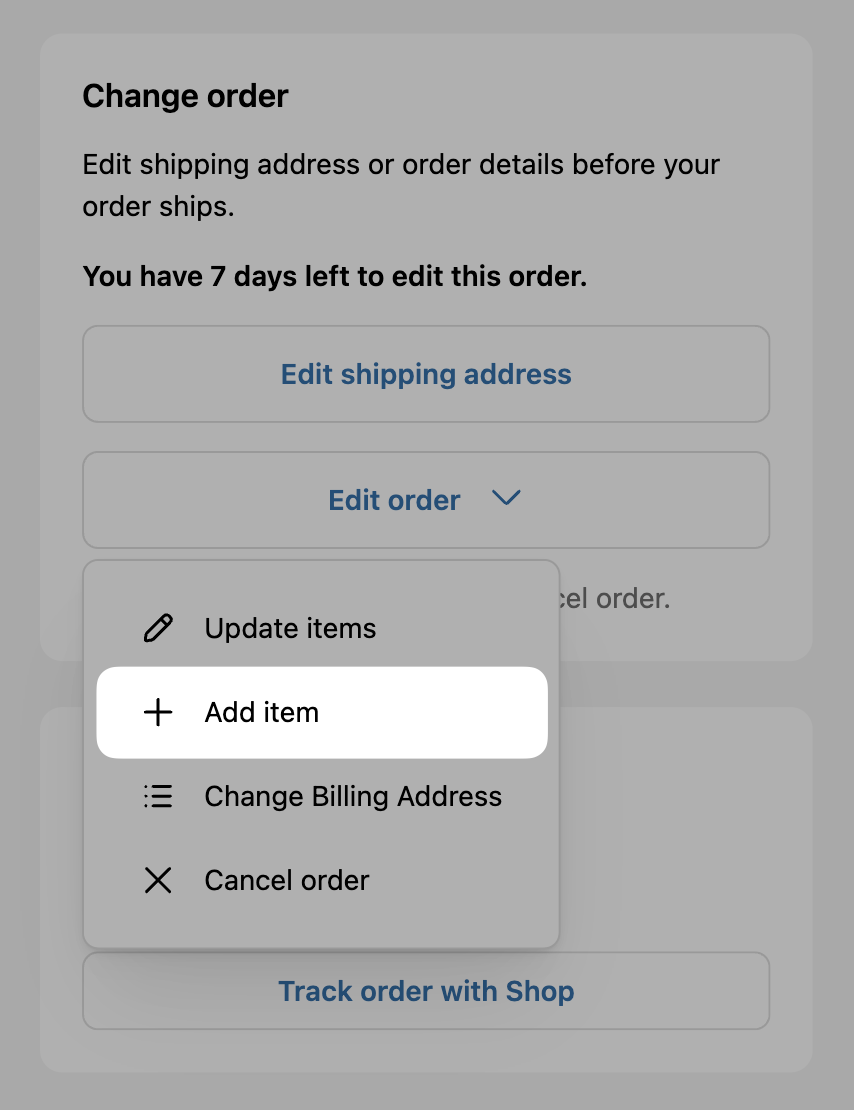
A: Absolutely! You have [Enter editing window duration] to add items to your order after it’s been placed. You just have to go to your order confirmation email and click the View your order button. In the Change order section, click Edit order and then + Add item.
Getting Help
We hope this template makes it easier to support your customers and reduce back-and-forth emails.
If you have any questions or need help customizing your setup, please feel free to reach out at support@cleverific.com