
Setting up Klaviyo with Cleverific
In Cleverific, you can connect Klaviyo to send automated notifications to customers when an order is placed, when the editing window is close to ending, or when there's an outstanding balance after edits. This integration allows you to build flows in Klaviyo using the events Cleverific sends when an order becomes editable or is close to no longer being editable.
Triggers available in Klaviyo
Order Edit Available
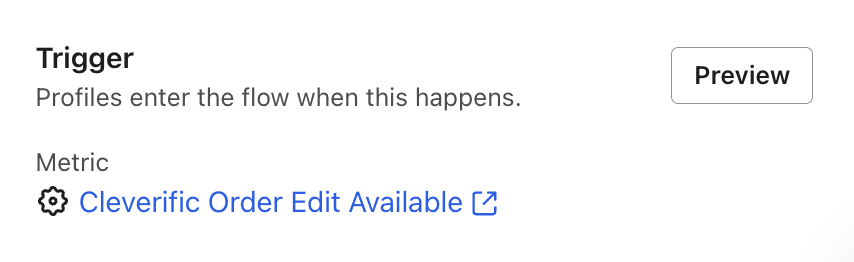
This event is sent as soon as the order is placed. Merchants often use it to notify customers that they can review and update their order during the edit window.
Order Edit Window Closing
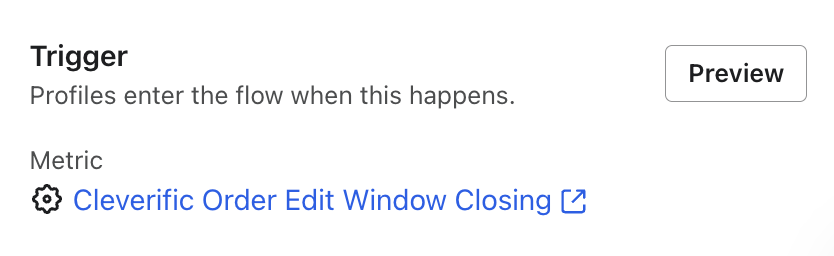
This event is sent 10 minutes before the customer’s edit window ends. It is sent only if the edit window is 20 minutes or longer. Cleverific checks every ten minutes for orders that qualify for the closing reminder. If the order has been cancelled or fulfilled, no notification is sent.
Order Balance Reminder

This event alerts customers 15 minutes before their order editing window closes when they have an outstanding balance from a Customer Portal edit request.
Set up Klaviyo with Cleverific
a. Connect Klaviyo in Cleverific
Steps
- From your Shopify admin, navigate to: Apps → Cleverific → Integrations → Klaviyo

- Click the Connect button and enter your Klaviyo login information
You should be able to connect/disconnect anytime.
b. Create your email templates in Klaviyo
Create these templates before building your flows so they’re ready to select.
Steps
- From your Klaviyo Dashboard, go to Content > Templates
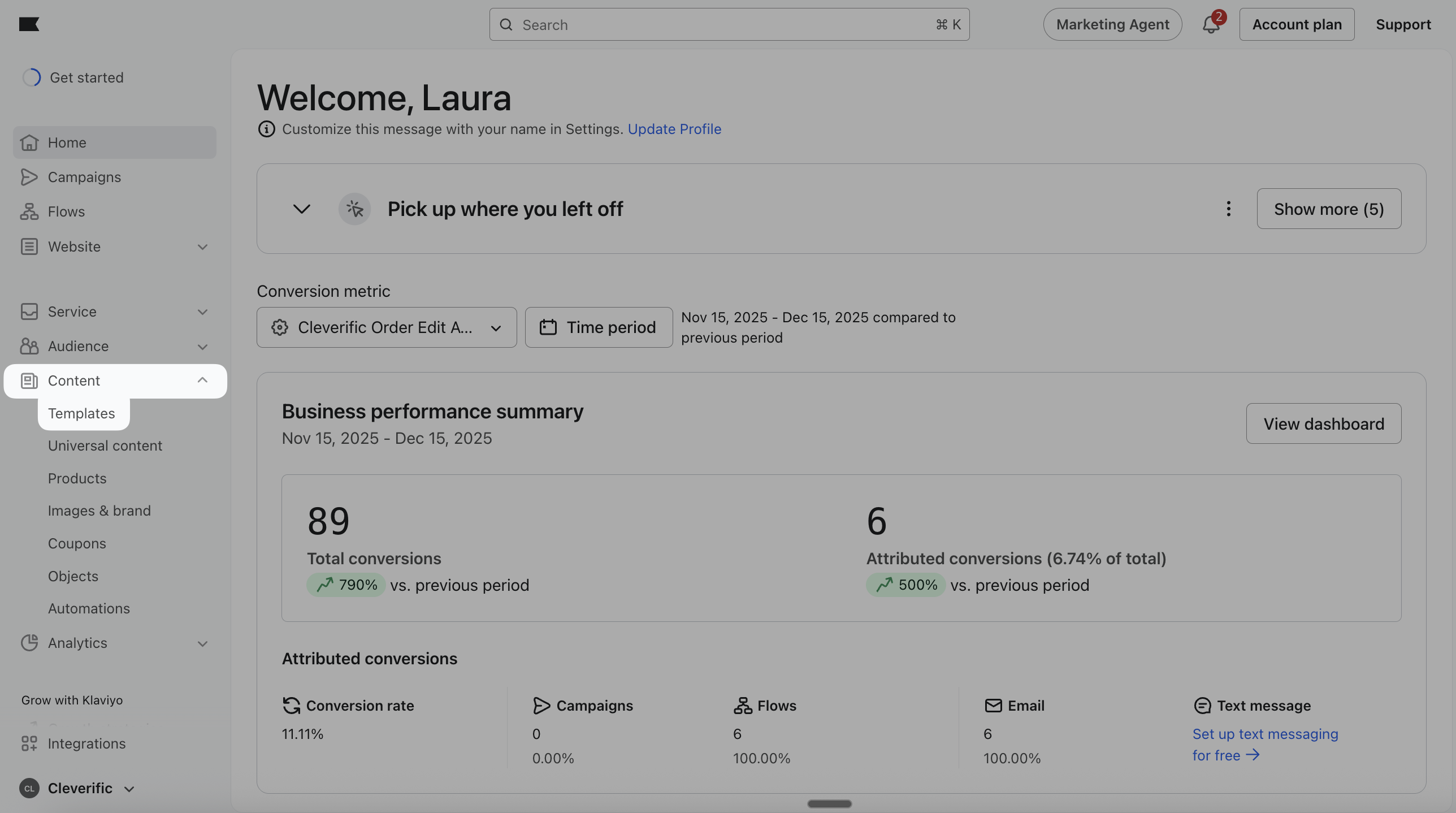
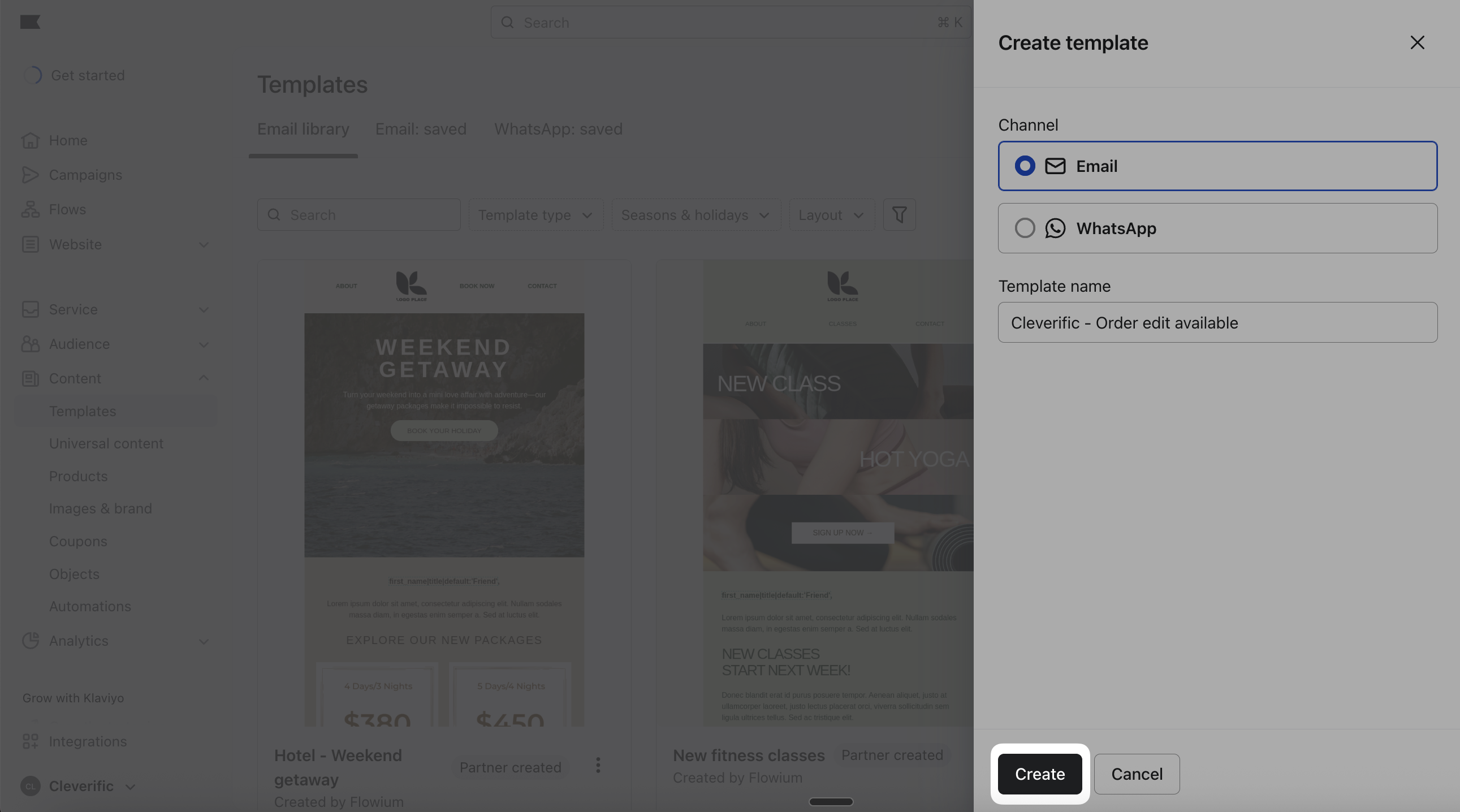
- Click Create.
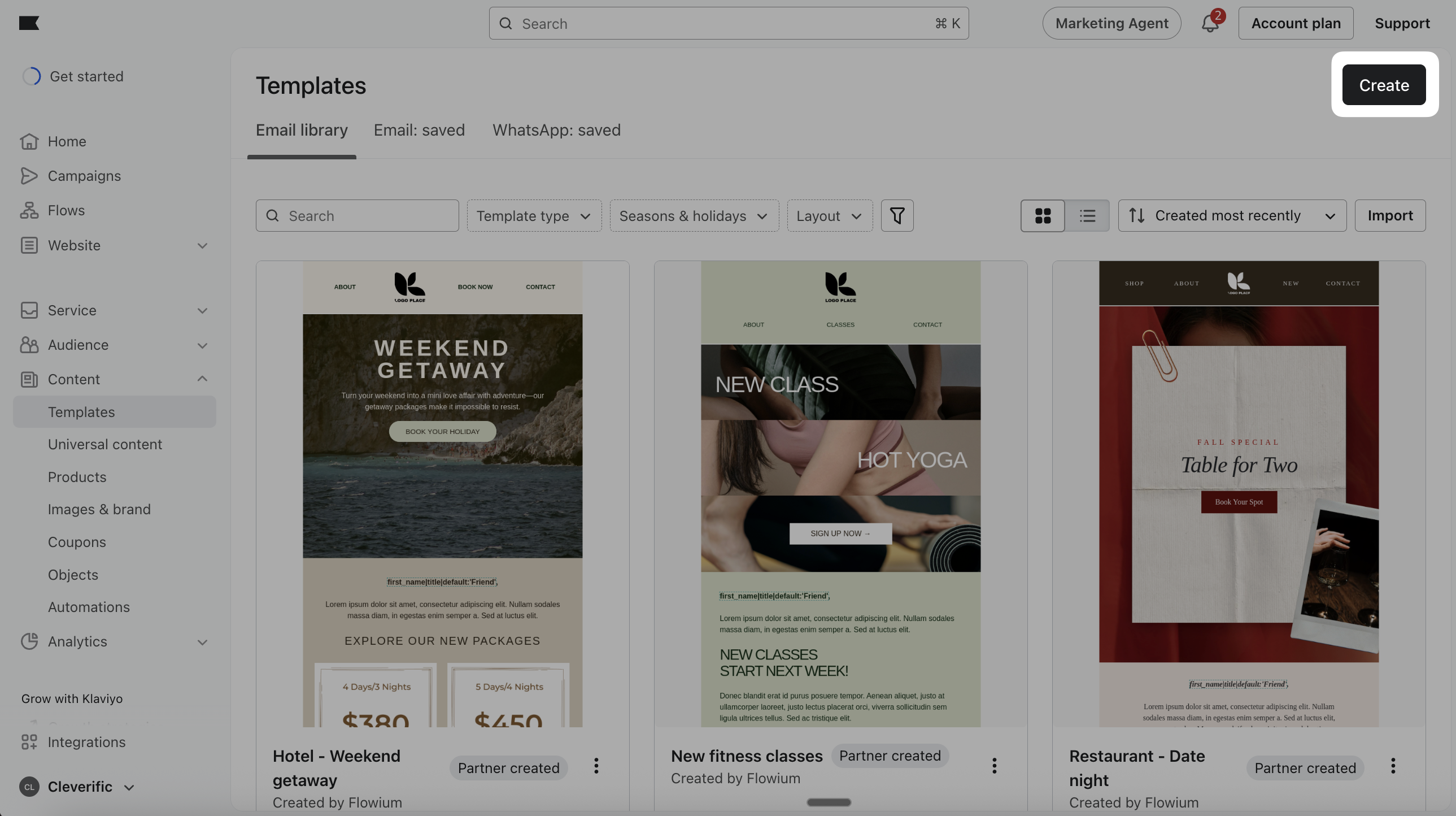
- Under Channel, select Email, name the Template, and click Create.
- Customize your template by dragging blocks.
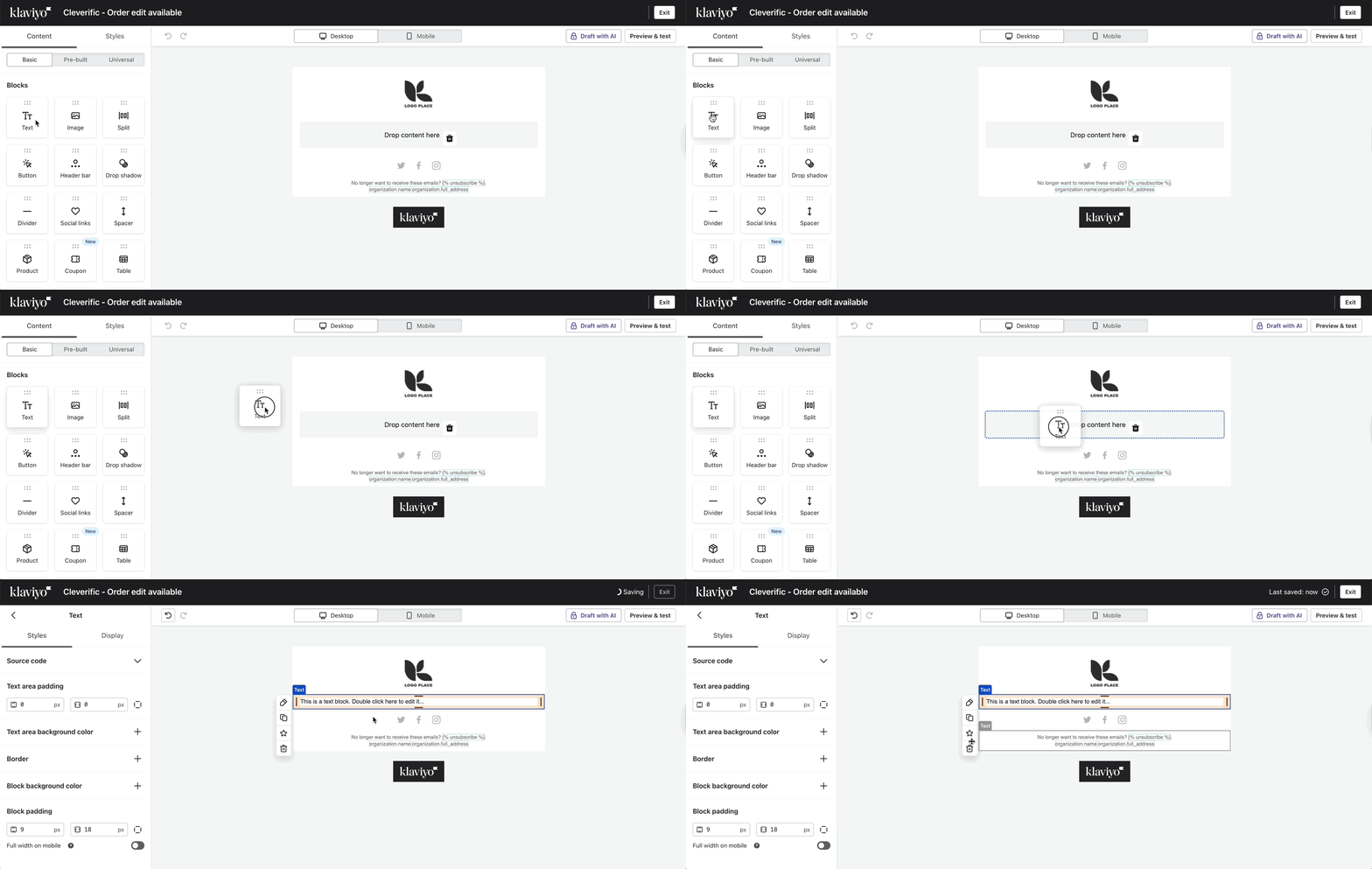
Your changes are automatically saved.
- Click Exit when you're done.
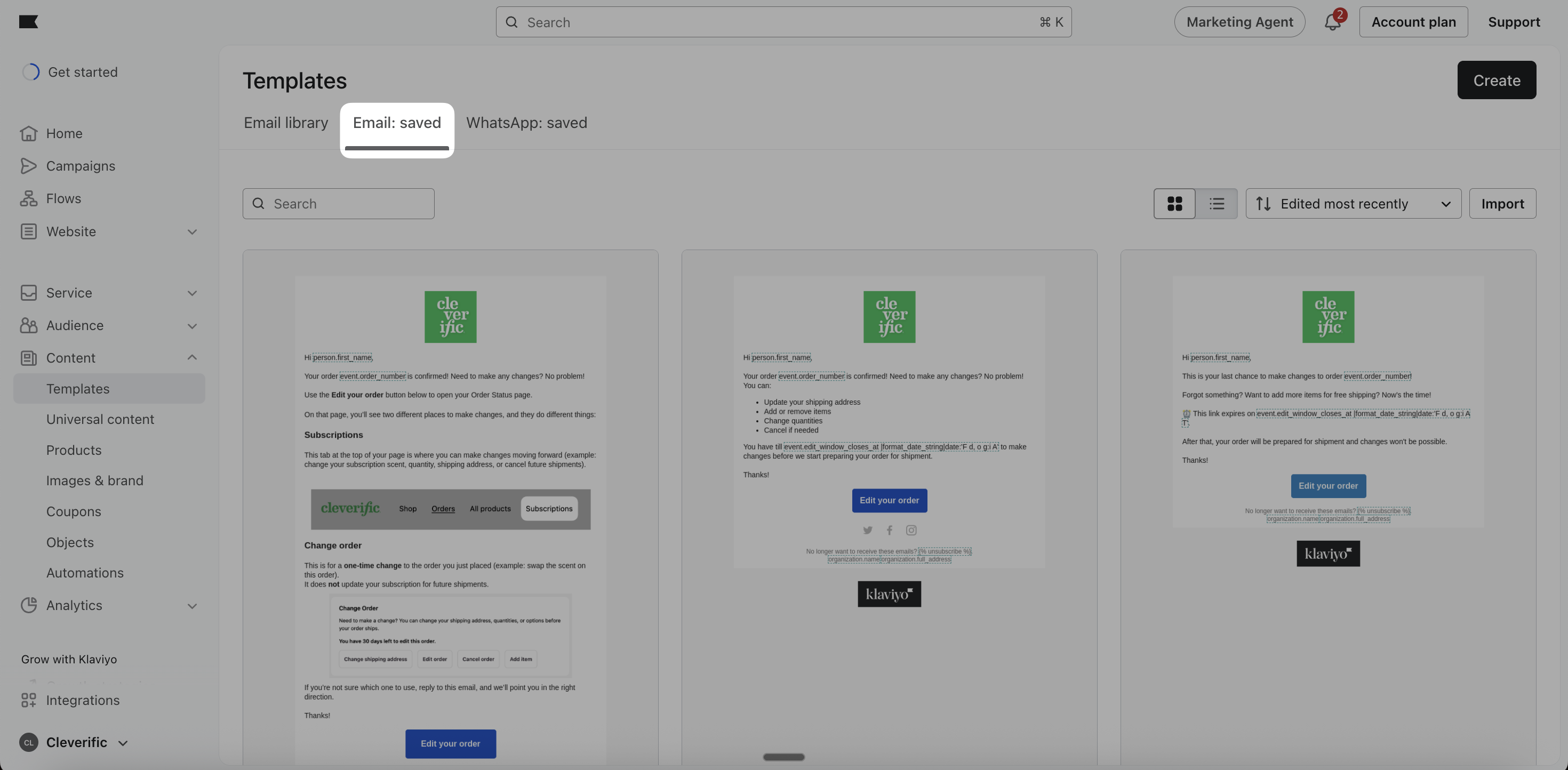
- Your newly created email template will appear under Email: saved.
Email template 1: Cleverific Order Edit Available
This email is sent immediately after an order is placed to confirm the order and explain the editing window.
Subject: ✓ Order Confirmed – Need to Make Changes?

Email body:
Hi {{ person.first_name }},
Your order {{ event.order_number }} is confirmed.
Need to make a one-time change to this order? You can edit it directly from your order status page to:
- Update your shipping address
- Add or remove items
- Change quantities
- Cancel if needed
You can make changes until {{ event.edit_window_closes_at | format_date_string | date:'F d, Y g:i A' }}.
Thanks,
Button: Edit your order
Link: {{ event.edit_link }}
Email template 2: Cleverific Order Edit Window Closing
This email is sent 10 minutes before the editing window expires as a final reminder.
Subject: ⏰ Last chance to edit your order {{ event.order_number }}

Email body:
Hi {{ person.first_name }},
This is a quick reminder that your edit window for order {{ event.order_number }} is about to close.
If you need to make a final one-time change, now is the time.
⏰ This link expires on {{ event.edit_window_closes_at | format_date_string | date:'F d, Y g:i A' }}.
Thanks,
Button: Edit your order Link: {{ event.edit_link }}
Email template 3: Cleverific Order Balance Reminder
Subject: ⏰ Order {{ event.order_number }}: Payment of {{ event.outstanding_balance_formatted }} is due.

Email body:
Hi {{ person.first_name }},

This is a reminder that your payment of {{ event.outstanding_balance_formatted }} for order {{ event.order_number }} is due to complete your order.

Thanks,

Button: Pay Now Link: {{ event.checkout_link }}
You can fully customize these emails inside Klaviyo at all times.
Create your flows in Klaviyo
Steps
Flow #1: Order Edit Available
- From your Klaviyo dashboard, select Flows > Create flow > Build your own
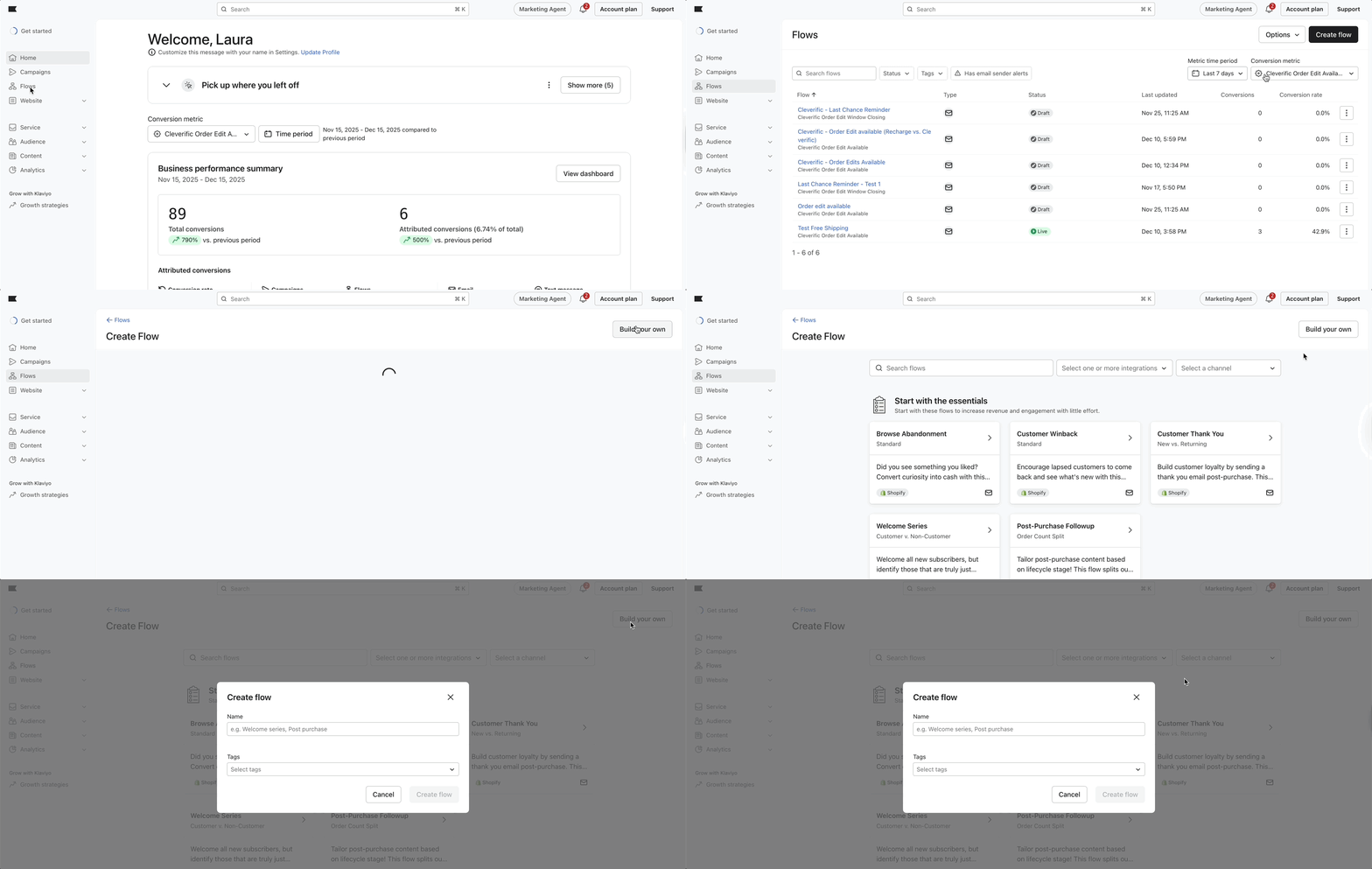
- Name your flow, add any tags if necessary, and click Create flow.
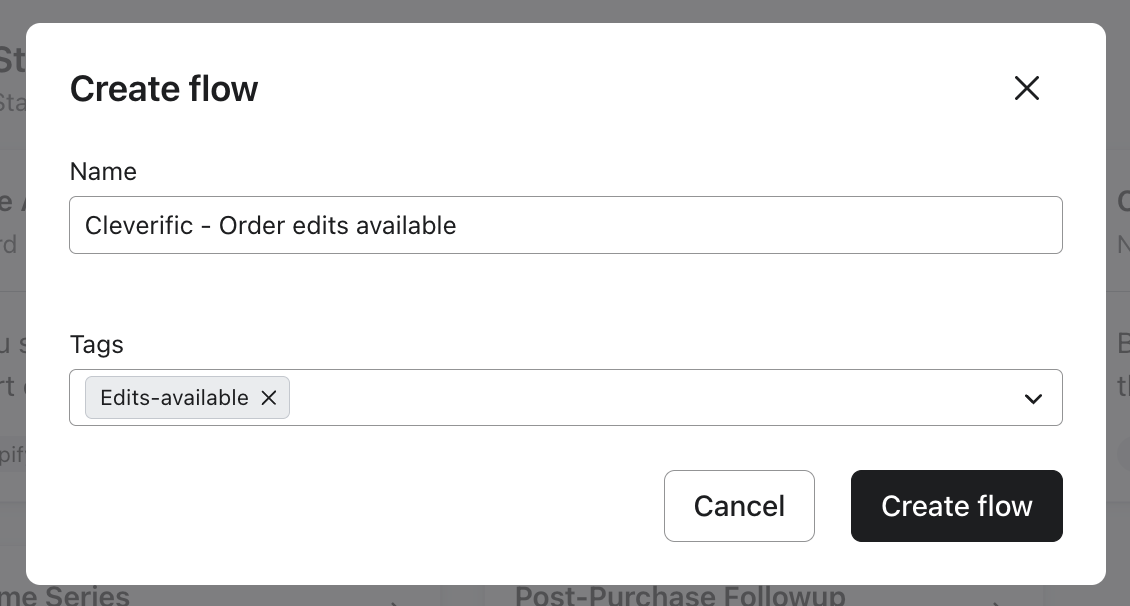
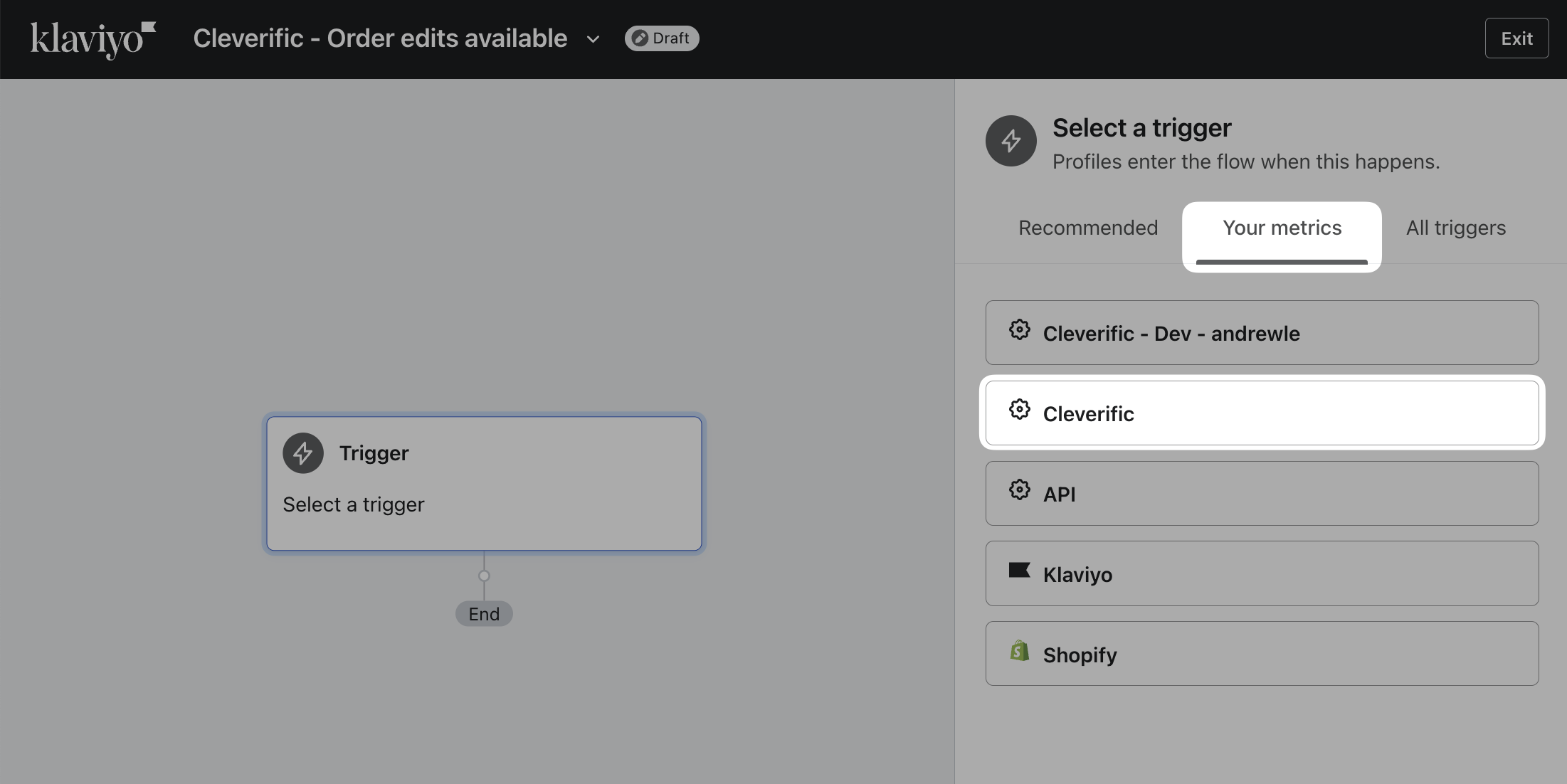
- Select Your metrics > Cleverific
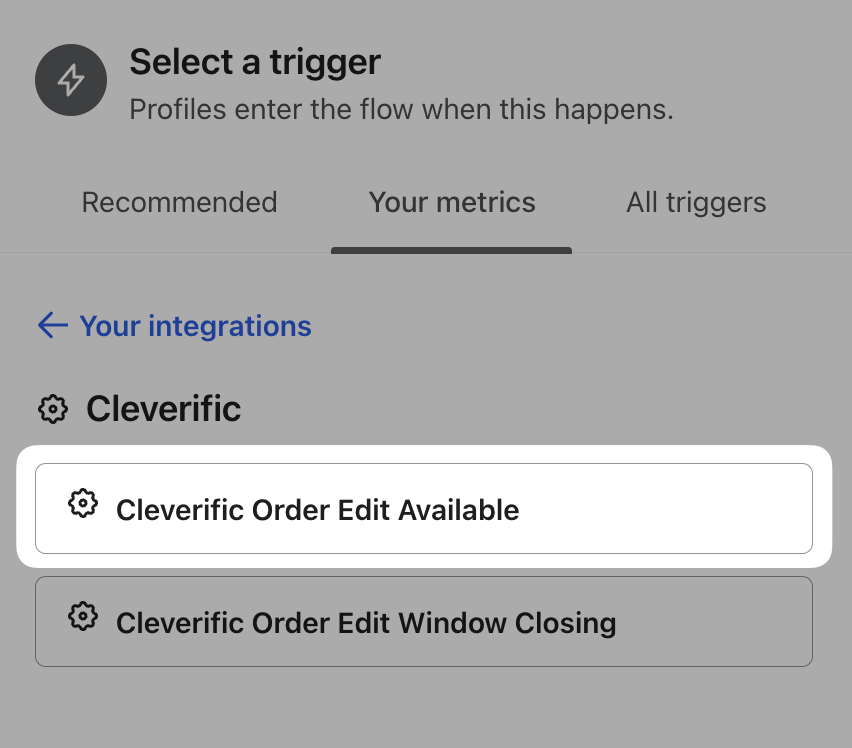
- Select Cleverific Order Edit Available
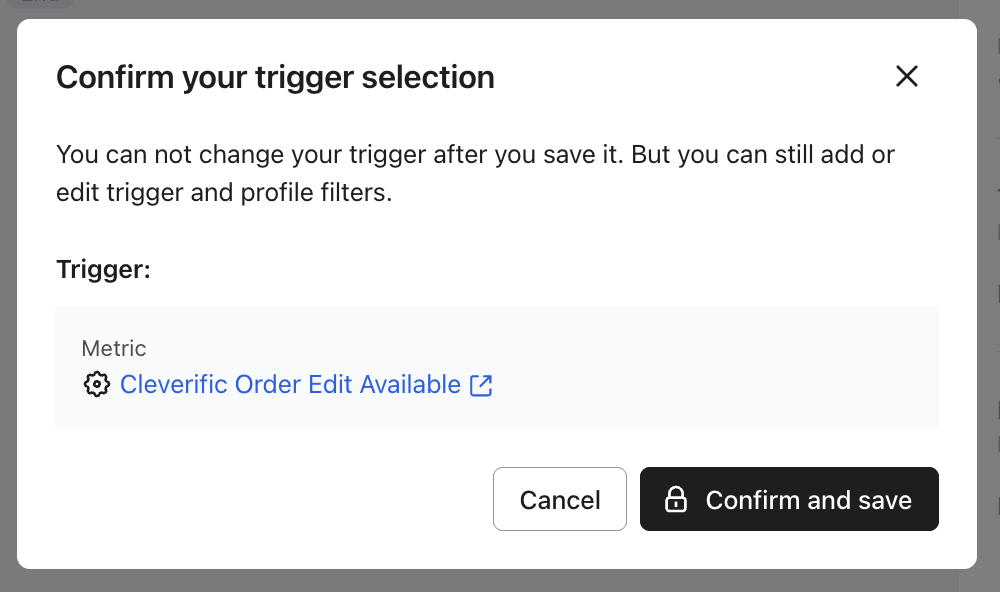
- Click Save.
- On the Confirm your trigger selection, click Confirm and Save.
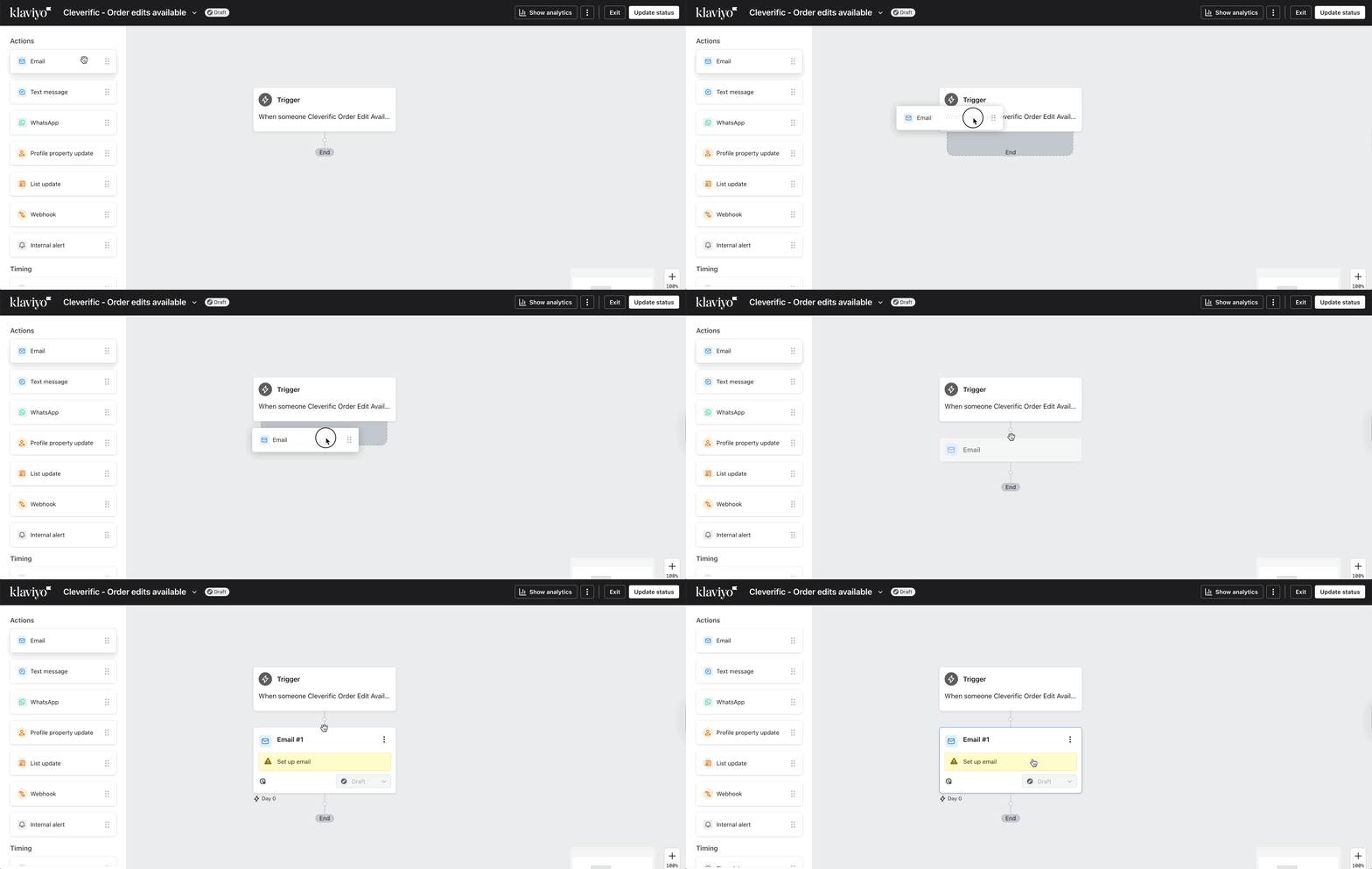
- In the left Actions column, drag the Email block and place it under the Trigger block
- Select the Cleverific Order Edit Available email template you created in the previous steps.
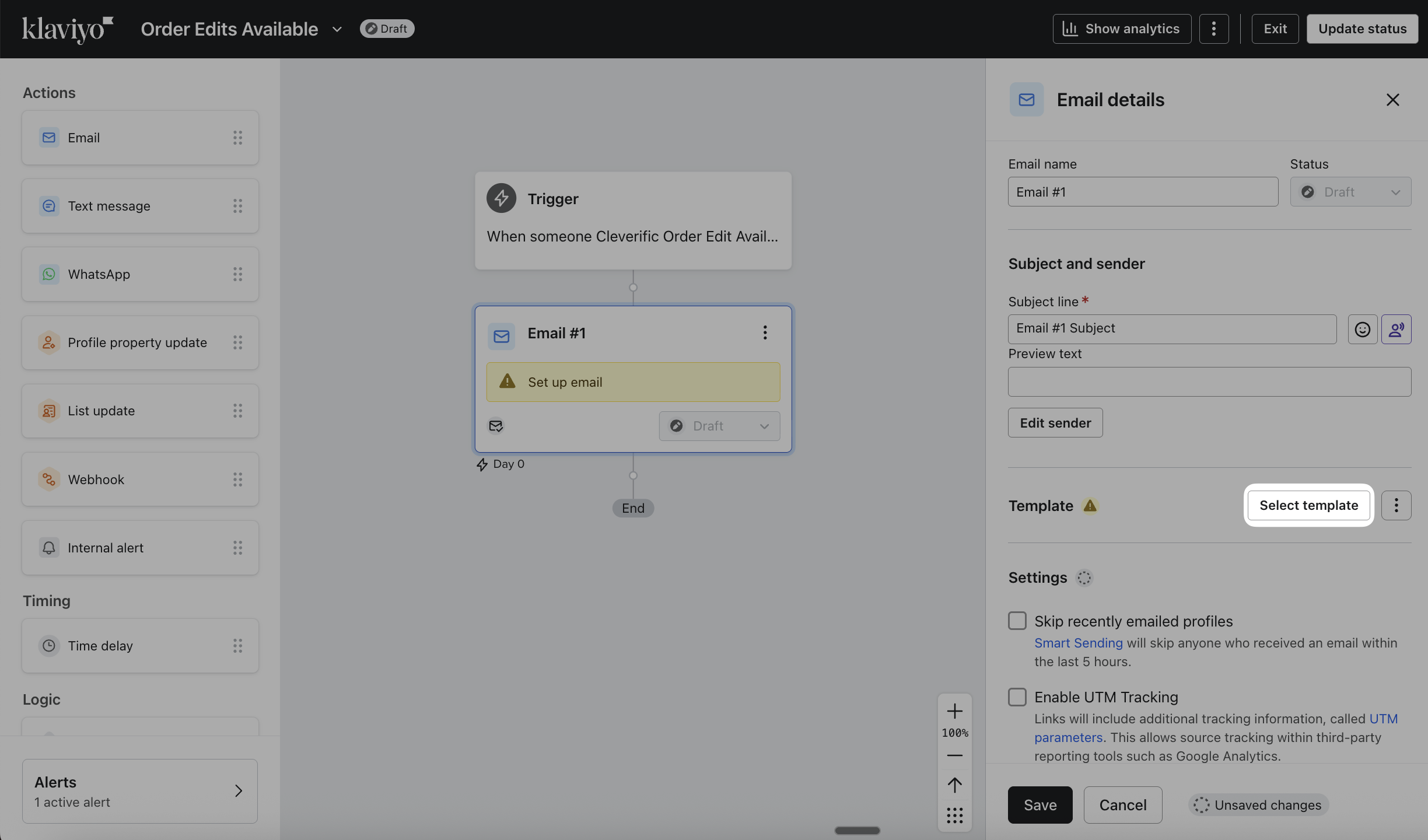
- You can edit this template if needed. The edits made won’t apply to your original default template but only to this Flow.
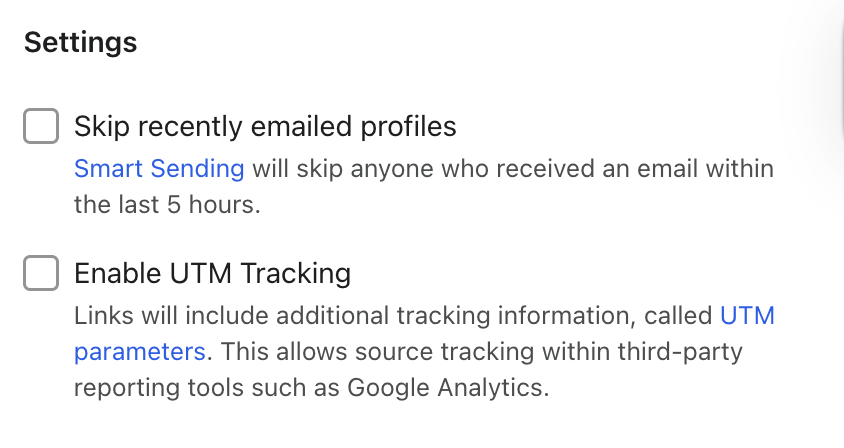
- In the Settings section, disable Skip recently emailed profiles
- Click Save.
- Click Review and Turn on by setting the flow live.
Flow #2: Order Edit Window Closing Soon
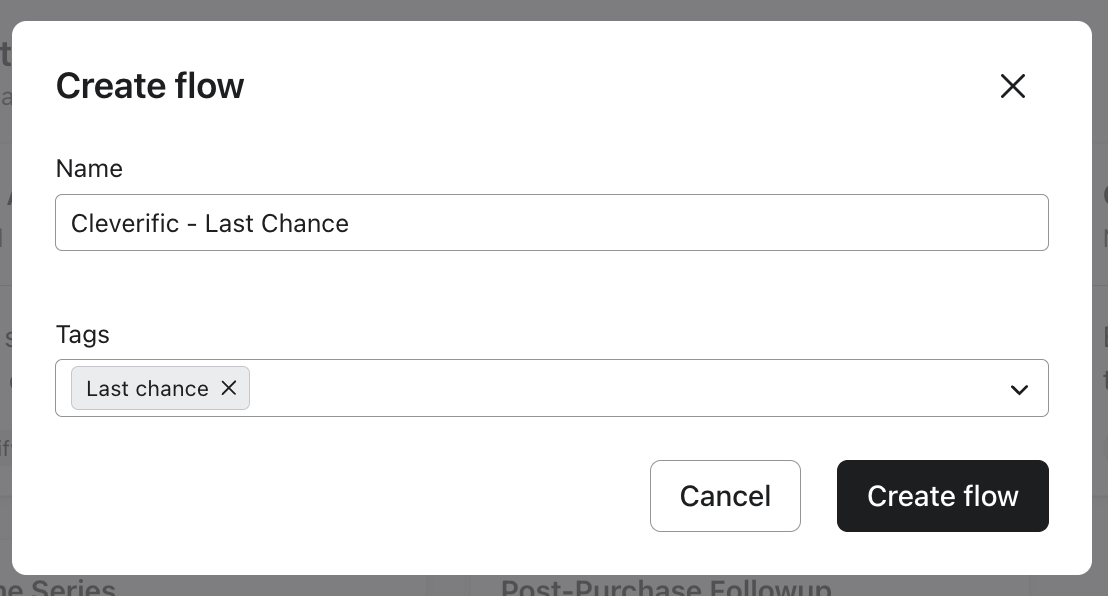
- From your Klaviyo dashboard, select Flows > Create flow > Build your own
- Name your flow, add any tags if necessary, and click Create flow.
- Select Your metrics > Cleverific
- Select Cleverific Order Edit Window Closing
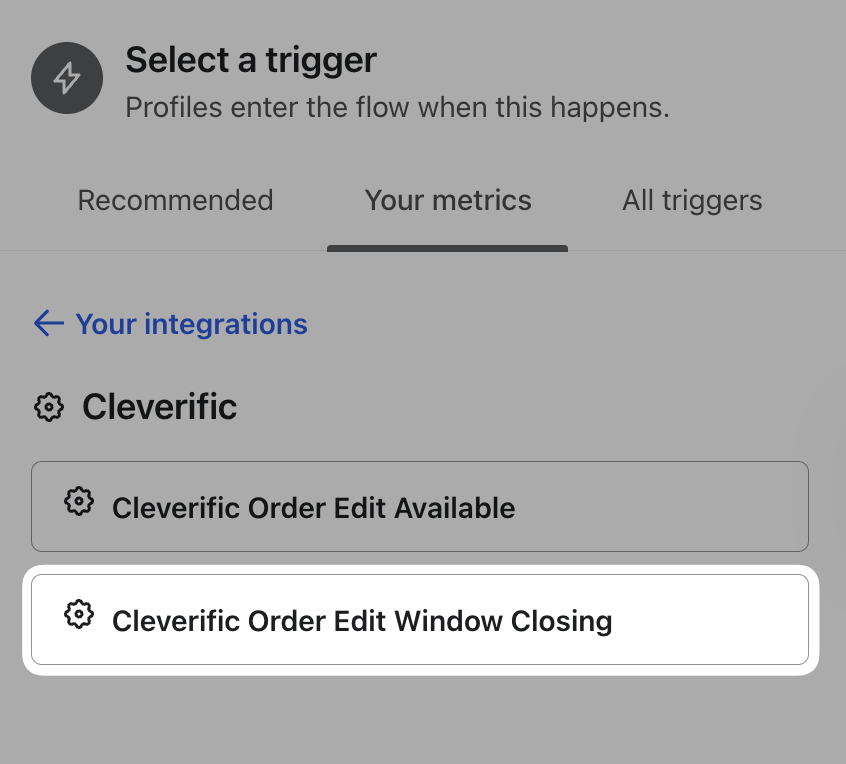
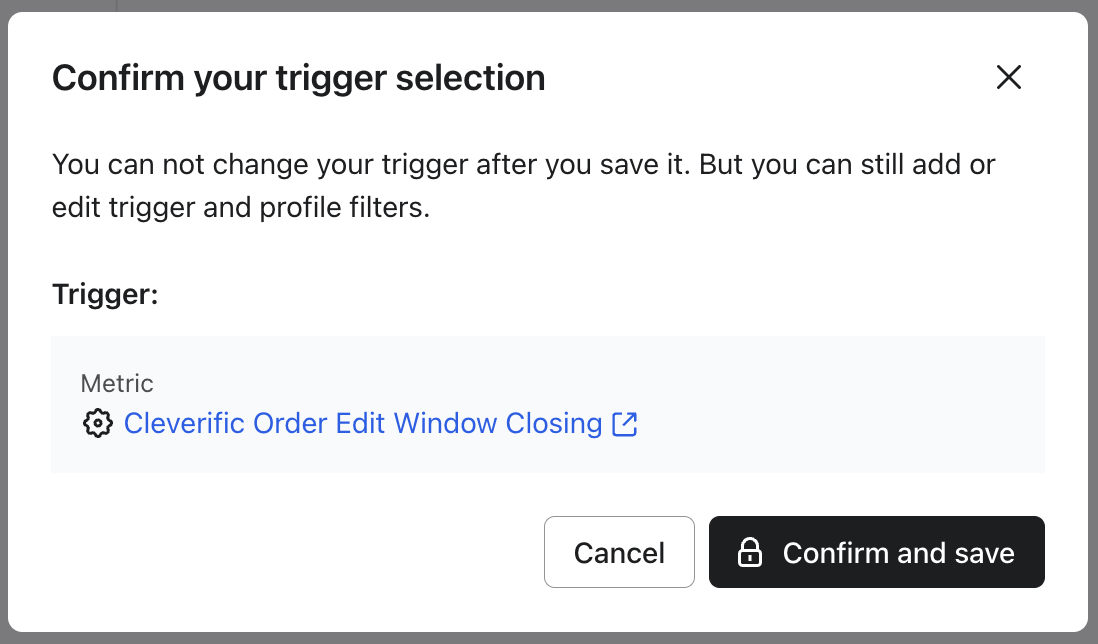
- Click Save.
- On the Confirm your trigger selection, click Confirm and Save.
- In the left Actions column, drag the Email block and place it underneath the Trigger block
- Click Select Template and select the Cleverific Order Edit Window Closing template you created in the previous steps under email:saved.
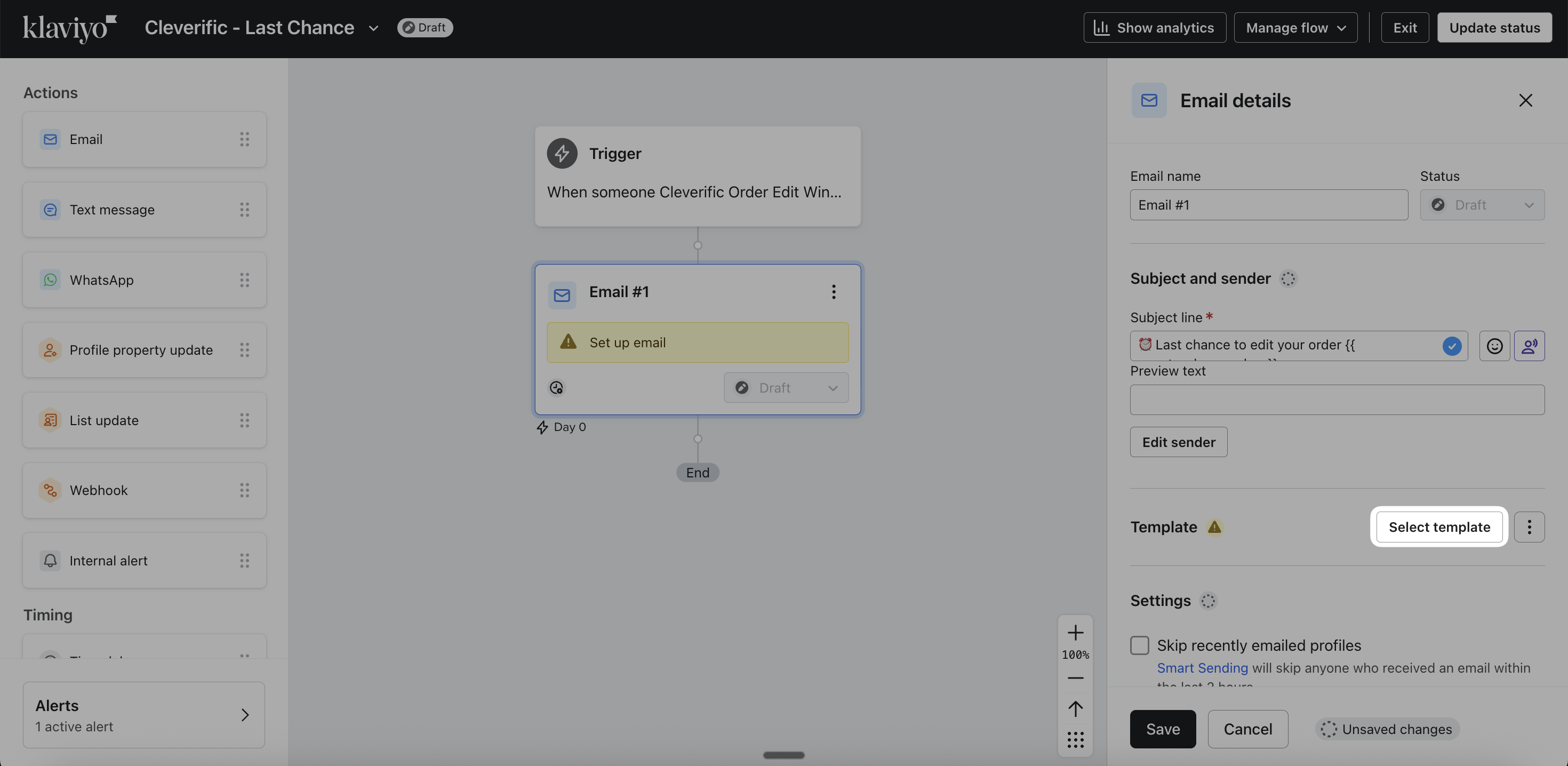
- You can edit this template if needed. The edits made won’t apply to your original default template but only to this Flow.
- In the Settings section, disable Skip recently emailed profiles and enable UTM Tracking
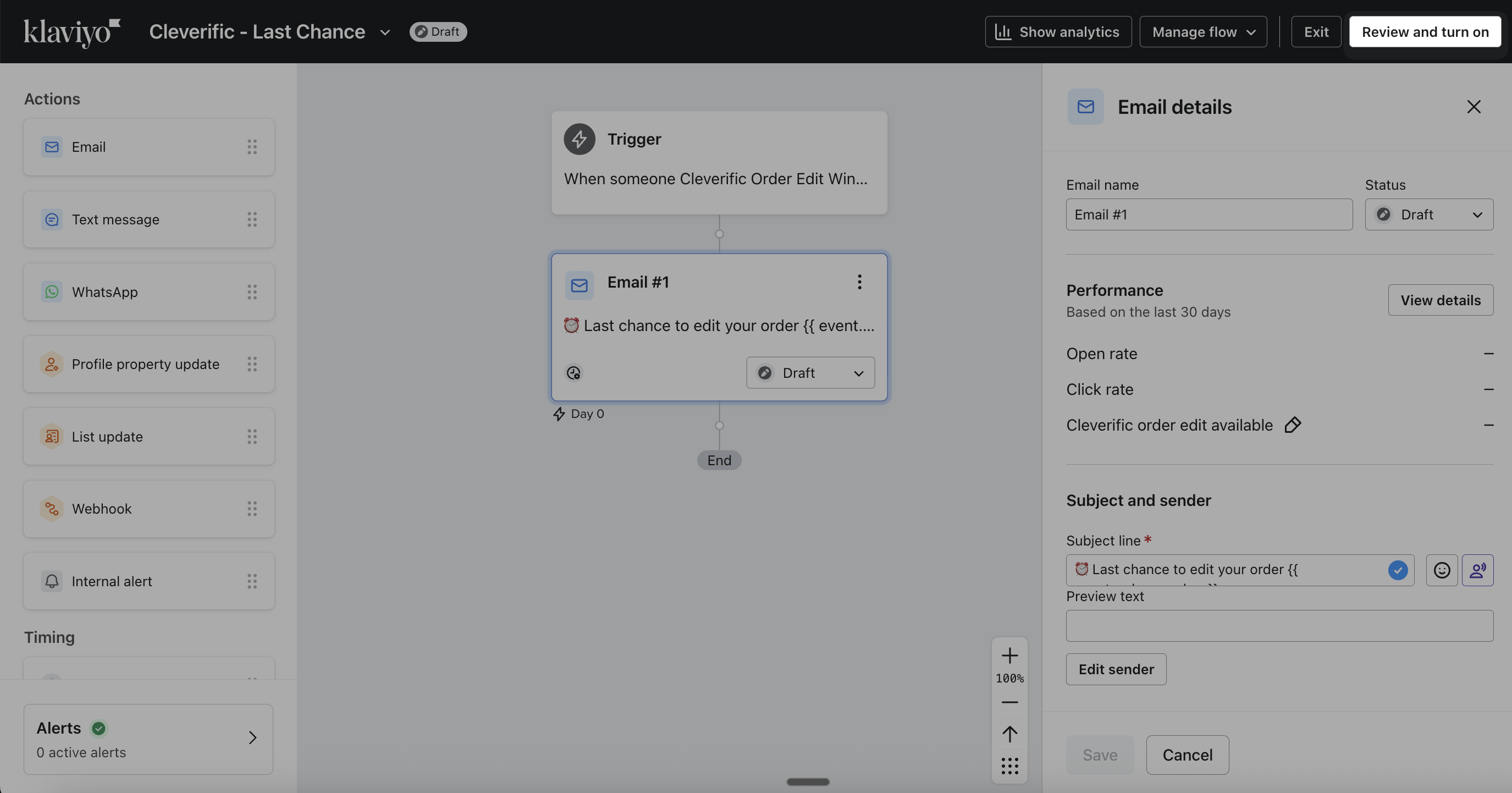
- Click Save.
- Click Review and Turn on by setting the flow live.
Tips
- All email templates can be fully customized in Klaviyo to match your brand voice, tone, and design.
- You can adjust subject lines, copy, buttons, colors, and layout without affecting Cleverific’s functionality.
- Any changes you make to the templates apply only to the Klaviyo flow using them and won’t impact other emails in your account.
- You can also use the Cleverific Order Edit Available trigger to set clear expectations in your email copy, so customers understand the difference between one-time order edits and subscription management:
- Edits made through Cleverific’s Customer Portal (from the Order Status Page) apply only to the order that was just placed
- Changes to an ongoing subscription (future shipments, subscription details, etc.) should be made through your subscription portal, for example Recharge Customer Portal
If you’d like help reviewing your copy or testing your flows, please feel free to reach out at support@cleverific.com, we’re happy to help!