
Setting up a post-purchase offer with Cleverific
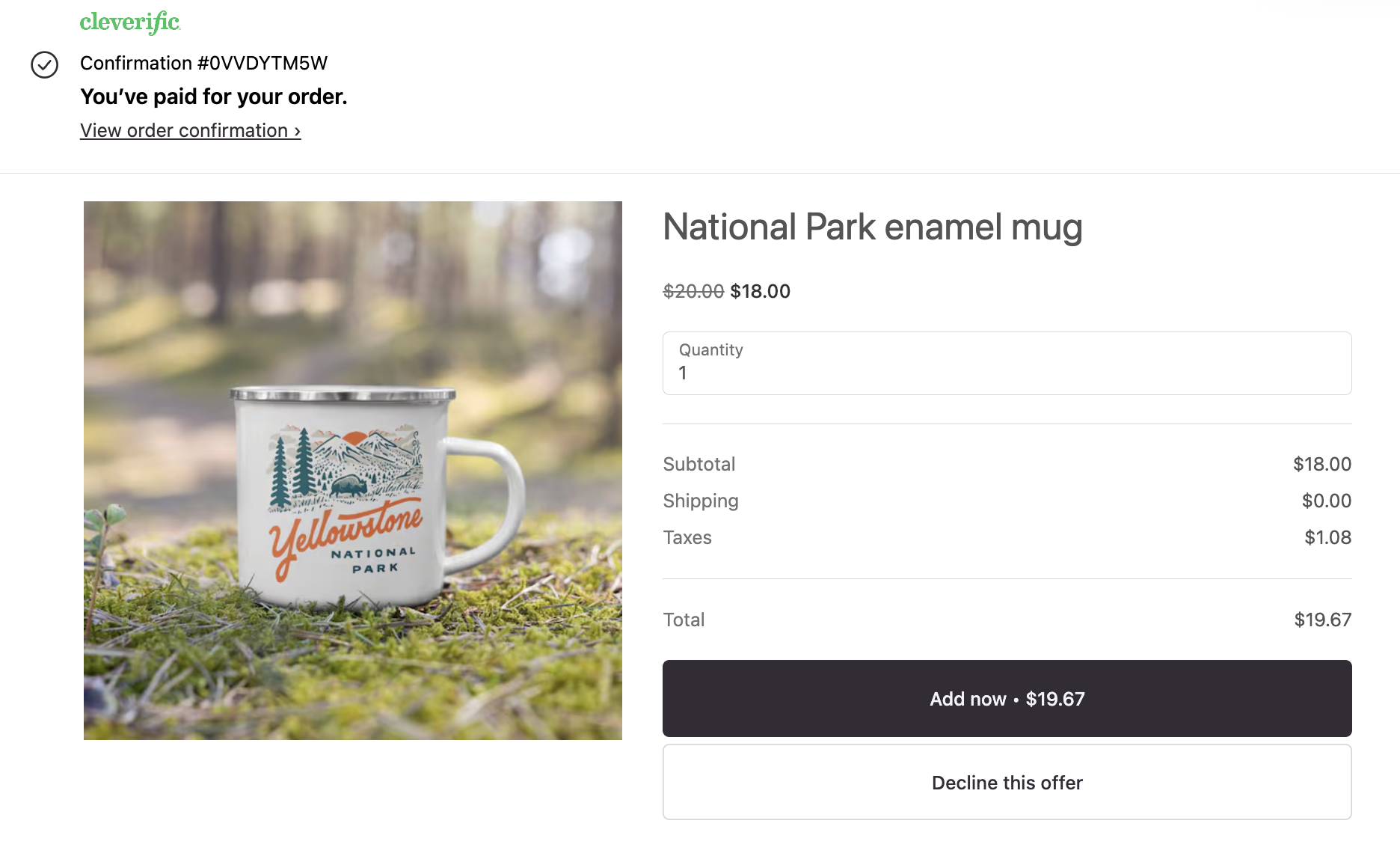
Post-purchase offers appear immediately after checkout, before the Thank you page. This is a powerful moment to offer customers relevant products while they're still in a buying mindset. This article will show you how to set this up with Cleverific.
Requirements
To display a post-purchase offer, make sure all of the following are in place:
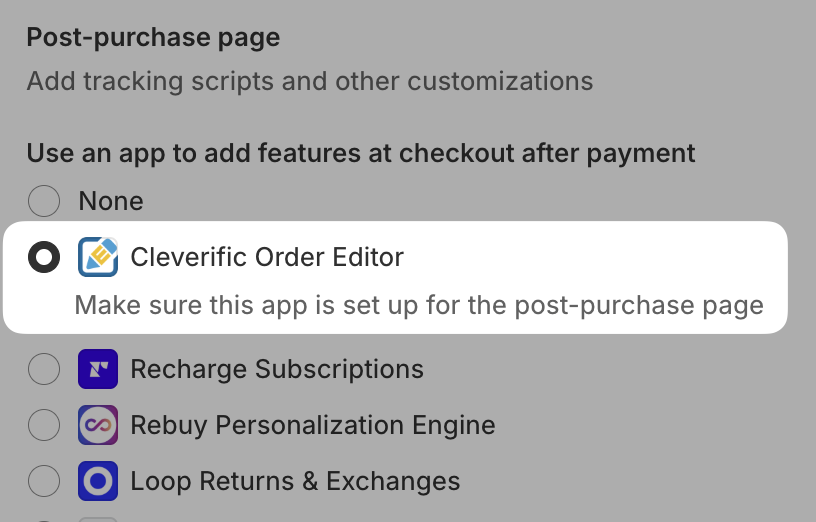
- In your Shopify admin, go to Settings > Checkout, scroll to the Post-purchase page section, and select Cleverific Order Editor.
- In Cleverific Order Editor > Upsells, create a new campaign with at least one post-purchase offer.
- Make sure your Upsell campaign is Active.
How post-purchase offers work
When a customer completes checkout, the post purchase offer is displayed before they reach the Thank You page.
Order hold
The order's fulfillment status is temporarily set to On hold while the offer is displayed. The order can't be fulfilled until the hold is released.
Customer experience
Customers can add or decline each offer. Once they've made a selection, they're automatically redirected to the Thank You page.
Inactivity on the post-purchase page
If a customer closes the page without accepting or declining the offer, Shopify holds the order for up to 60 minutes, then automatically releases the hold.
Payment
Customers' payment details are vaulted during this process, so any accepted offer is charged automatically without requiring them to re-enter their card information.
Create a new campaign
Set up your campaign
- From your Shopify admin, go to Apps > Cleverific Order Editor.
- Click Upsells.
- In your Upsell Campaigns dashboard, click +Create Campaign.
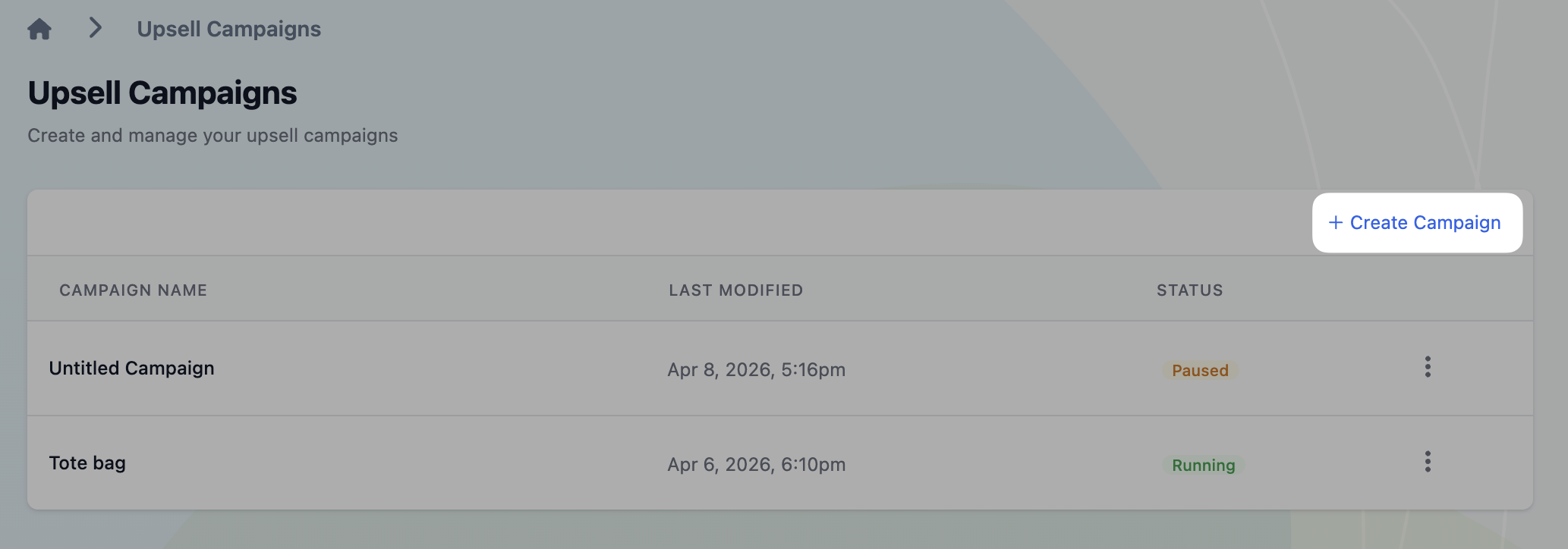
- Name your campaign by clicking Untitled Campaign.
Add a trigger (optional)
If you'd like the offer to appear only when specific products are purchased, click Select Product and choose your trigger product(s). If you skip this step, the campaign will display for every order.

Add your offer
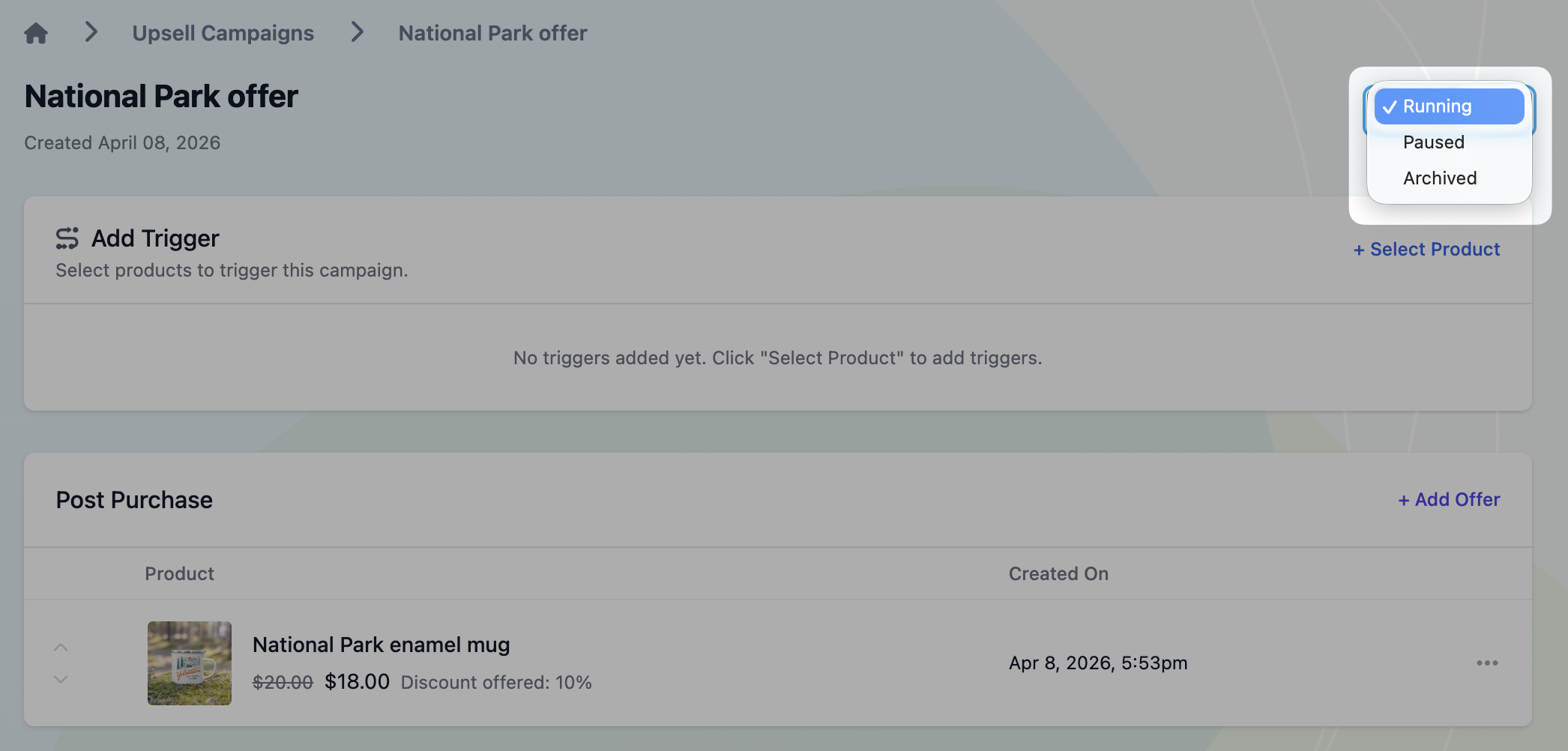
- Under the Post Purchase section, click + Add Offer and select the product you'd like to upsell.

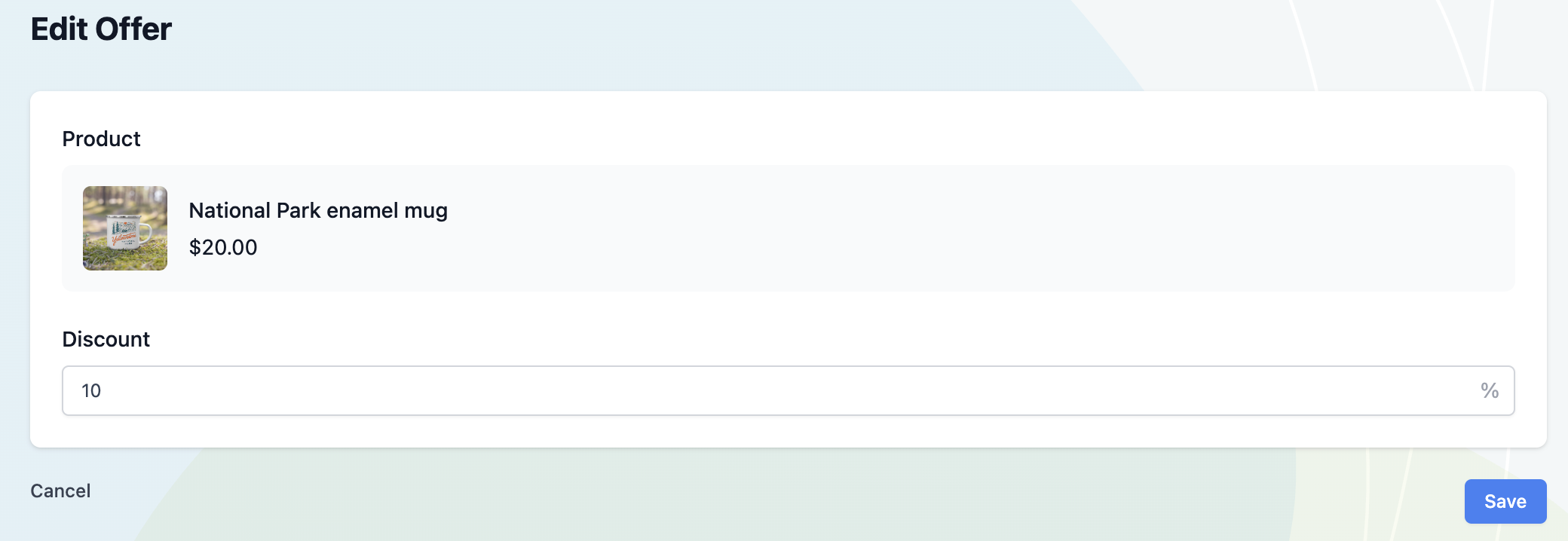
- To add a discount, click the three dots next to the offer and select Edit.

- Enter the % discount amount and click Save.
- When your offer is ready, change the campaign status from Paused to Running in the top right corner.
Limitations
Due to Shopify API limitations, post-purchase offers won't display in the following situations:
- Non-online checkouts. The order must be placed via Shopify's online checkout for the post-purchase page to appear.
- Multicurrency orders. Orders placed in a currency other than your store's currency, or orders with duties, won't show the post-purchase page.
- Local delivery orders.
- Accelerated payments. Orders paid with Shop Pay, Apple Pay, or Google Pay won't trigger the post-purchase page.
- Local payment methods and installment-based gateways.
- Subscription products.
Shopify reference article about these limitations
Any questions? Drop us a line at support@cleverific.com.