
Setting up upsell offers with Cleverific
Cleverific can display upsell product suggestions on the Order Status page, giving customers an easy way to add more to their order. This article will show you how to set this up.
How upsell offers work
Where offers appear
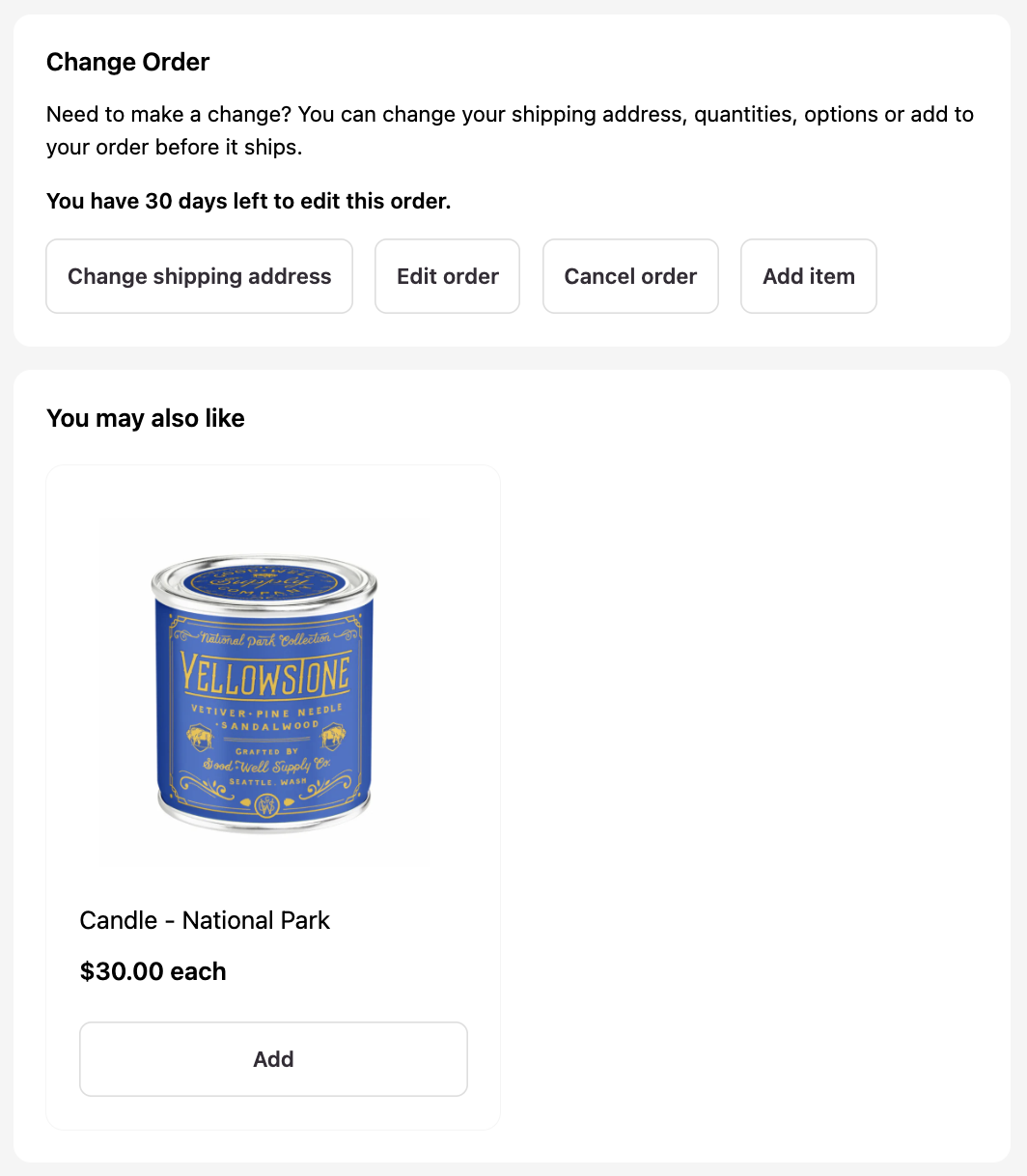
Upsell products are displayed on the Order Status page under a "You may also like" section. Customers need to be logged in via Shopify's passwordless experience for this section to appear, and you'll need to have the Change Order Block extension installed.
What's included
Products already in the customer's order are automatically excluded from the upsell block, so only new suggestions are shown.
Number of products
You can add up to 12 upsell products. Each will be randomly displayed in the upsell block.
Requirement
You'll need to set up Customer Portal's Change Order Block in your Shopify Checkout editor before using the Upsells feature. Learn how to set up the Change Order Block.
Set up an upsell offer
Set up your campaign
- From your Shopify admin, go to Apps > Cleverific Order Editor.
- Click Upsells.
- In your Upsell Campaigns dashboard, click + Create Campaign.
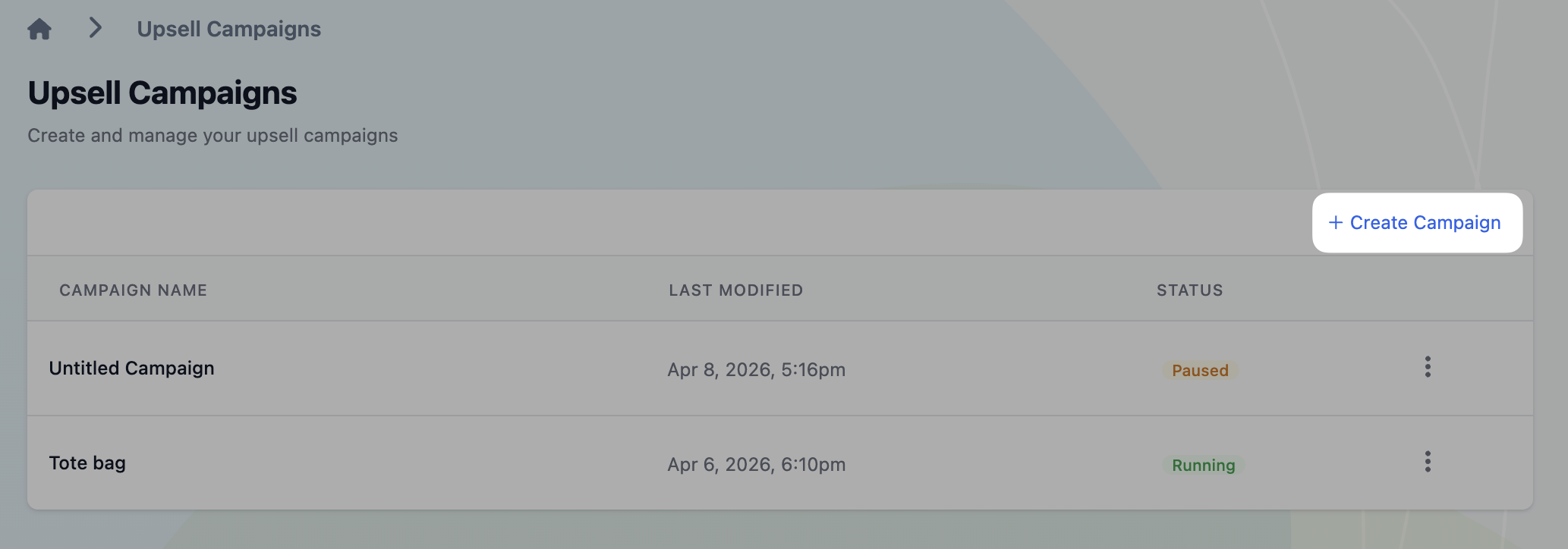
- Name your campaign by clicking Untitled Campaign.
Add a trigger (optional)
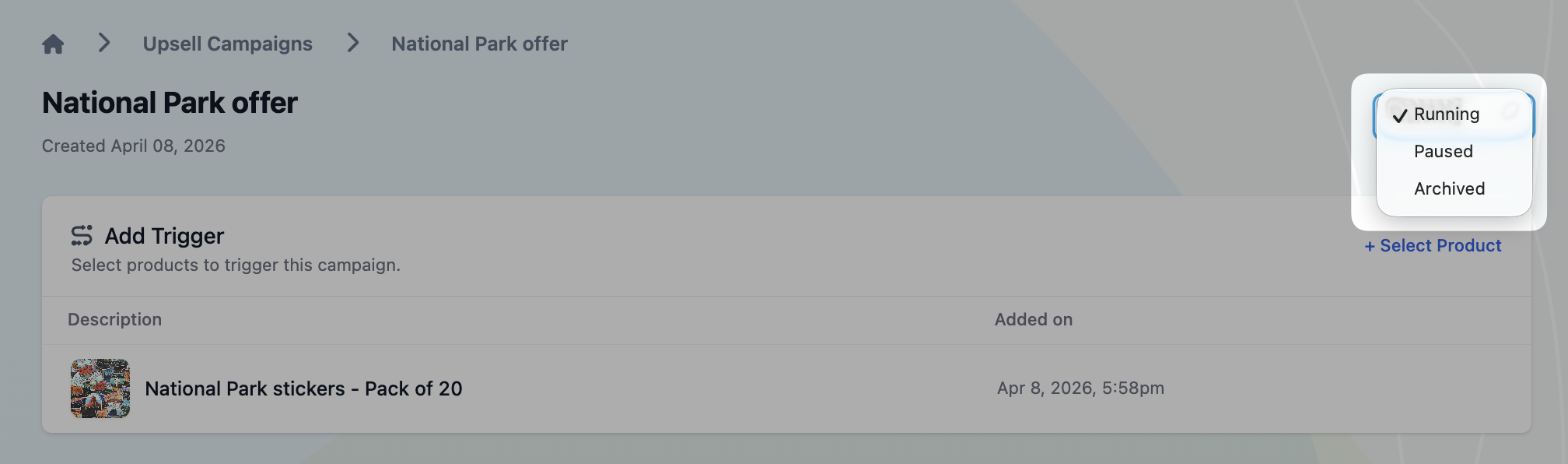
Click + Select Product and choose the product(s) that will trigger this campaign. If you skip this step, the upsell block will display for every eligible order.

Add your upsell offer
- Under the Order Status Page section, click + Add Offer and select the product you'd like to upsell.

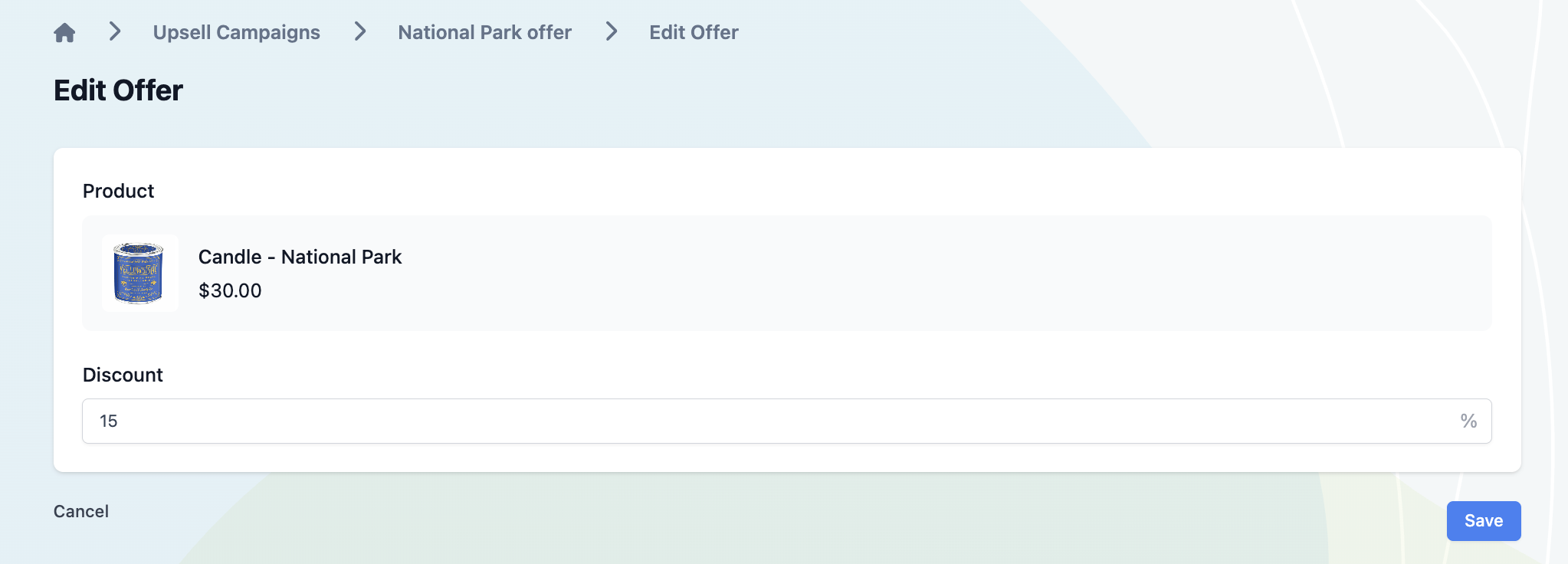
- To add a discount, click the three dots next to the offer and select Edit.

- Enter the discount amount and click Save.
- Repeat to add more products. You can add up to 12 in total. Each will be randomly displayed in the upsell block.
- When your offer is ready, change the campaign status from Paused to Running in the top right corner.
Any questions? Drop us a line at support@cleverific.com.