
Adding a fulfillment hold and scheduled release to your orders
In Cleverific, you can automatically release a fulfillment hold when an order's editing window closes, using the Schedule hold release action in Shopify Flow. This removes the need to build and maintain your own workflow to track editing windows and release holds manually. Pair it with Shopify's native Hold fulfillment action to keep orders unfulfillable until customers can no longer request changes.
Set up automatic hold and release
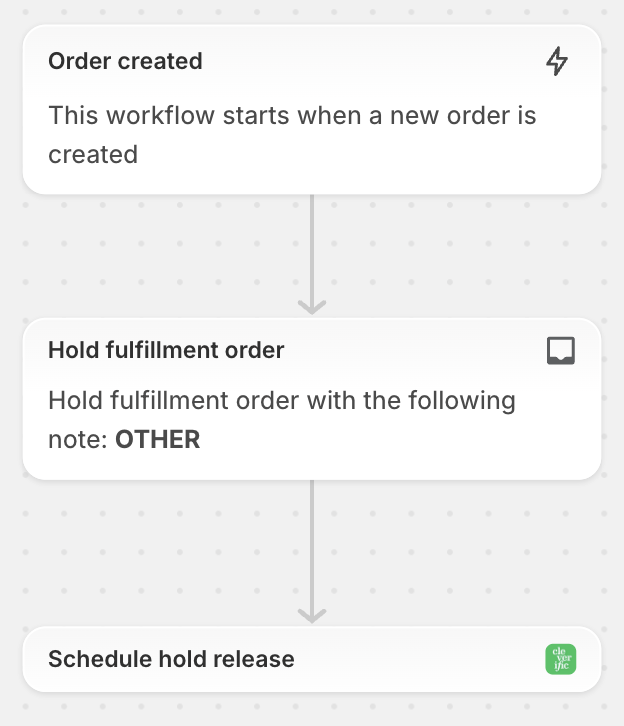
Steps
- Download the .flow file here
- From your Shopify Admin, go to Apps > Flow.
- Click Import.

- Click + Add files and select the .flow file you just downloaded.
- Click Import.
- Turn the workflow on.
Once the workflow is running, Cleverific calculates each order's editing window close time and releases the hold automatically. No merchant-side release workflow is needed.
How Cleverific handles overlapping holds
| Situation | What happens |
|---|---|
| A second fulfillment hold is added to the order after Cleverific schedules the release | Only the hold present at scheduling time is released. The second hold stays in place. |
| You also run post-purchase (checkout) upsell offers, and Shopify releases its own checkout hold first | Cleverific applies its hold as soon as Shopify's releases, so the order stays protected until the editing window closes. |
Known limitations
| Situation | Result |
|---|---|
| Scheduled hold release isn't available on your store | The Flow run fails with an error to contact support@cleverific.com. |
| Your workflow is missing the Hold fulfillment step | The run retries for about an hour, then fails with a message to add the step or contact our support. |
| Your app installation doesn't have fulfillment write scopes | The action fails and prompts you to reauthorize the app. |
Notes
- Release runs on a short delay after the window closes, typically 5 to te10n minutes, based on how often Cleverific checks for orders ready to release.
- If you extend an order's editing window after the release is scheduled, Cleverific releases the hold at the new close time, not the original one.
- If you manually release the hold before the scheduled time, nothing happens when the scheduled release runs. There's no error and no duplicate action.
- If the Flow workflow runs more than once for the same order, Cleverific only processes the release once.
If your editing window varies by day or time, see Setting different editing windows for specific days and times in Customer Portal. Cleverific always releases the hold against whichever window applies to that order.