

Customizing the Post Purchase page's UI
Updated today
In Cleverific, you can customize some components of your post-purchase page when you set up your upsell funnels. This article covers what you can customize yourself, what comes from your Shopify checkout settings instead, and what our team can set up for you.
What Shopify controls
Header area
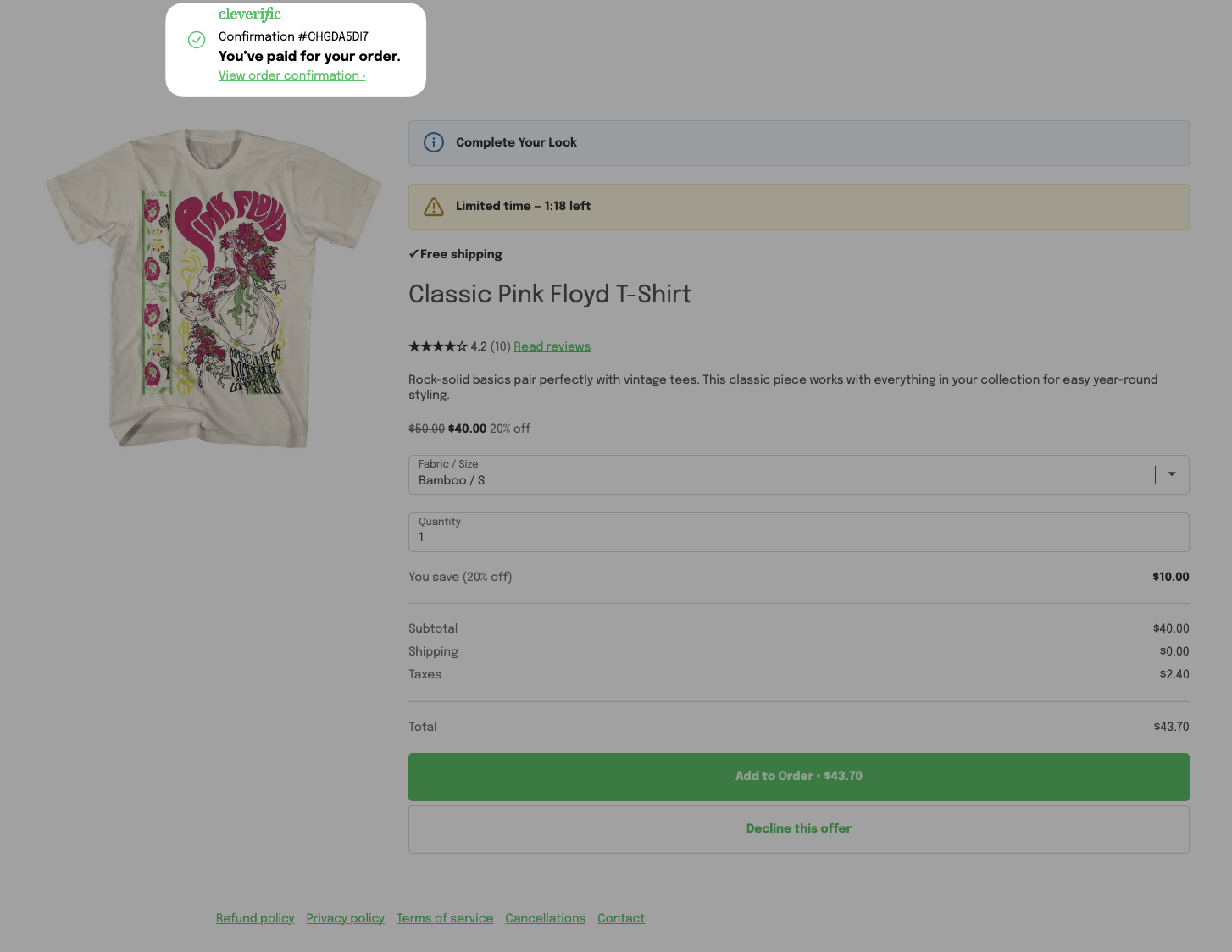
The top of the page, with your confirmation number, "You've paid for your order," and your store logo, belongs to Shopify's native post-purchase page. Its text and layout can't be changed.
Fonts and primary colors
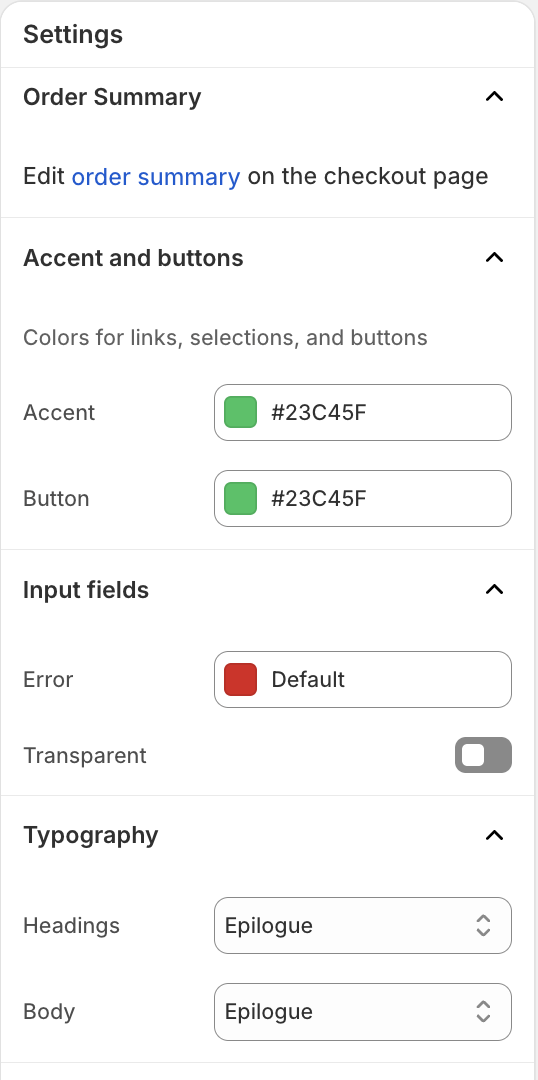
Your fonts and primary button colors come from your Shopify's Checkout theme.
To change your checkout branding, you can:
In Shopify Admin, go to Settings > Checkout > Edit
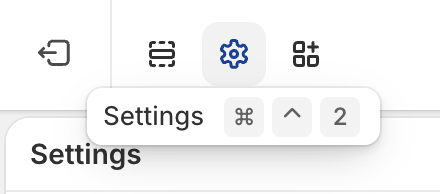
On the top left of the Checkout editor, open the Settings by clicking the gear icon
Confirm your fonts and button colors match your brand.
Customize your offer
From Upsell Funnels in the embedded app, you set each offer's banner text, CTA text, product description, discount percentage, and countdown timer duration. These control what the offer says and does, not how it looks. The countdown timer always displays in the same format and color. You only set how many seconds it runs.
What our team sets up for you
Some visual details aren't settings in Upsell Funnels. Our team builds these directly on request.
Banner background color and icon
A banner that spans the full width of the page instead of sitting above the offer
Larger font sizes for a bolder look. Font family still follows your checkout branding
A custom background image behind your product photos, since the product images themselves always come from Shopify
Email [email protected] with what you'd like changed, and we'll set it up.
Turning on star ratings
Star ratings pull automatically from whichever review app you already have installed, sorted highest first. Reviews under four stars don't show.
Go to Customer Portal settings.
Turn on Show star ratings on post-purchase offers.
Setting Cleverific as your post-purchase app
Cleverific also needs to be selected as your active post-purchase app in Shopify. Without it, none of your offers will show, no matter how your funnels or branding are set up.
In Shopify Admin, go to Settings, then Checkout.
Scroll to the Post-purchase page section.
Confirm Cleverific is selected.