

Connecting Loox to Cleverific
Updated 2 months ago
In Cleverific, you can connect your Loox account to pull in Loox review ratings and quoted reviews for post-purchase offers. This article will explain how to get your credentials in Loox and connect your app to Cleverific.
See Showing star ratings on post-purchase offers for how ratings and review snippets actually appear to customers.
Get your credentials from Loox
In your Loox admin, go to Settings > API keys.
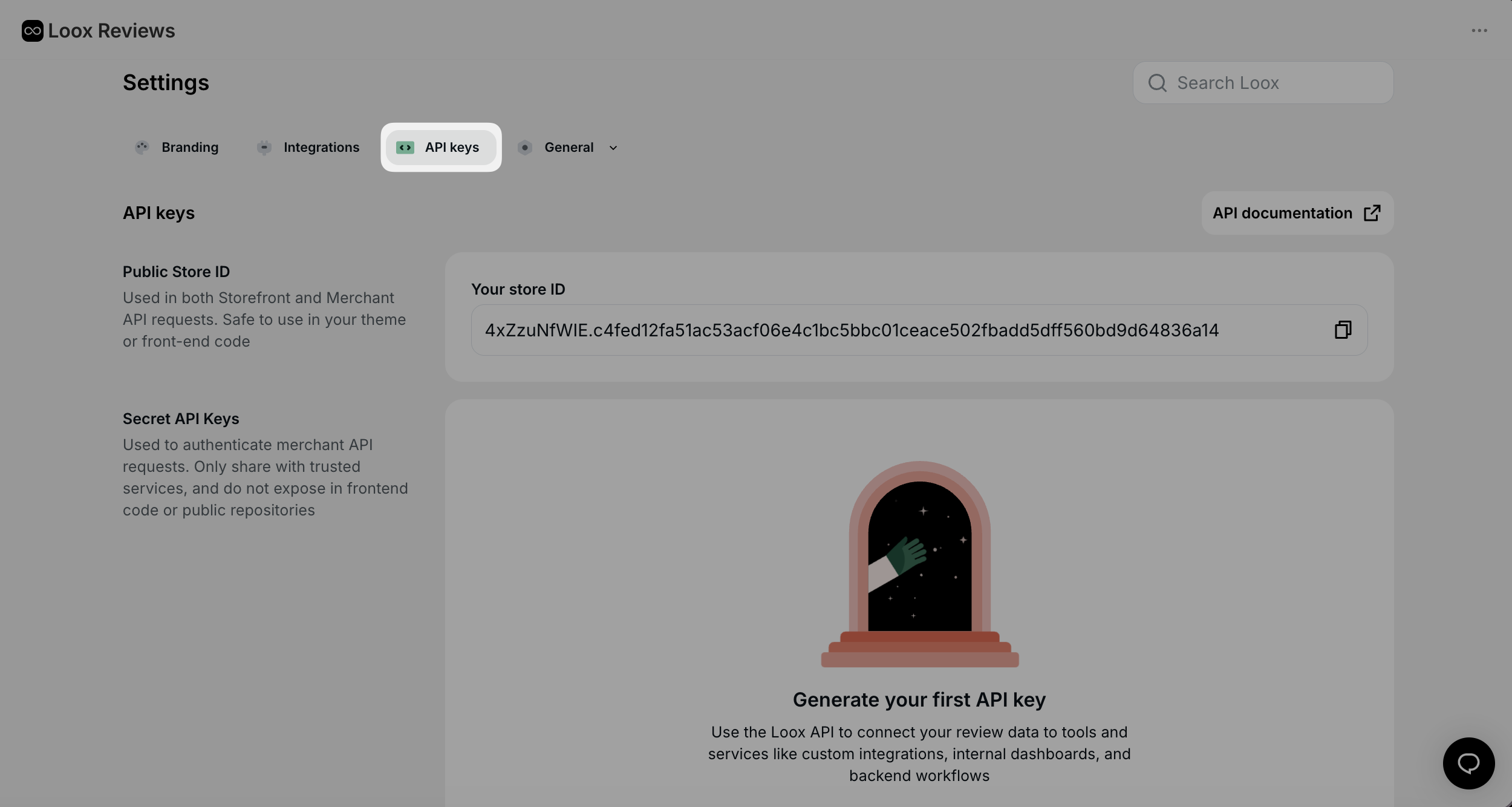
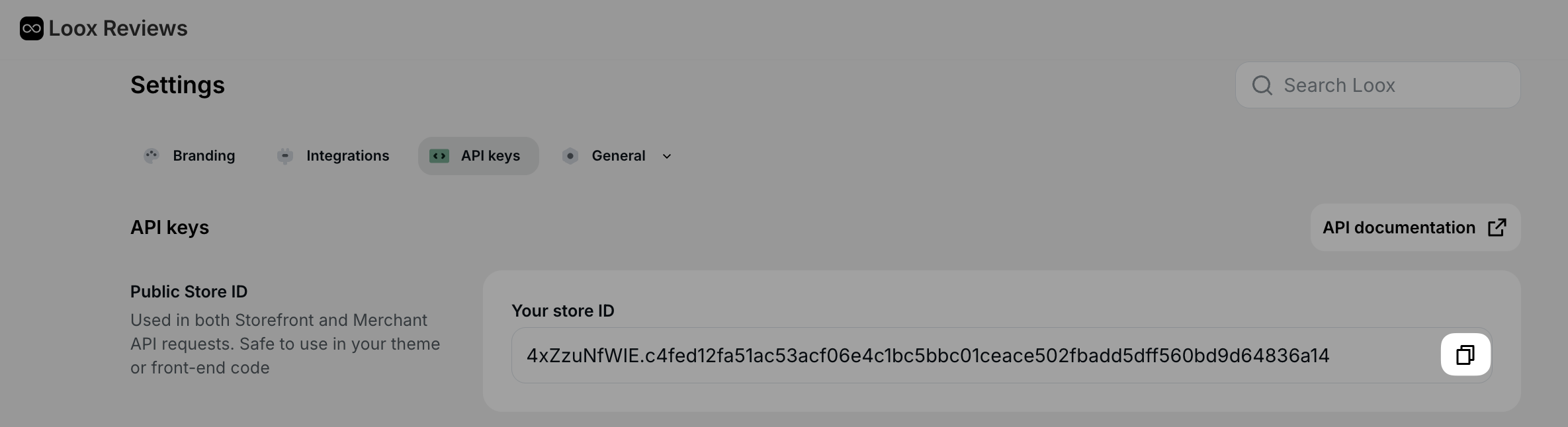
Copy the Public Store ID shown at the top of the page.
Under Secret App Keys, click + Generate API key, give it a name such as "Cleverific," and click Generate.
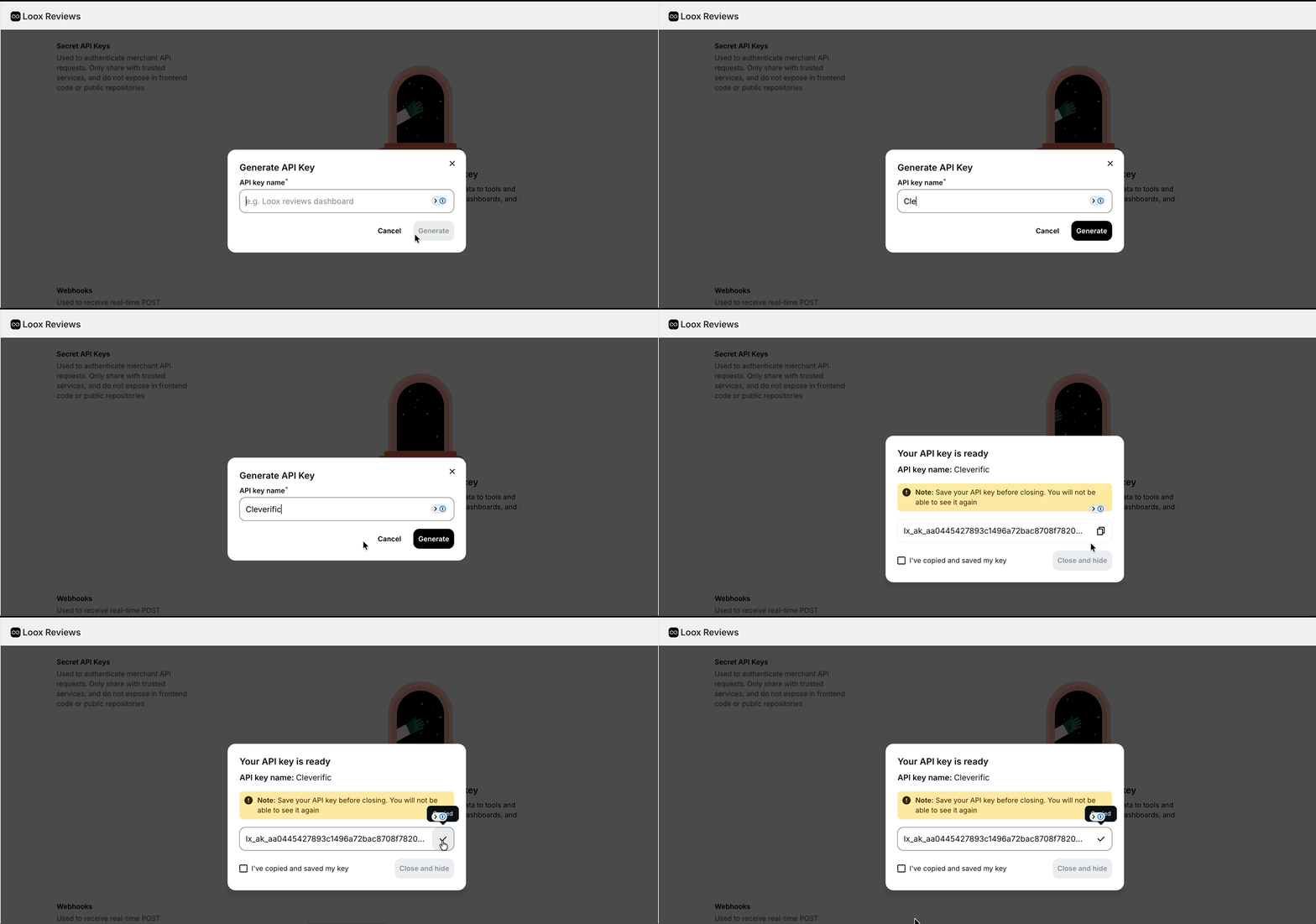
Copy the generated key. Loox only shows it once, so copy it before leaving the page.
Connect Loox in Cleverific
Connecting Loox only affects quoted review snippets. The star rating works off Shopify's standard review metafields whether or not Loox is connected, and if you disconnect Loox later, quoted snippets stop appearing, but the star rating stays as long as those metafields are still present.
Go to Apps > Cleverific.
From the nav menu, click Integrations.
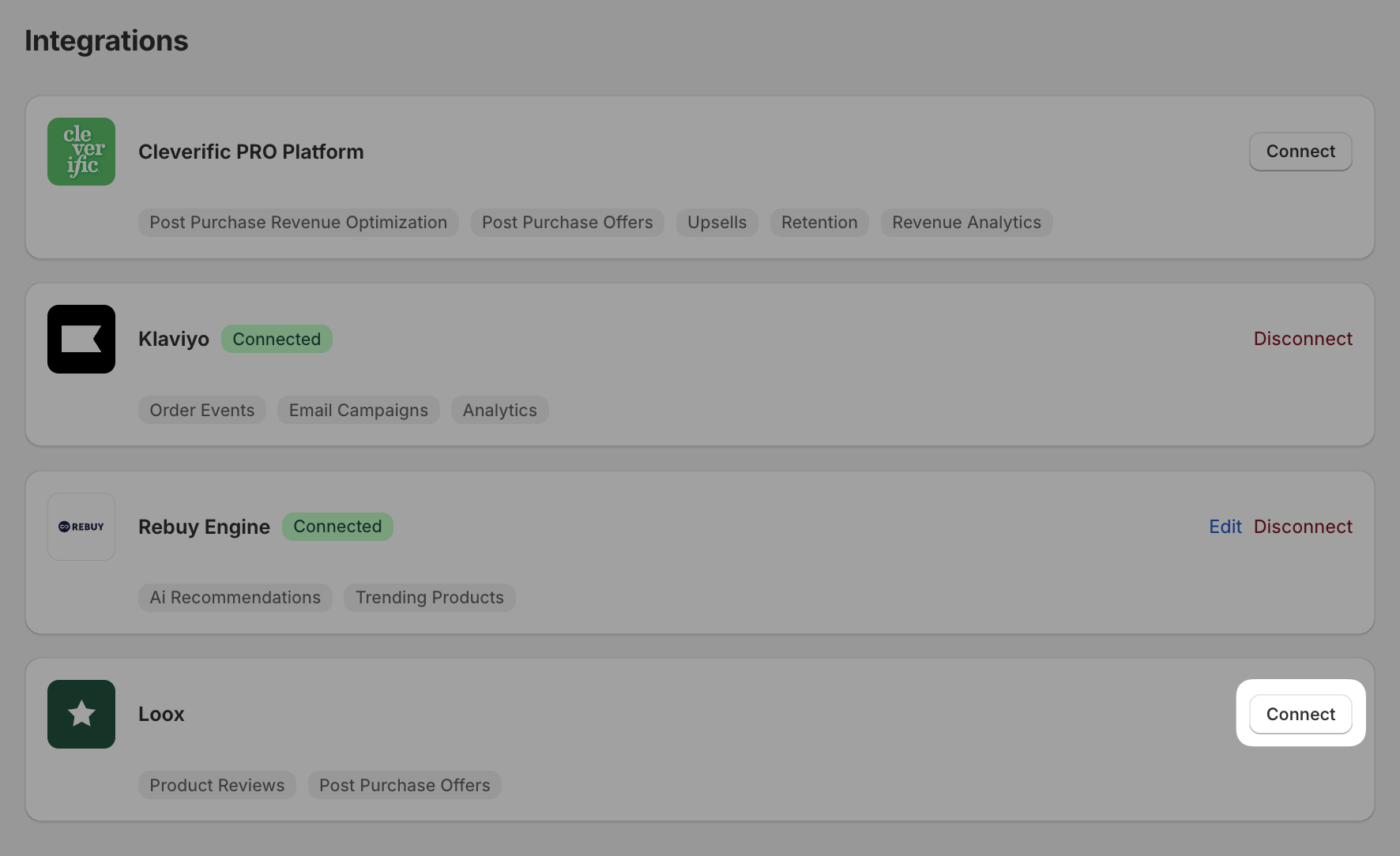
Find the Loox card and click Connect.
Paste your Public Store ID and Loox API key into the matching fields.
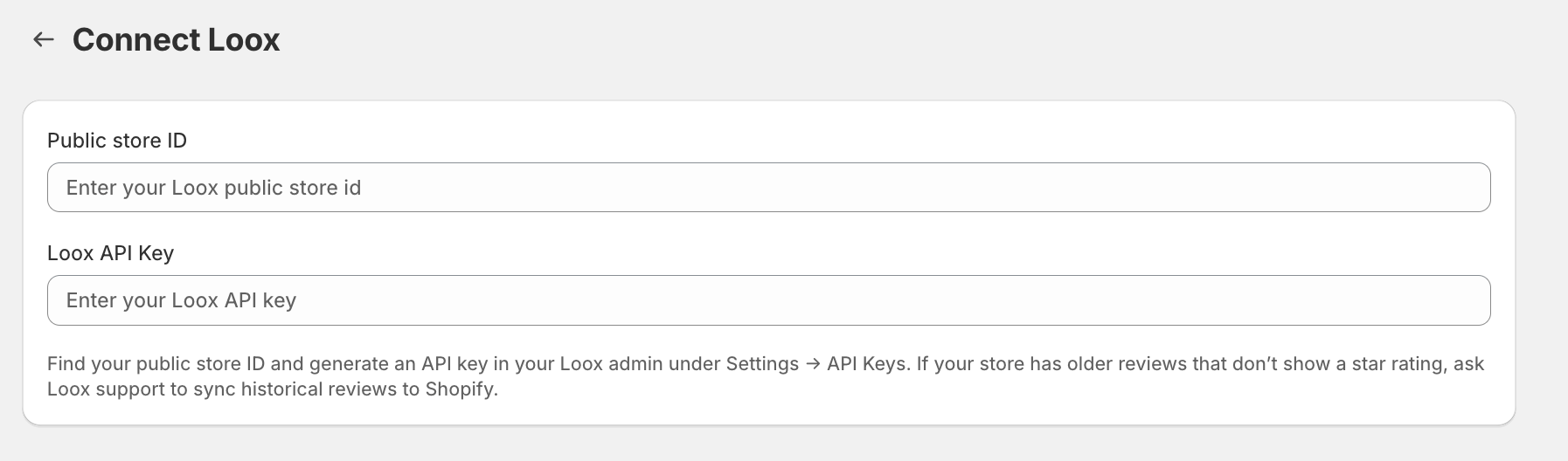
Click Save in the top bar.
Once connected, the Loox card shows as connected, and Cleverific will start pulling in your reviews in the background, usually finishing within a few minutes. If you enter an invalid API key instead, the card shows an error and the key isn't saved or shown back to you, generate a new key in Loox and try again.
