

Changing the default editor mode
Updated 2 months ago
You can choose the default editor mode you want to use in Cleverific. You can either select Advanced Mode or Quick Mode as a default editor in your Advanced Settings. This article will show you how to do this.
Change the default editor mode
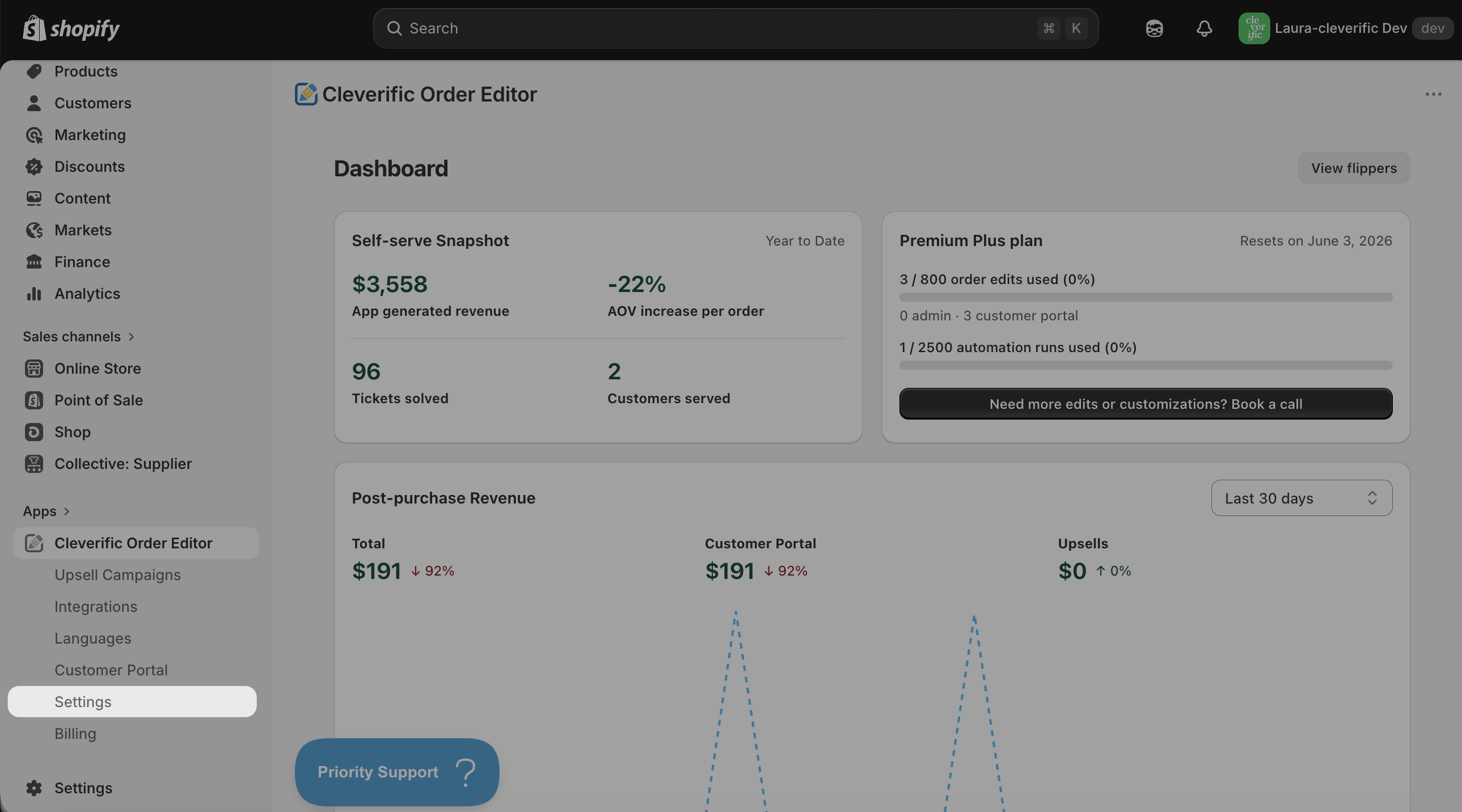
Navigate to Apps > Cleverific.
In the nav menu, click Settings.
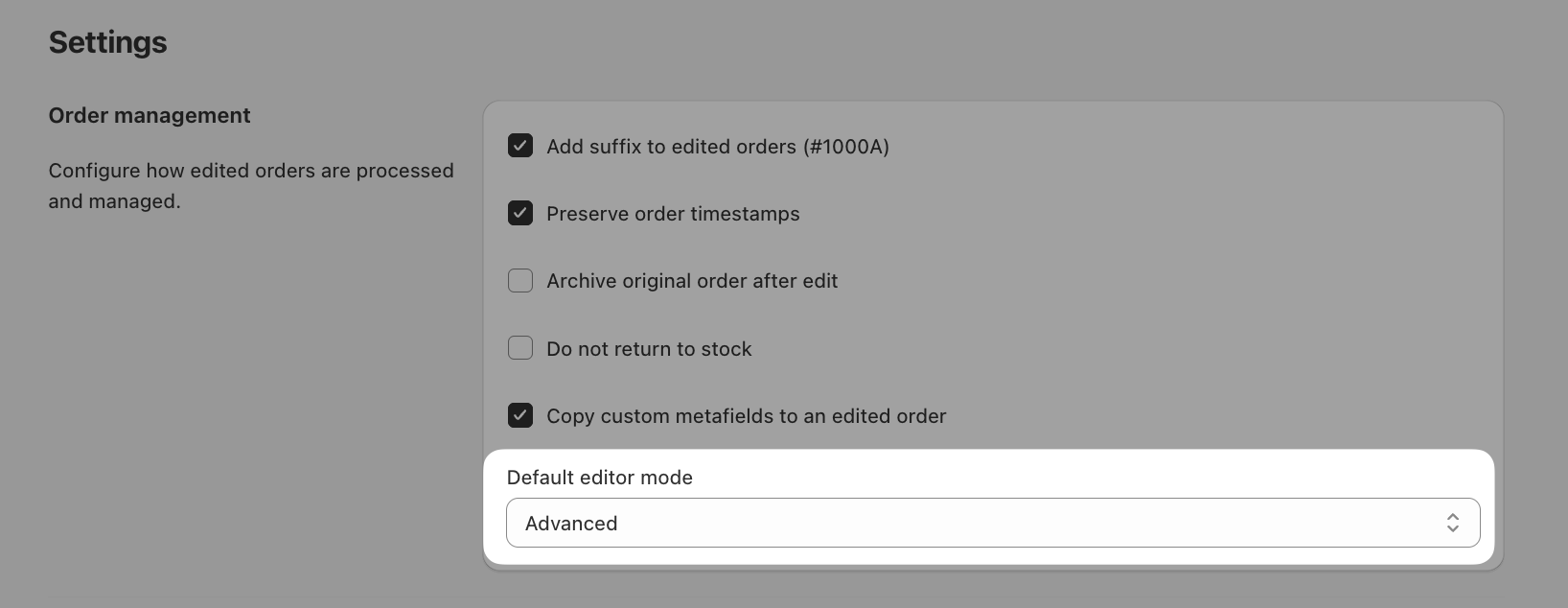
In the Order management section, navigate to Default editor mode
Select Advanced or Quick mode in the dropdown menu.
Click Save in the top bar.
Cleverific will now always open your orders in the default mode you selected.
Any questions? Drop us a line at [email protected]
Was this helpful?
Was this helpful?