

Keeping subscription orders' shipping price after edits in Customer Portal
Updated 2 months ago
In Cleverific, you can keep the shipping price on subscription orders exactly as the selling plan set it at checkout, even when a customer edits the order in Customer Portal. This stops a subscription's free or discounted shipping from being replaced by a live carrier rate after an address change or an item change. This setting is disabled by default.
How it works
The setting applies at every point where an edit would otherwise recalculate shipping, both rate recalculation and the automatic free shipping settings.
When a customer changes the shipping address, adds an item, or swaps a product on a subscription order, no rate comparison appears and the original shipping line stays in place, carrier title included.
Orders without a subscription item are unaffected, so they still show the comparison when shipping rate recalculation is enabled.
Keep shipping unchanged on subscription orders
From your Shopify admin, go to Apps > Cleverific.
Click Customer Portal in the nav menu.
In the Customize order editing section, scroll to Allowed changes.
Check the box next to Keep subscription orders' shipping price unchanged.
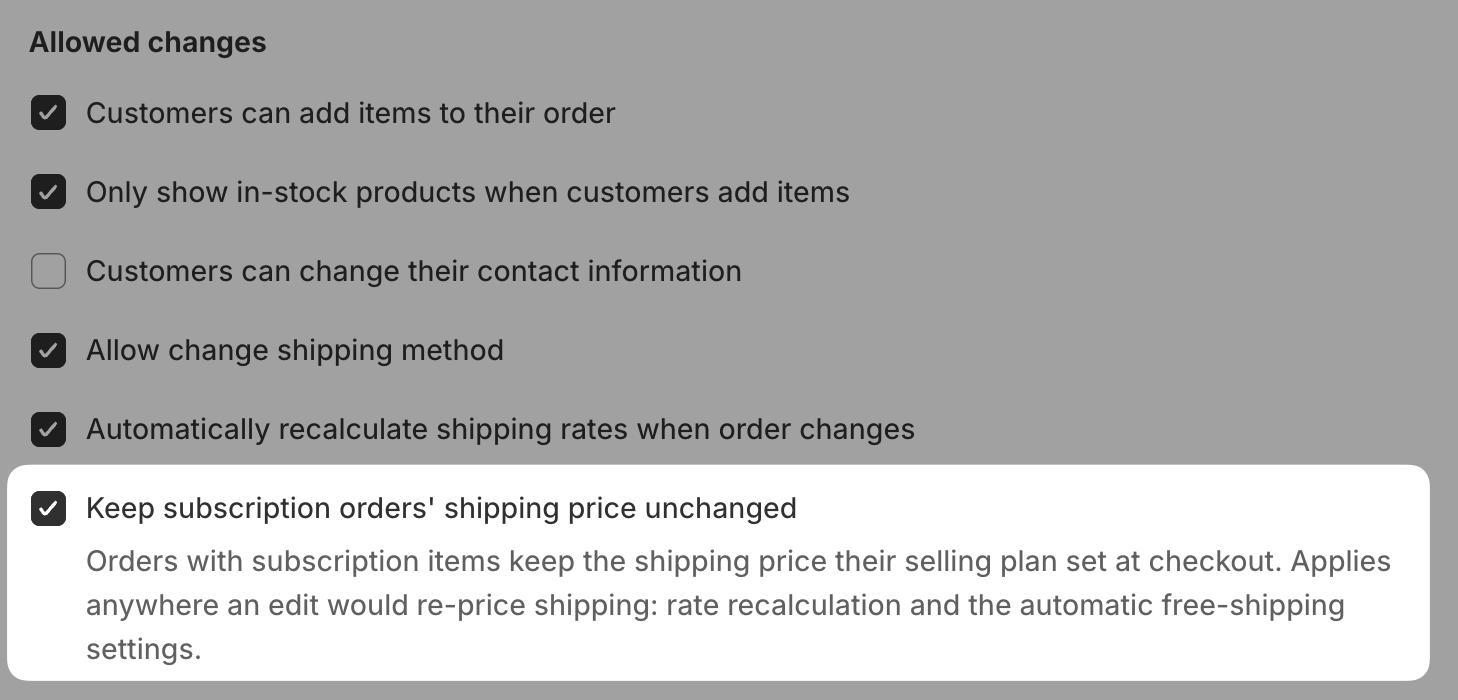
Click Save in the top bar.
This covers orders containing an item on a subscription selling plan. Pre-order and try-before-you-buy selling plans are not included, and shipping on those orders is recalculated as usual.