

Understanding discount code activity in Customer Portal
Updated 2 months ago
In your Cleverific Analytics dashboard, you can find every discount code a customer applied, or tried to apply, through Customer Portal. Each row shows the order, the code, whether it was accepted, and the resulting order total, alongside summary cards for the period you choose.
This report tracks Customer Portal's add-a-discount-code feature, which is disabled by default. To enable it and display data in your Discounts activity, follow the steps from this article.
View discount code activity
From your Shopify admin, go to Apps > Cleverific > Analytics.
Navigate to the Discounts tab.

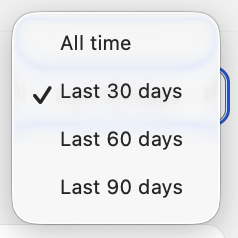
Use the period selector to choose Last 30, 60, or 90 days.
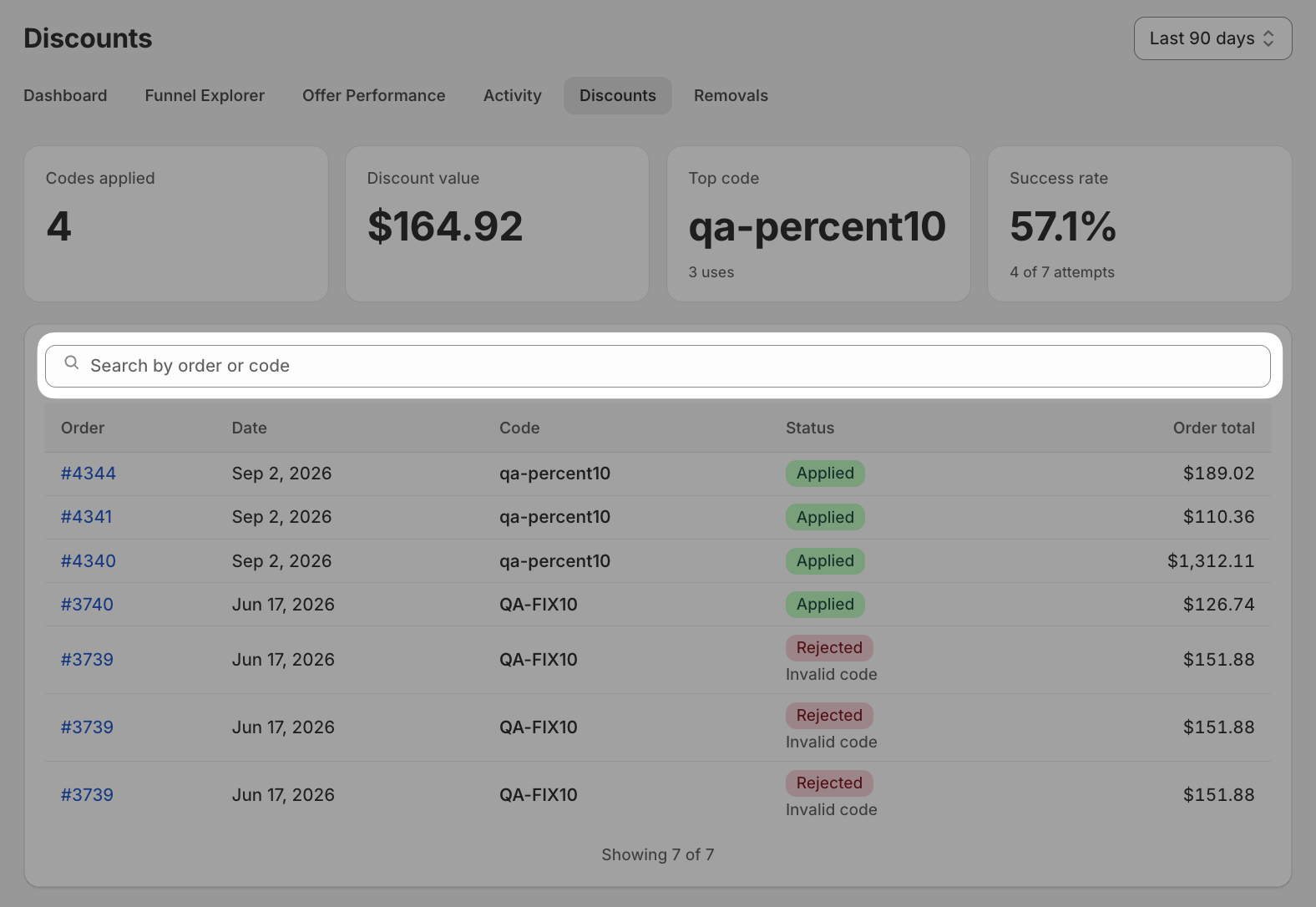
Use the search field to find a specific order number or discount code.
What the report shows
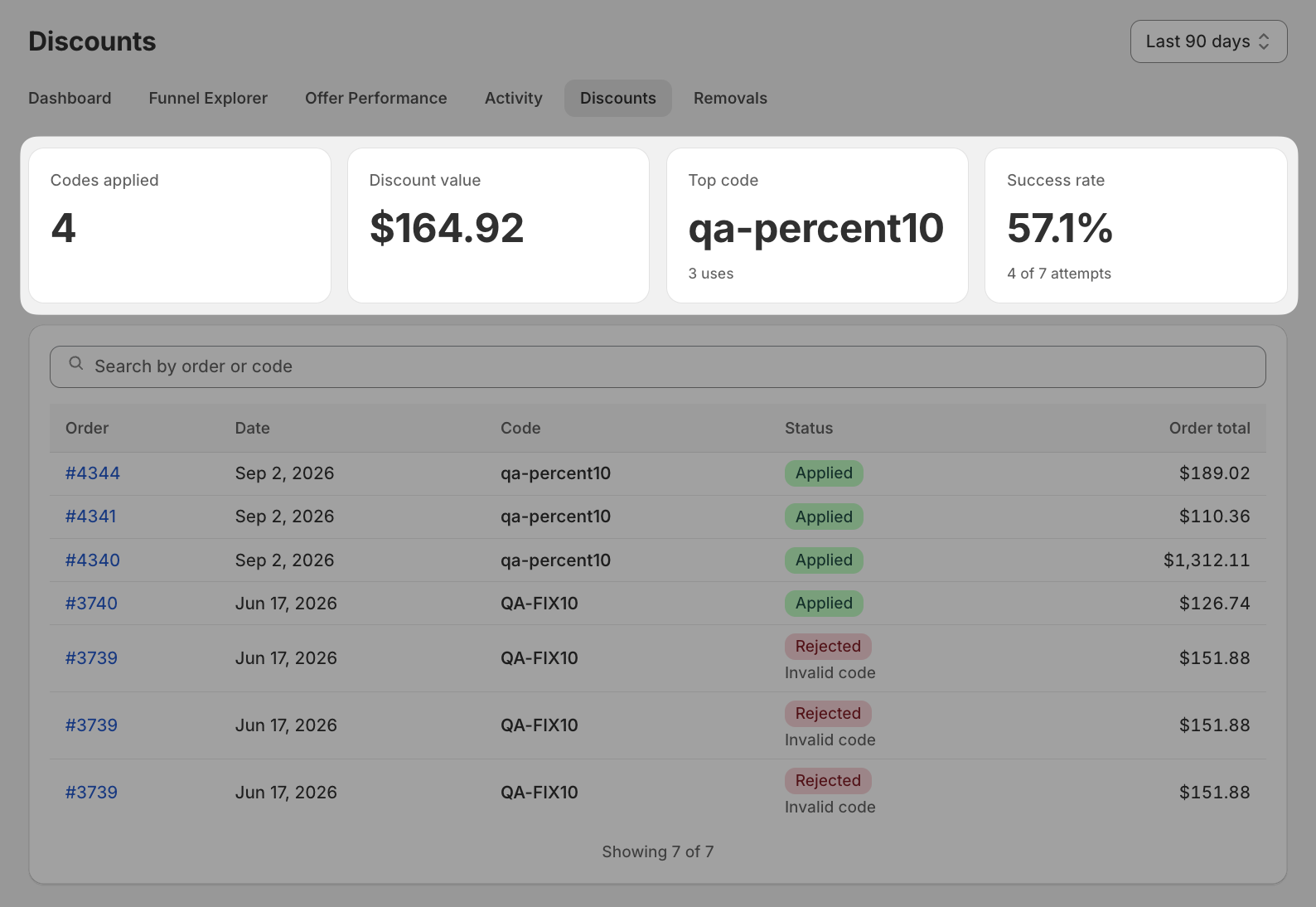
Each row lists the discount code, a status badge, the date, the order total, and a link that opens the order in Shopify Admin.
Applied: the code was accepted, and the order total reflects the discount.
Rejected: the code wasn't applied. The row shows why, such as an invalid code or the order already having a discount.
The summary cards above the table cover the same period: Codes applied, Discount value, Top code, and Success rate (applied attempts out of all settled attempts).
Searching by order or code narrows the table to matching rows, but the summary cards always reflect the full period, not your search results.