

Changing the editing window in Customer Portal
Updated 2 months ago
In your Customer Portal’s settings, you can adjust the editing window during which customers can edit their orders from 3 minutes to 60 days. You can also set the editing window to unlimited.
Change the editing window in your Customer Portal settings
Go to Customer Portal settings > Customize order editing section.
Under Edit duration, click the dropdown to adjust your customer's order editing window.

Click Save in the top bar.
Enable countdown timer
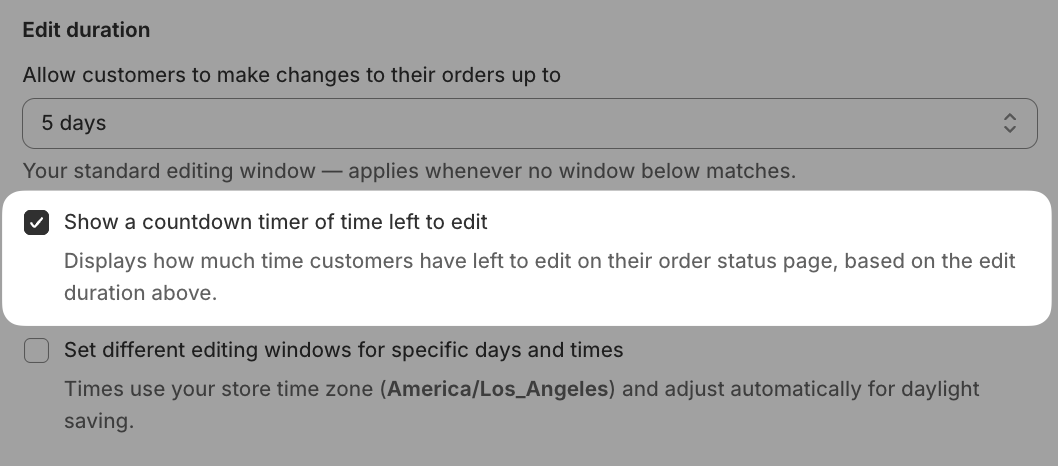
You can show customers a countdown timer of the time left to edit, based on the edit duration you set above. It appears on the order status page.
Go to Customer Portal settings > Customize order editing section.
Under Edit duration, check the box next to Show a countdown timer of time left to edit.
Click Save in the top bar.
The timer displays in the top right of the Change Order block.
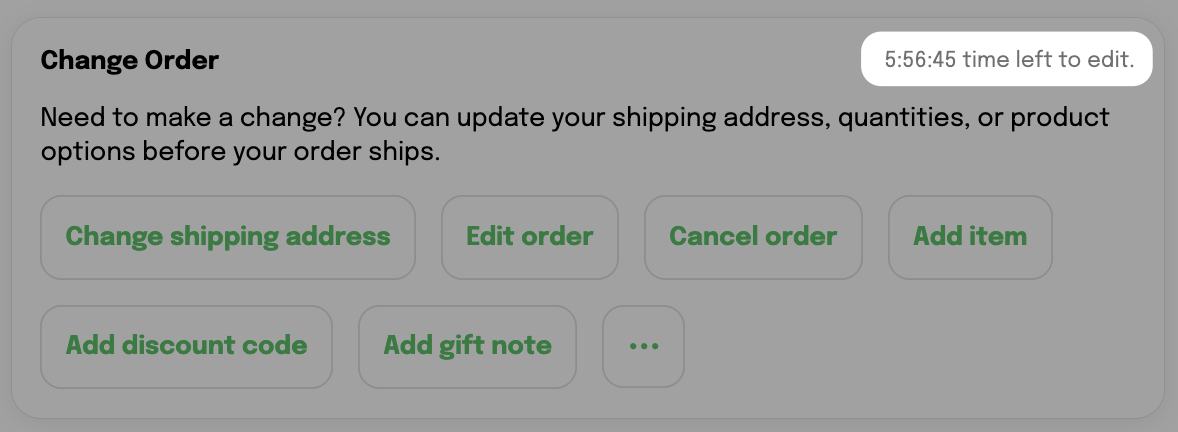
The timer turns red once the remaining time drops below 10% of the total editing window, with a floor of 1 minute and a cap of 60 minutes. For example, a 30-minute window turns red with 3 minutes left, a 3-minute window turns red with 1 minute left, and a 60-day window turns red with 60 minutes left.