

Creating an upsell funnel with Sidekick
Updated 2 months ago
You can ask Shopify Sidekick to build a Cleverific post-purchase upsell funnel for you, right from a chat in your Shopify admin. Sidekick puts together a draft funnel based on what you describe and opens it in Cleverific so you can review it before anything is created.
What to tell Sidekick
The trigger product is what the customer is buying, and the offer product is what you want to upsell. For example, "When someone buys the snowboard, offer them wax." If you only name one product, Sidekick asks which role it plays.
To target an audience instead of a specific purchase, for example, first-time customers or orders containing products from a collection, describe that instead. A funnel needs either a trigger product or at least one targeting condition, so Sidekick stages whichever you describe.
To offer more than one product, describe them in the order you want them shown. Up to three offers can chain together, each one shown only if the customer declines the one before it.
Discounts on an offer are percentage-based only. Tell Sidekick the percent off, for example, "10% off". Dollar amounts aren't supported.
Reviewing and creating the draft
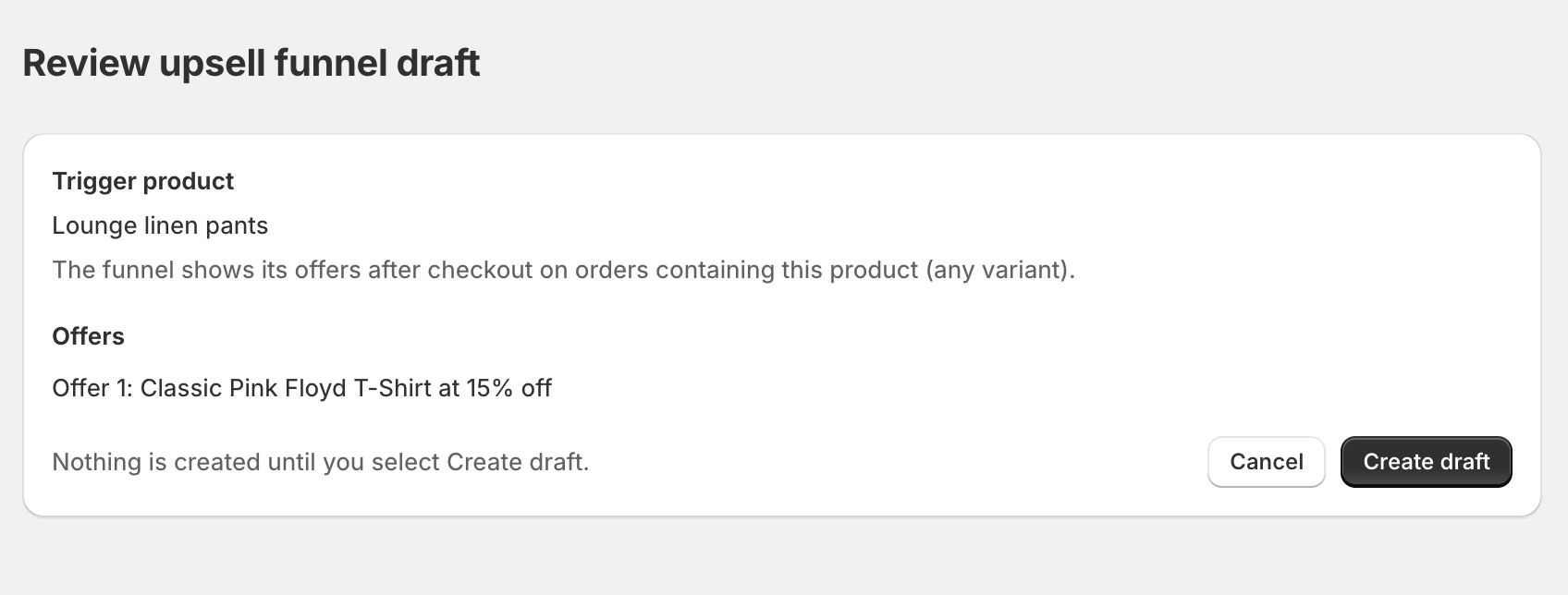
When Sidekick opens the draft funnel review page in Cleverific, it will show the trigger product or audience as well as each offer.
You can ask Sidekick for changes, such as a different product or discount, or edit the draft directly on the page.
Select Create draft to save the funnel.
The funnel will save as a draft. It doesn't go live until you activate it from its own page in Cleverific, and it isn't automatically named. Cleverific names it after the offer product; rename it afterward from the funnel's own page.
Only one draft can be open at a time. If you describe another funnel while a draft is open, Sidekick updates that same draft instead of starting a new one. Select Create draft, or discard the current draft, before asking for a second funnel.