

Deposits and partial payments in Cleverific
Updated 2 months ago
You can use Cleverific's Advanced Mode to handle partial payments and deposits by applying an order discount. This article will show you how.
Note: When editing in Advanced Mode, your original order will be canceled and superseded by a "save as" edited version.
Create an order with a deposit or partial payment
First, you'll need to discount the total amount of the order to collect the deposit or partial payment.
Steps
In your Shopify order list, open the order for which you'd like to collect a partial payment or deposit. Its financial status should be Payment pending.
On the order page, click More Actions > Edit Order.
Make sure your editor is in Advanced Mode.
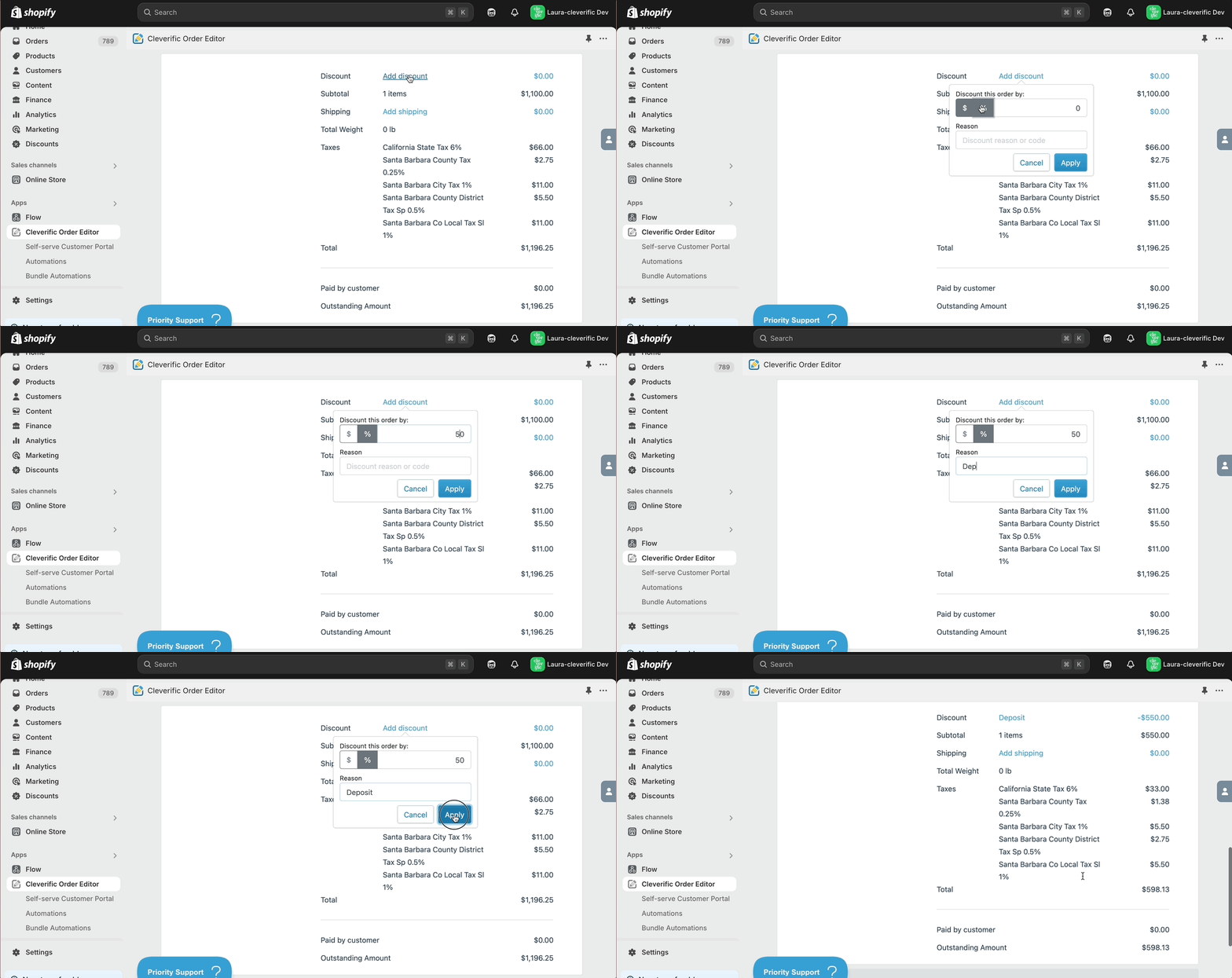
In the order discount section, enter a discount percentage or flat amount to apply to the total amount, which will result in the deposit/partial payment amount.
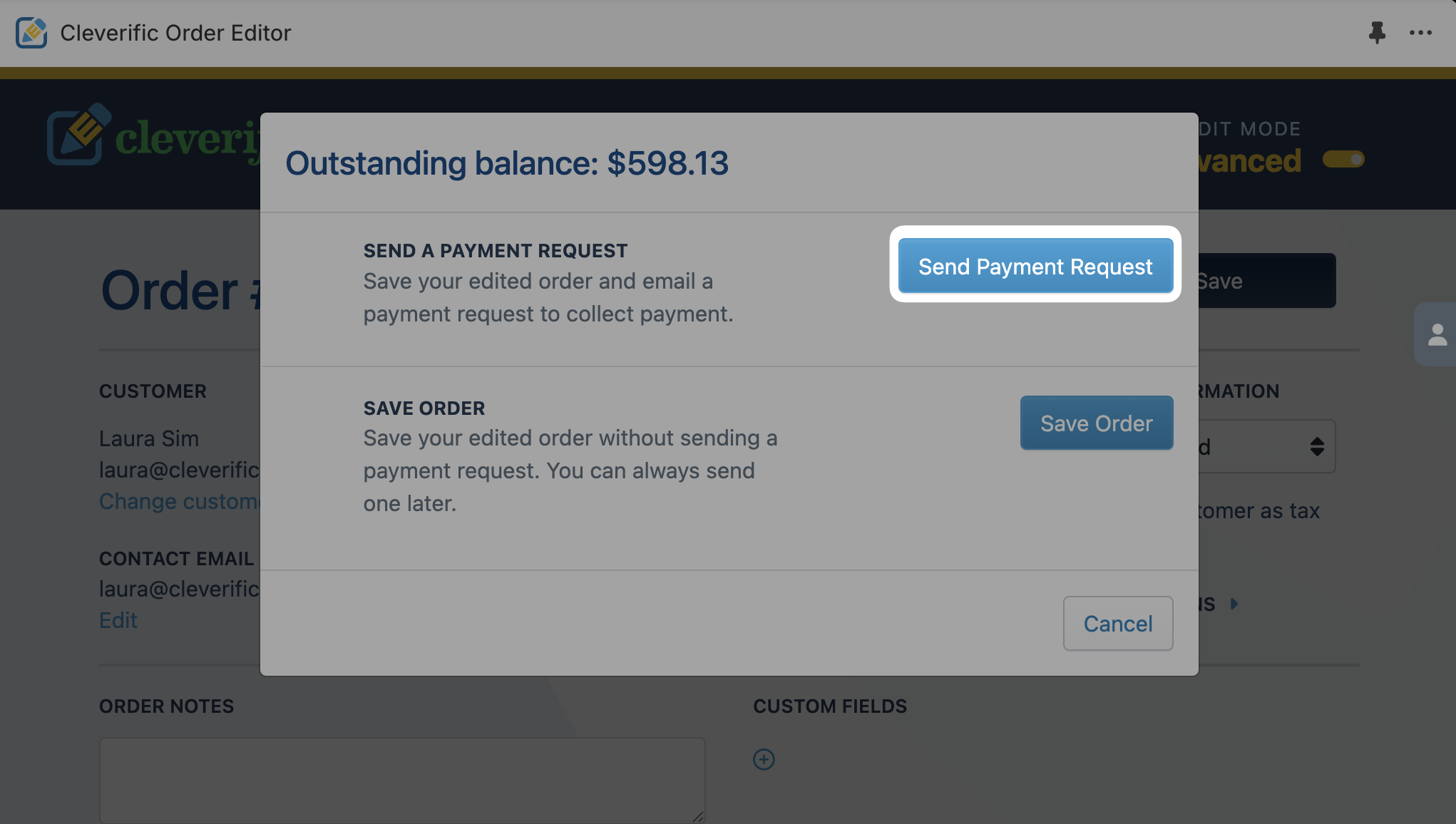
Click Save, then click Send Payment Request.
When your customer pays the partial payment/deposit, ensure the payment is captured.
Collect the remaining balance of your order
To collect the remaining amount, you can remove the discount from the order.
Steps
In your Shopify order list, open the edited order for which you've collected the deposit/partial payment. Its financial status should be Partially paid.
On the order page, click More Actions > Edit Order.
Make sure your editor is in Advanced Mode.
In the order discount section, remove the discount from your order.
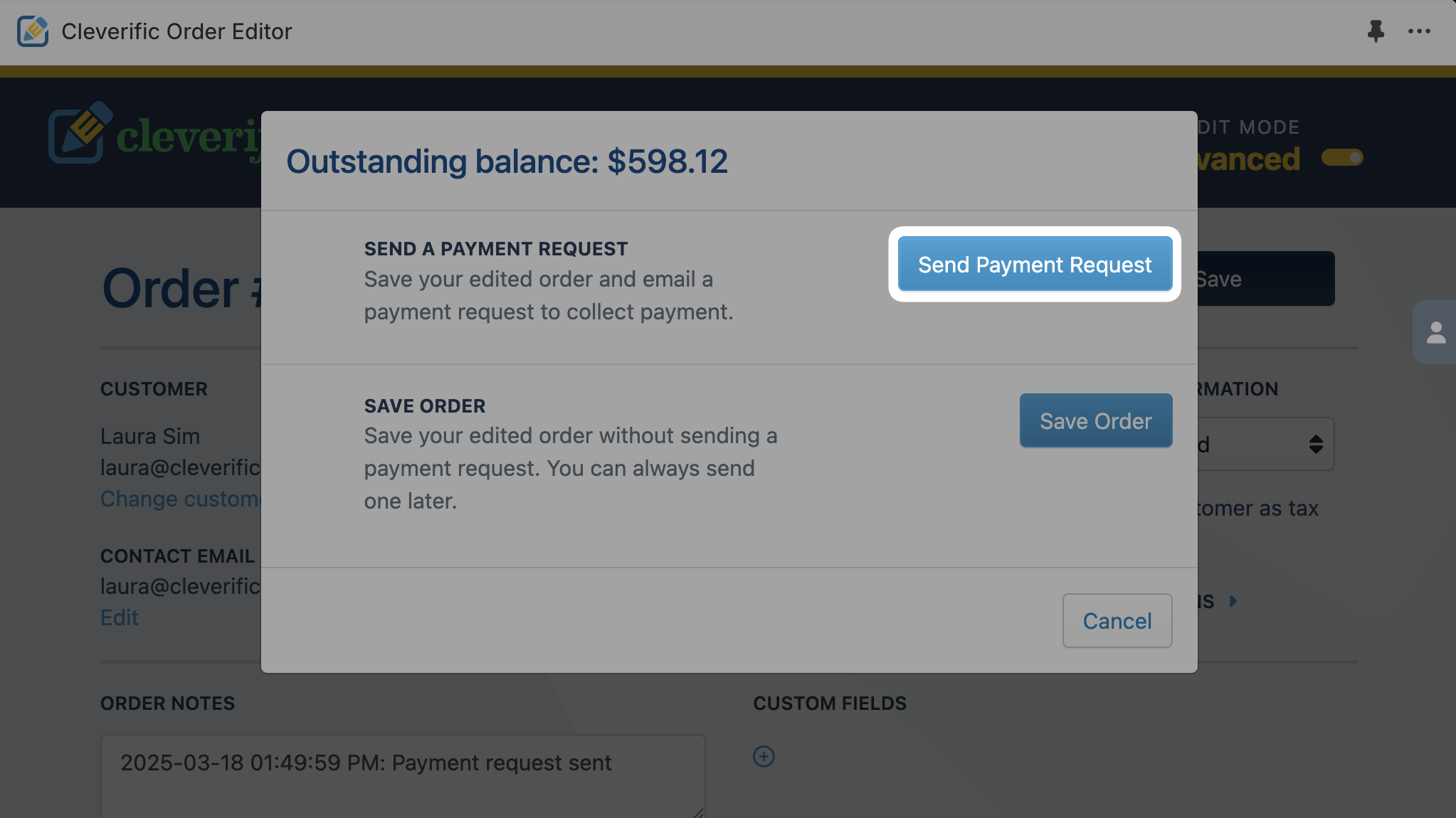
Click Save, then click Send Payment Request.
When your customer pays the outstanding amount, ensure the payment is captured.
Please don't hesitate to contact support@cleverific.com if you have any questions!