Allowing customers to replace a product in Customer Portal
Updated 2 months ago
In Cleverific, you can allow customers to return an eligible item and add a different product in the same edit, right from Customer Portal.
Enable product replacement
Go to Apps > Cleverific.
From the nav menu, click Customer Portal.
Under Allowed changes, enable Customers can replace a product.
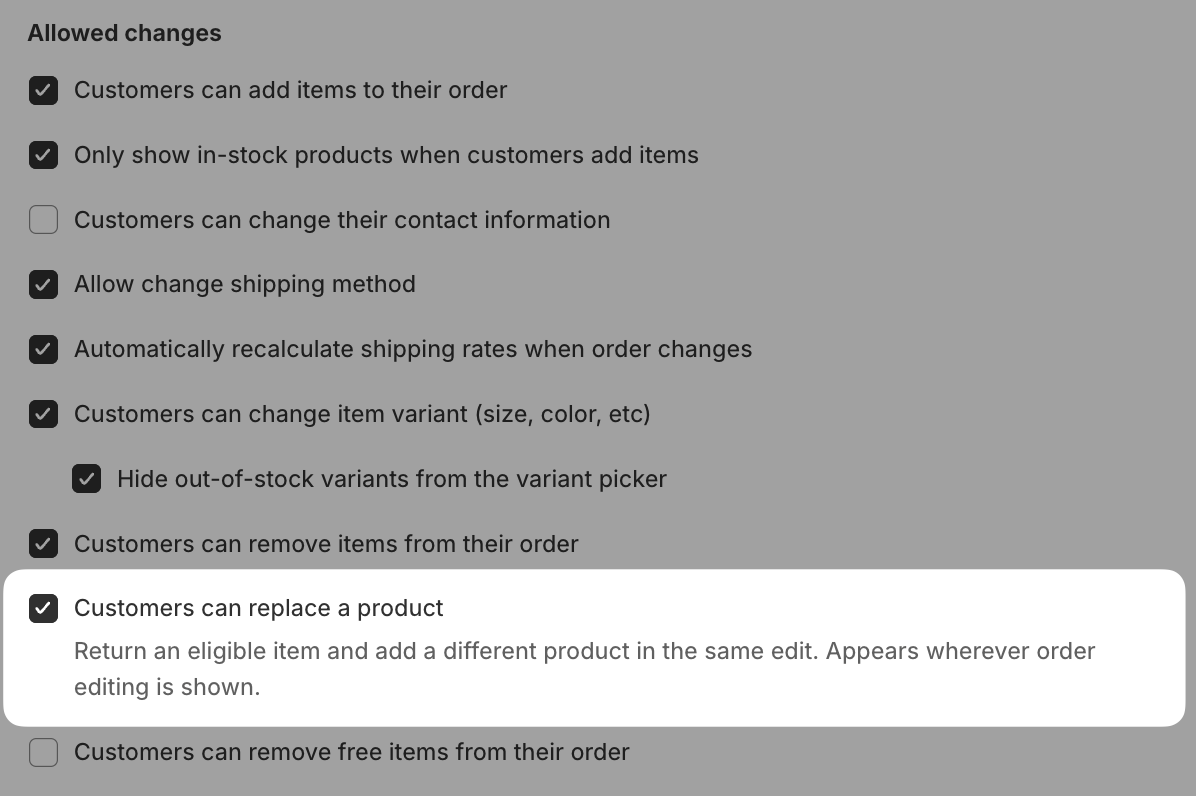
Click Save in the top bar.
Replacing an item with a higher quantity than what's currently on the order requires Customers can increase or decrease item quantity and Allow quantity increases to also be enabled. Otherwise, a replacement is capped at the item's current quantity or fewer.
How this works for customers
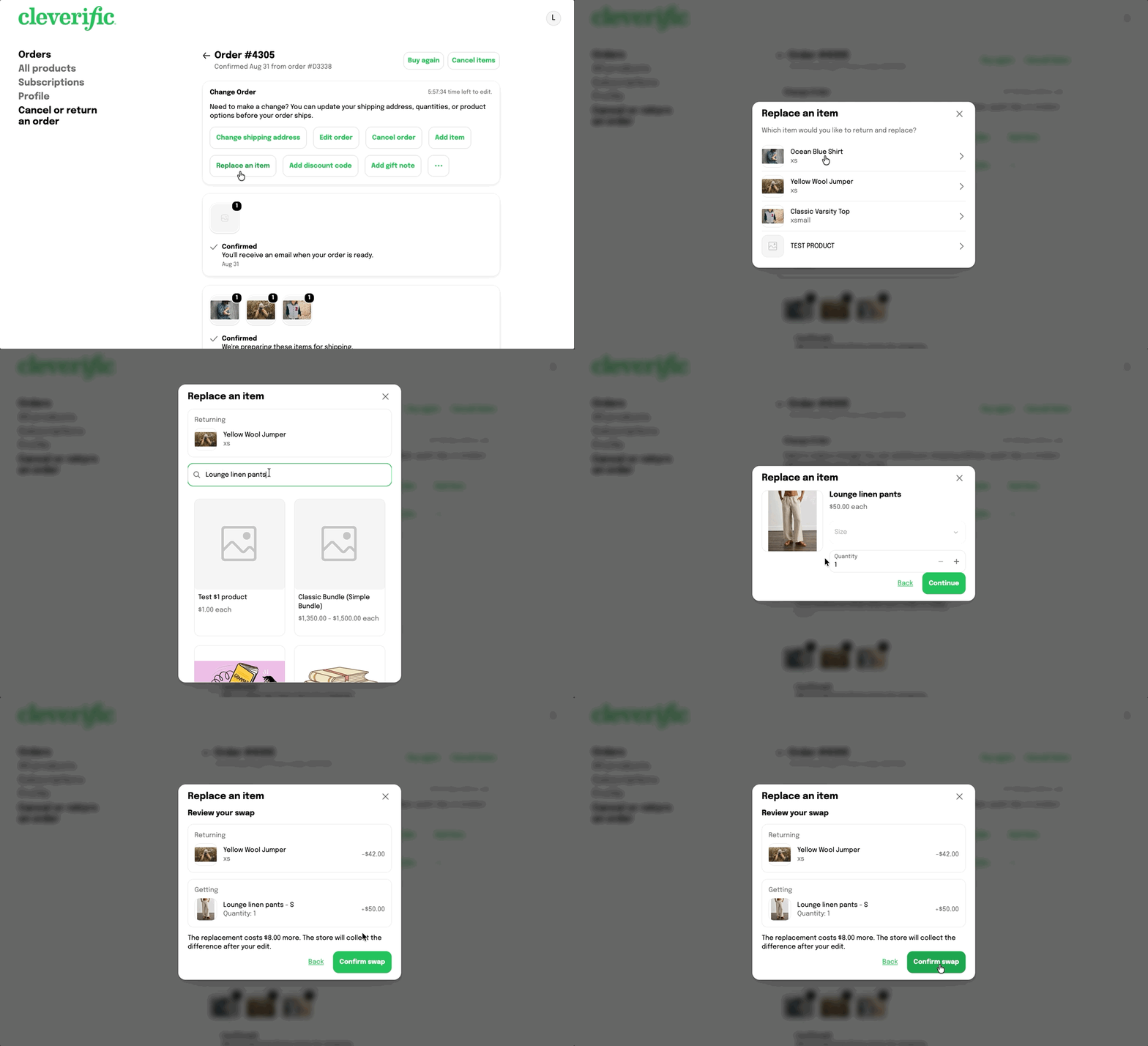
From the order status page, a customer picks the item to return, searches for a replacement product, and reviews the swap before confirming.
The customer selects which item to return. If only one item is eligible, this step is skipped.
They search for and select the replacement product and variant.
They review the swap: the returned item's price against the new item's price, and whether the exchange results in a refund, a charge for the difference, or an even trade.
They confirm the swap to complete the exchange.