

Restocking inventory when items are removed or orders are cancelled in Customer Portal
Updated 2 months ago
In Cleverific, you can automatically restock inventory when a customer removes an item, lowers a quantity, or cancels their order through Customer Portal. This keeps your stock counts accurate without manual correction, and it's on by default.
Enable restocking for removed or cancelled items
Go to Apps > Cleverific.
From the nav menu, click Customer Portal.
Under Cancellation, make sure Restock inventory when items are removed or orders are cancelled is enabled.
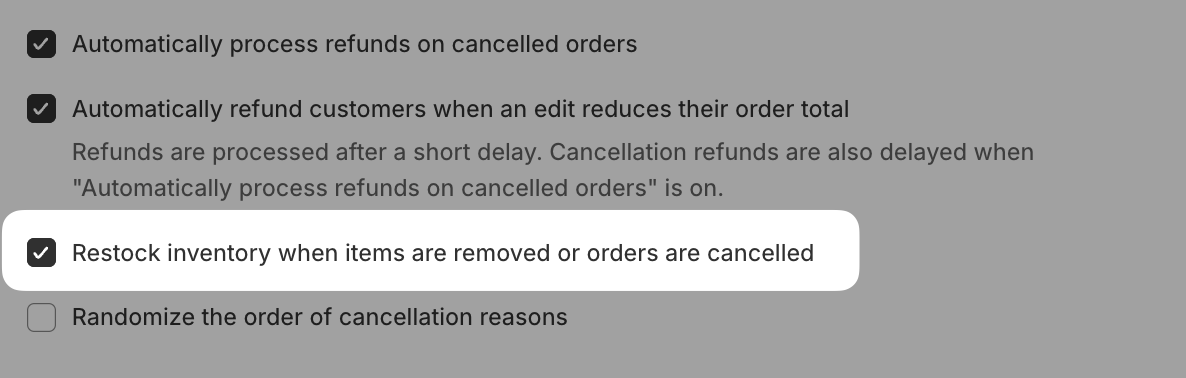
Click Save in the top bar.
This setting only applies to edits made through Customer Portal. Backend edits made in Advanced Mode use a separate, shop-wide inventory setting instead. See Troubleshooting items not returned to stock after editing an order in Advanced Mode.
Was this helpful?
Was this helpful?