

Setting up Customer Portal
Updated 3 weeks ago
If you’re using Shopify’s Checkout Extensibility, you need to add the Customer Portal app block in your Shopify Checkout editor before enabling Customer Portal. This article will show you the steps to add the Customer Portal app block to your Order Status and Thank You pages.
Note: Customer Portal is only available to stores fully upgraded to Checkout Extensibility.
Requirements
Your store must be fully upgraded to Shopify's Checkout Extensibility. This includes Checkout pages, Thank you, and Order status pages.

Add the Customer Portal app block to the Order Status page
Note: The Checkout Editor UI appears slightly different for non-Shopify Plus merchants. However, the steps are similar. Please feel free to reach out if you need assistance!
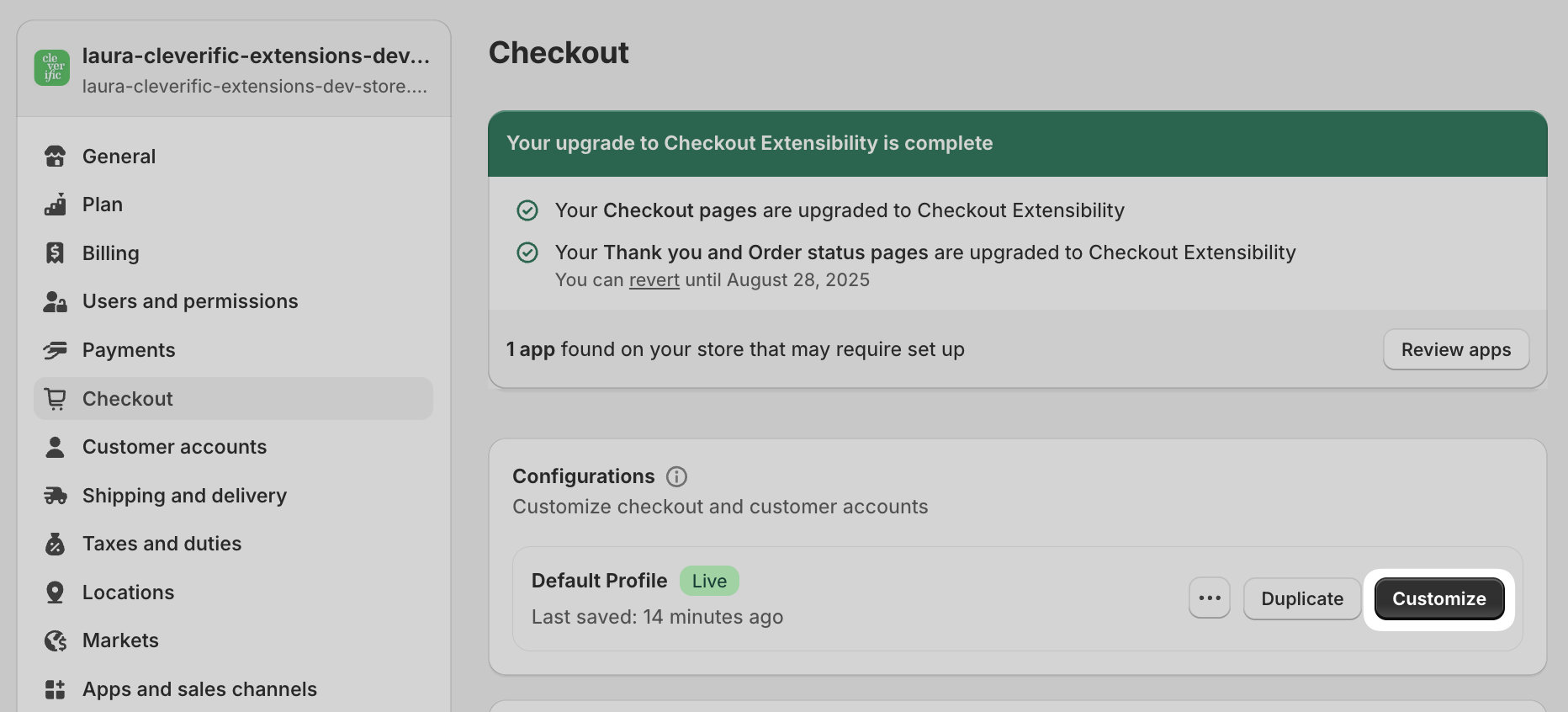
In your Shopify admin, go to Settings > Checkout.
In the Configurations section, click Customize.
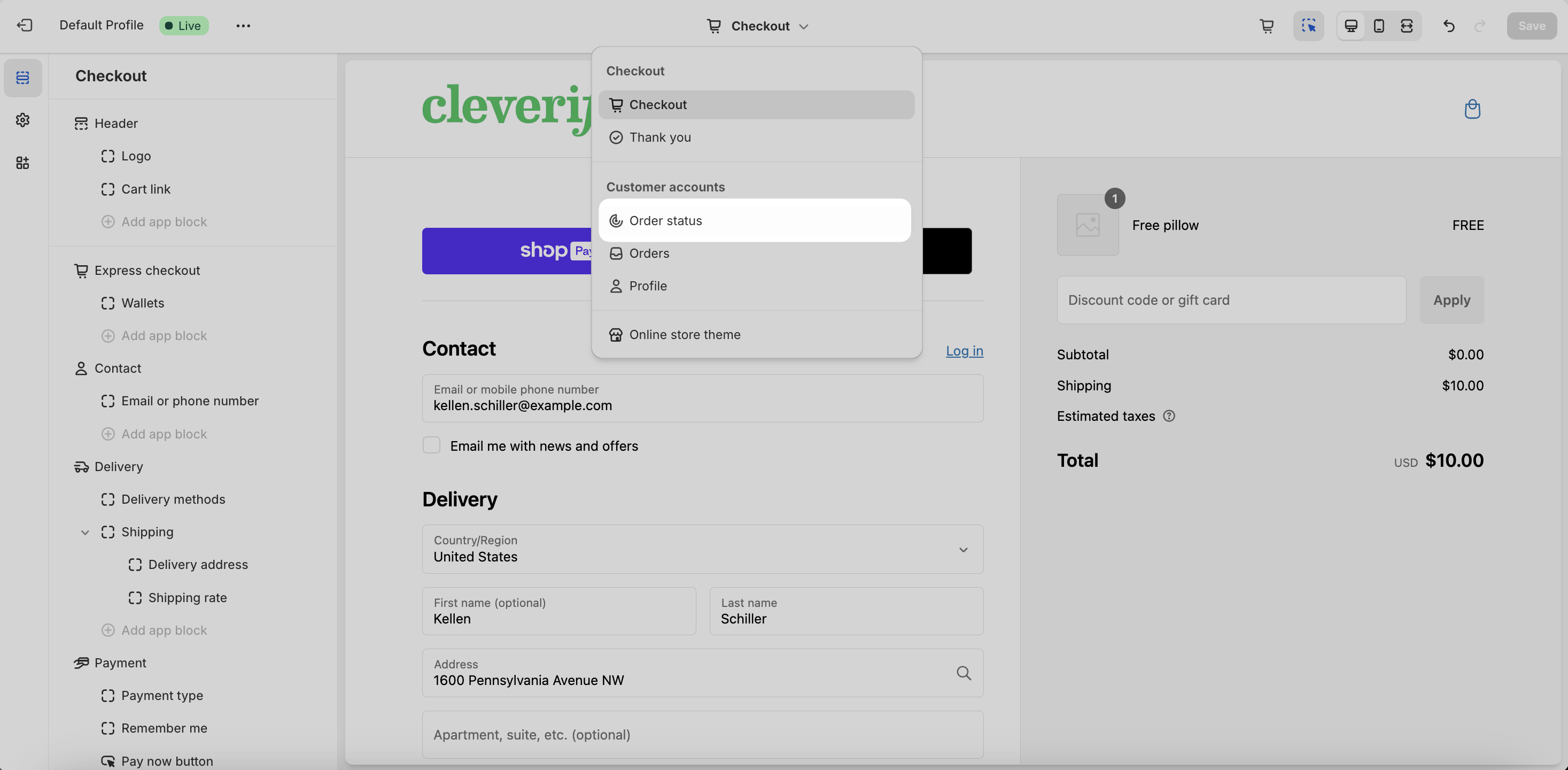
Click the dropdown at the top of the page and select Order Status.
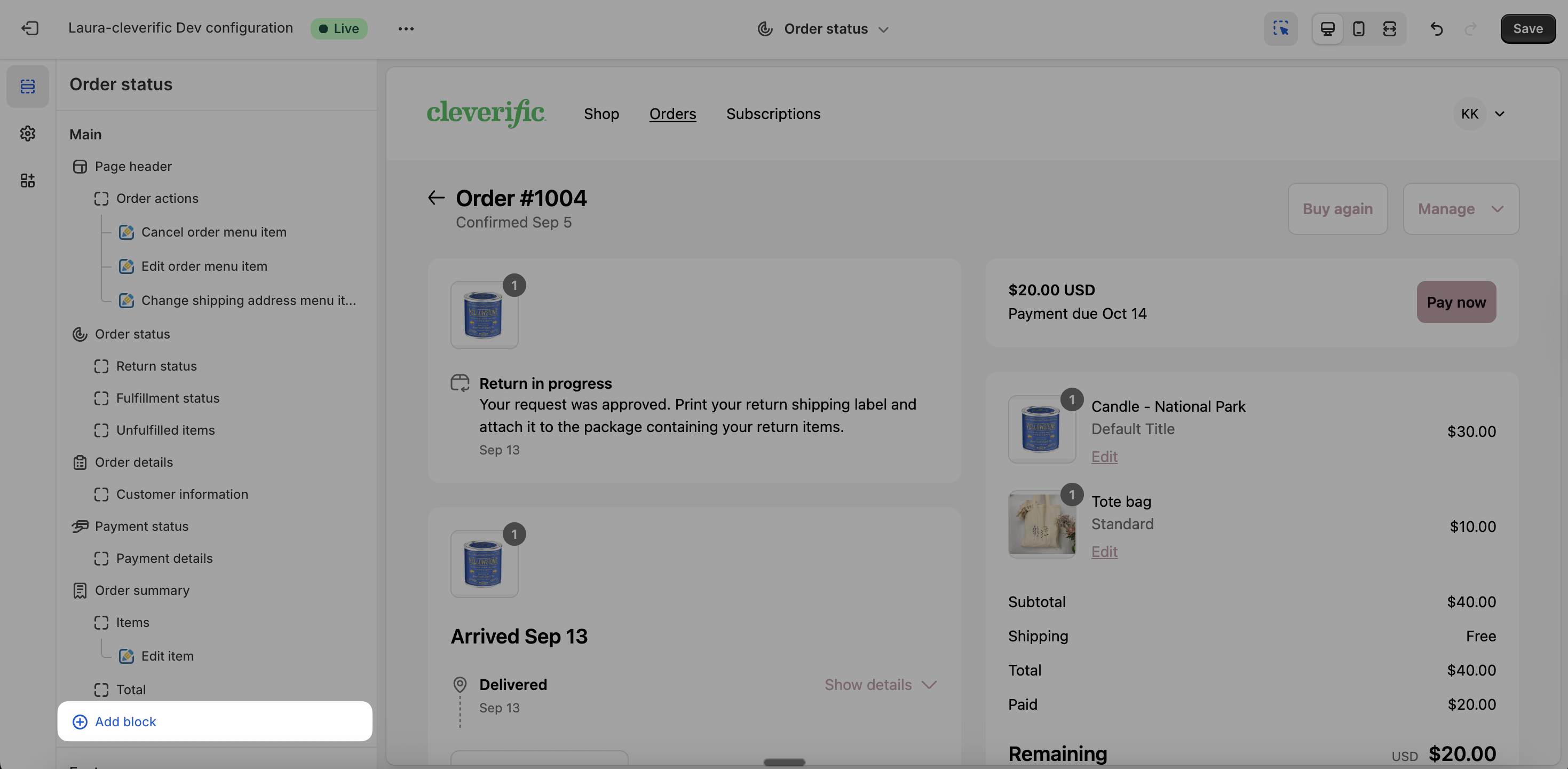
In the left column, in the Order status section, click Add app block.
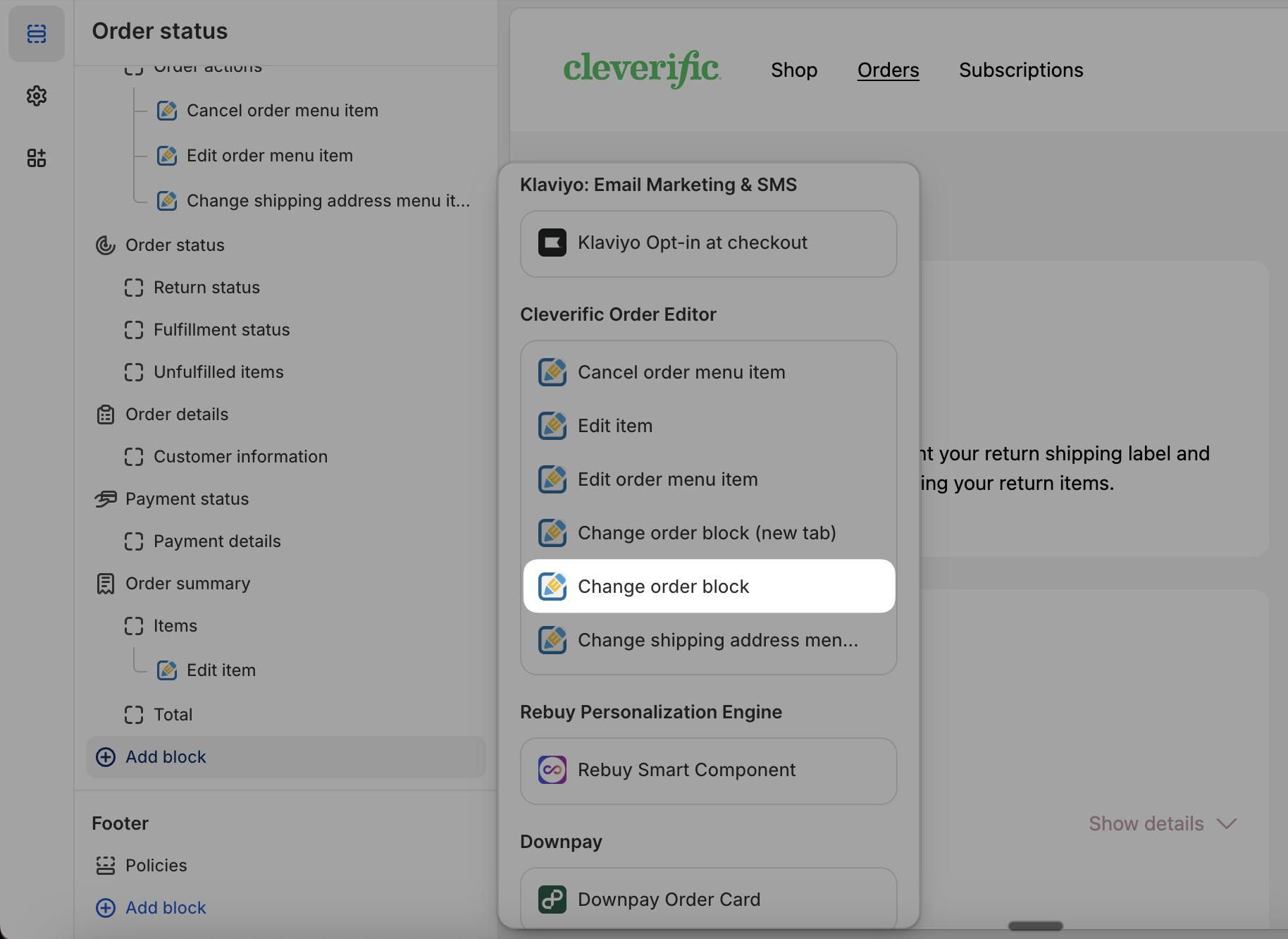
Under Cleverific Order Editor, select Change order block.
Click Save.
See also
Known limitations in Customer Portal
Any questions? Reach out to [email protected].