

Excluding products from a Grid offer's discount
Updated today
In Cleverific, you can exclude specific products, or only certain variants of a product, from a Grid offer's discount. They stay at full price while the rest of the grid keeps the discount. This is useful when a lower-priced product or a premium item shouldn't be discounted alongside everything else. Every product in a grid is discounted by default.
This article explains how to choose which products are discounted and what customers see.
Exclude a product from the discount
Go to Apps > Cleverific.
From the nav menu, click Upsells.
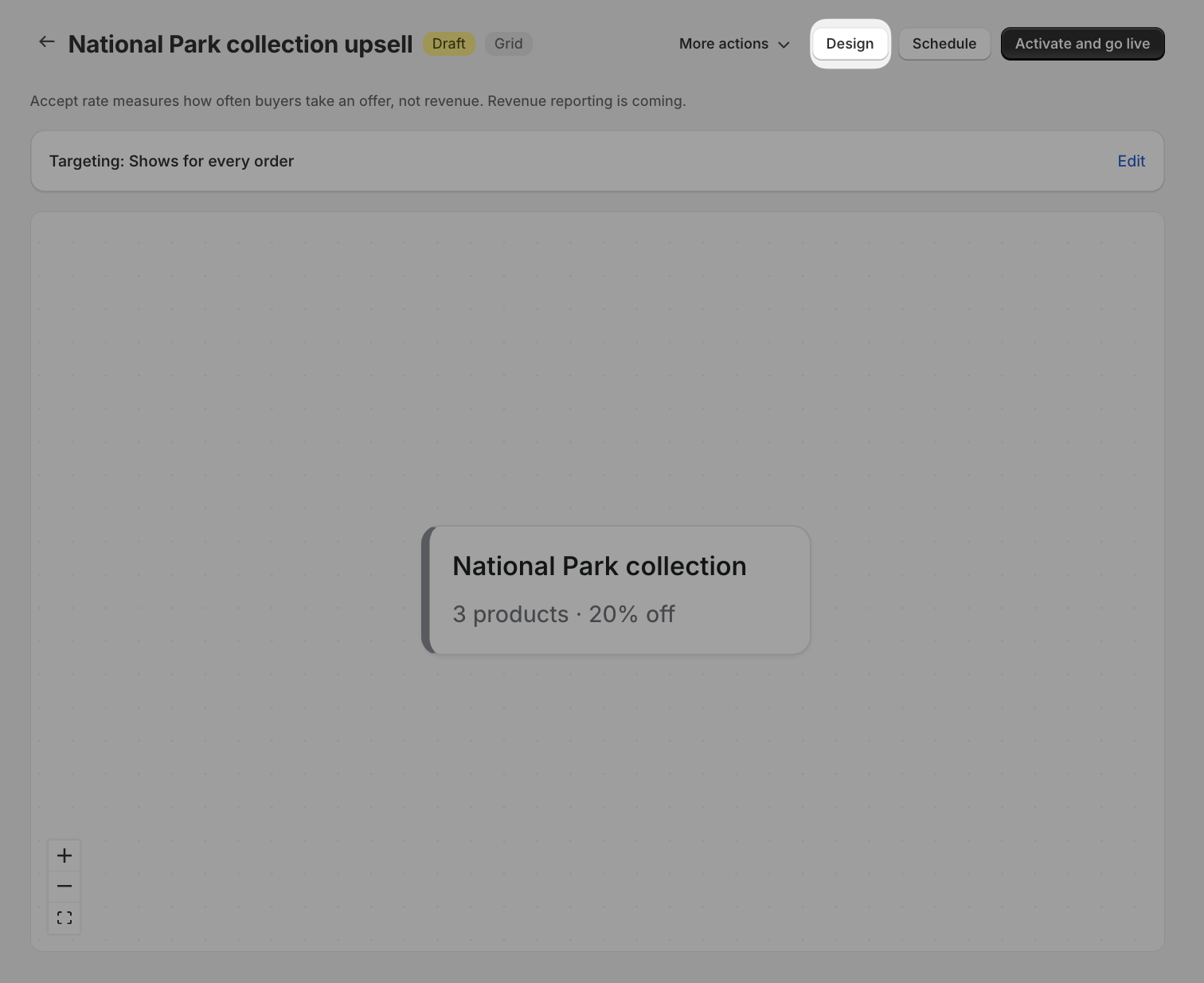
Open the Grid funnel, then click Design.
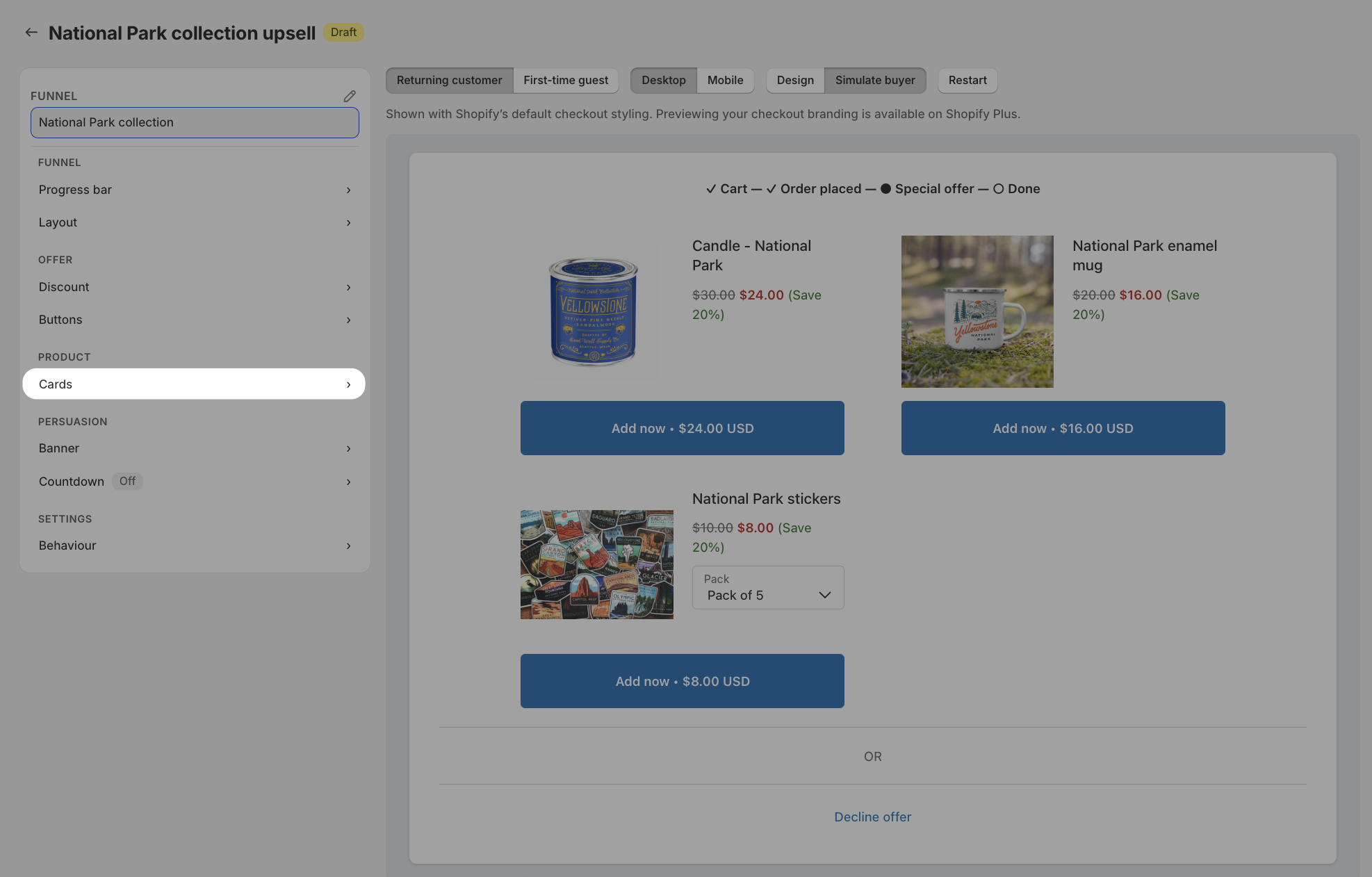
In the left panel, under Product, click Cards.
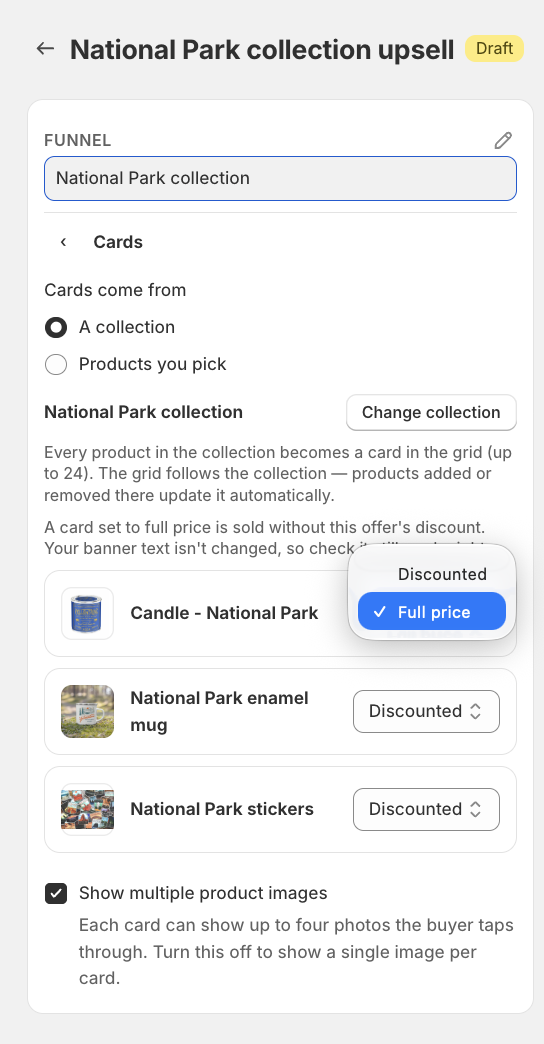
On the product you want to exclude, open its pricing dropdown and select Full price.
Click Save in the top bar.
To discount the product again, select Discounted in the same dropdown and save.
Exclude only some variants
Products with more than one variant also offer Full price for some variants. Use it when only certain variants should be excluded, for example one color of a product.
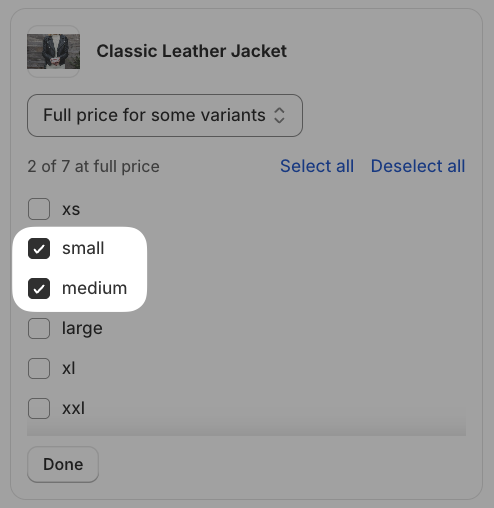
In Cards, open the pricing dropdown on the product and select Full price for some variants.
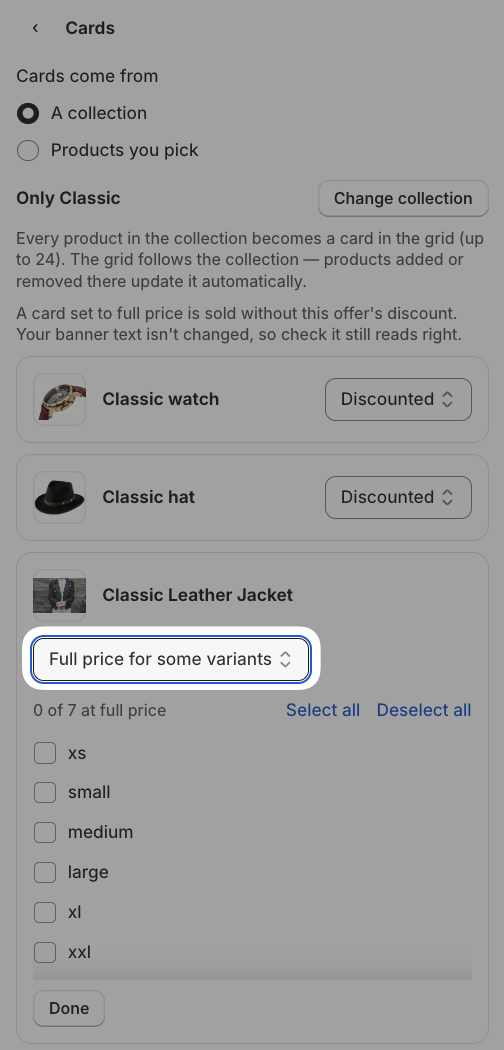
Tick each variant that should stay at full price. Unticked variants keep the discount.
Click Save in the top bar.
If every product is set to full price, the discount applies to nothing, and a message under Discount tells you so. With a fixed amount discount, at least $0.50 must remain on the lowest-priced product that is still discounted, so the amount you can enter changes as you switch products between Discounted and Full price.
Grids from a collection or products you pick
The pricing dropdown shows on every product, whether the grid comes from a collection or from products you pick. Products from a collection can't be removed individually, so the dropdown is the way to keep one of them out of the discount.
On a grid built from products you pick, removing a product also removes its full-price choice. If you pick the product again later, it comes back as Discounted.
What your customers see
An excluded product shows its regular price with no struck-through price and no save badge, and customers are charged that price.
On a product with some variants excluded, the price changes as the customer switches between variants, for example, $10.00 on an excluded variant and the discounted price on the others. This also applies when the funnel allows several products per page.
The funnel preview and the Raw events in Analytics reflect the same choices, with no discount recorded for excluded products.