

Building and previewing an upsell funnel
Updated 3 weeks ago
In Cleverific, you can build an upsell funnel, preview it as a buyer would see it, and adjust every offer’s settings, all on one page. Walk through each accept and decline path, then change the settings for a single offer or the whole funnel from the panel on the left. It’s available on every funnel by default.
If you haven't created a funnel yet, start with Setting up a post-purchase offer with Cleverific.
Open the funnel editor (Design)
Go to Apps > Cleverific.
From the nav menu, click Upsells.
Open any funnel from the list, or create one.
Click Design in the funnel header.
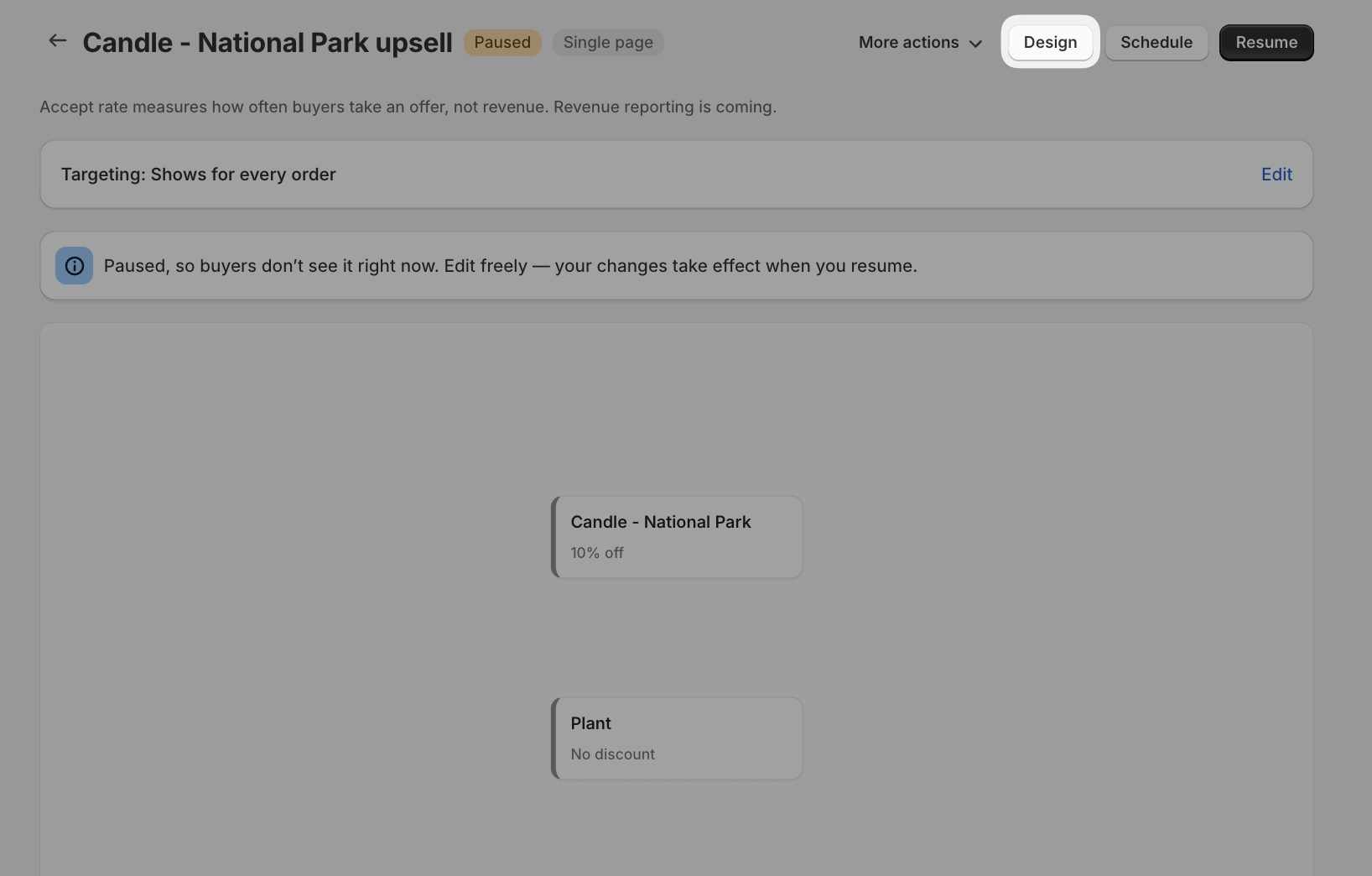
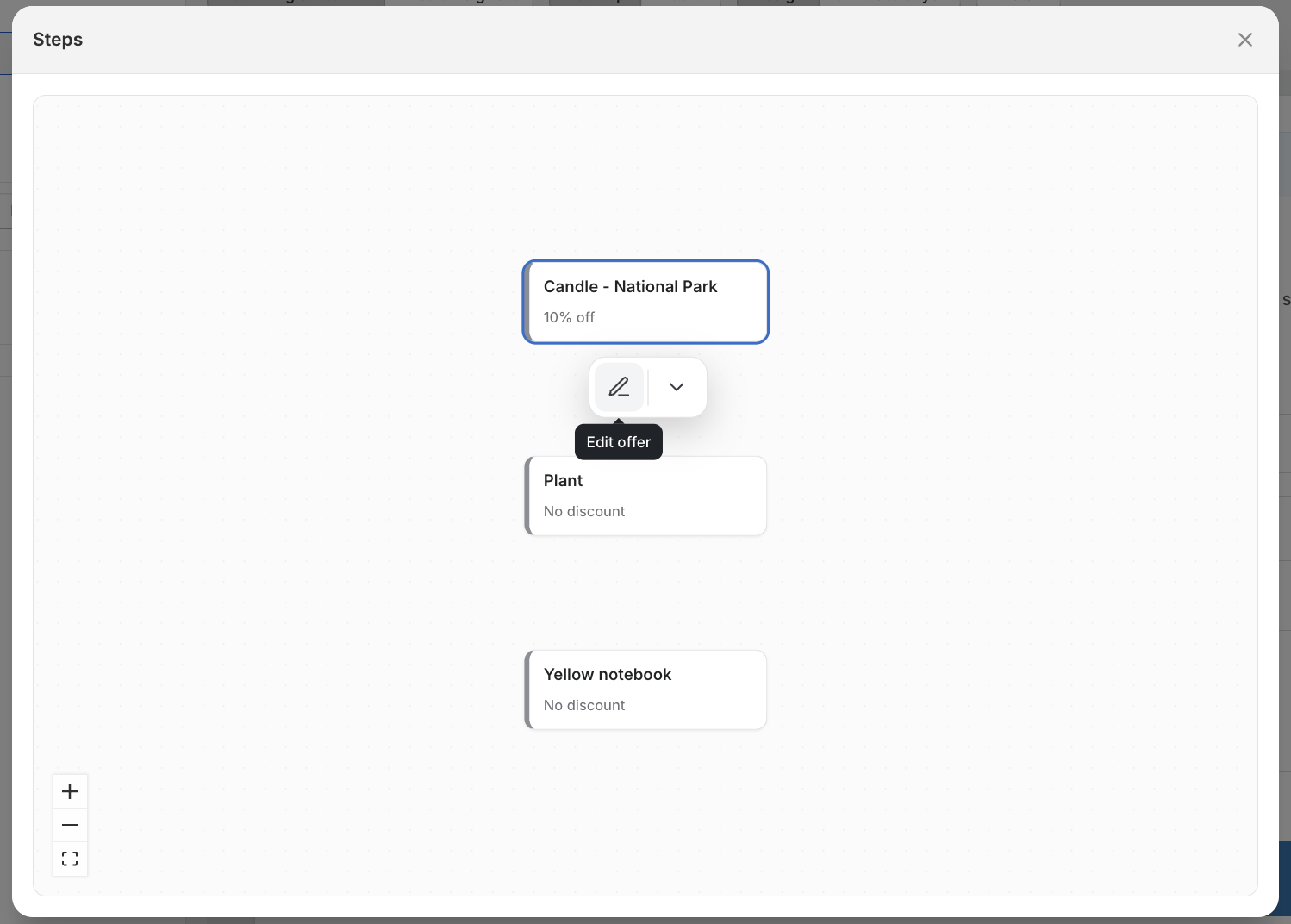
You can also click Edit offer on a step in the funnel canvas. It opens the editor on that step.
This will open the preview and settings to edit your funnel.
Edit the funnel steps
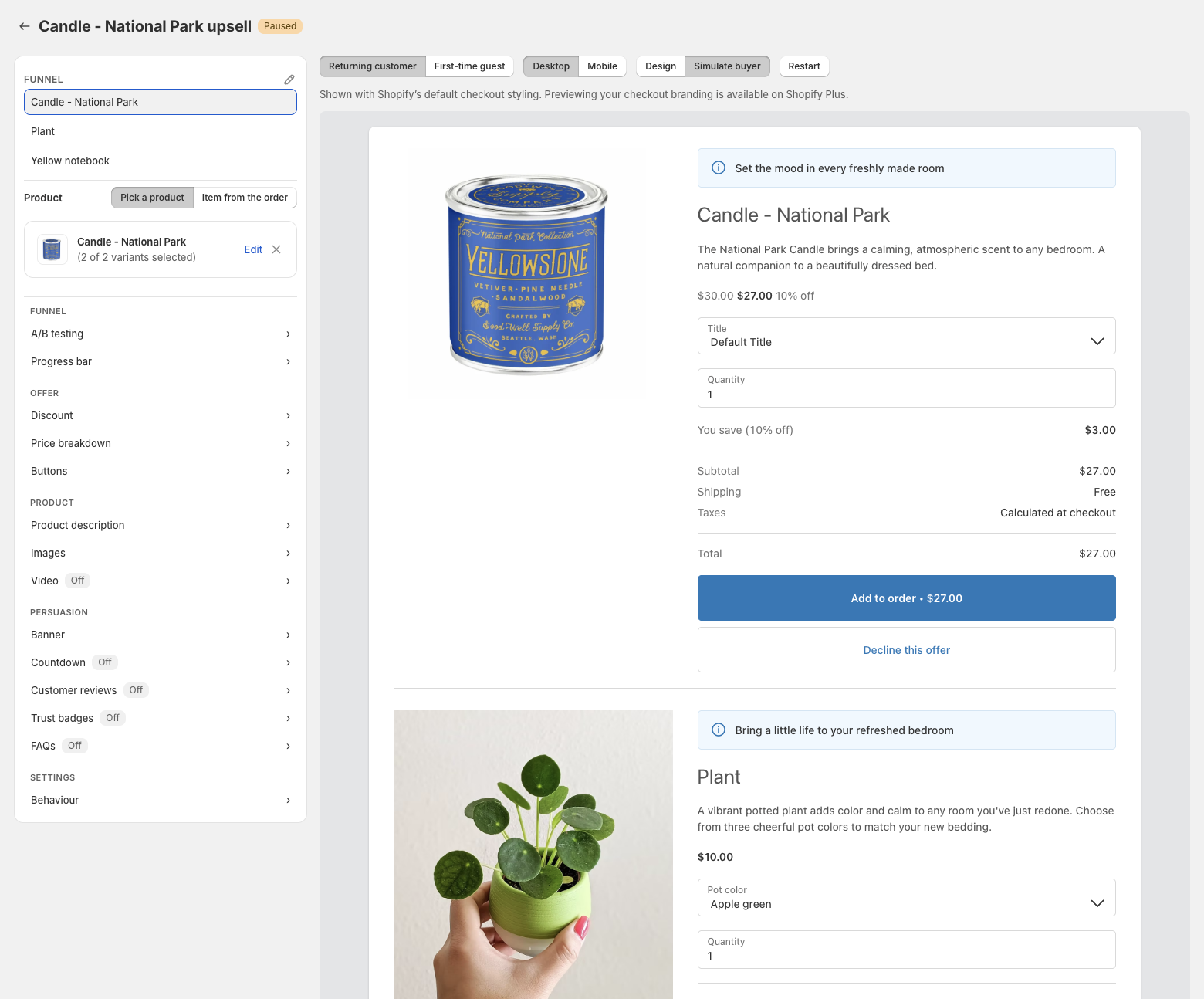
The steps of your funnel are listed at the top of the left panel.
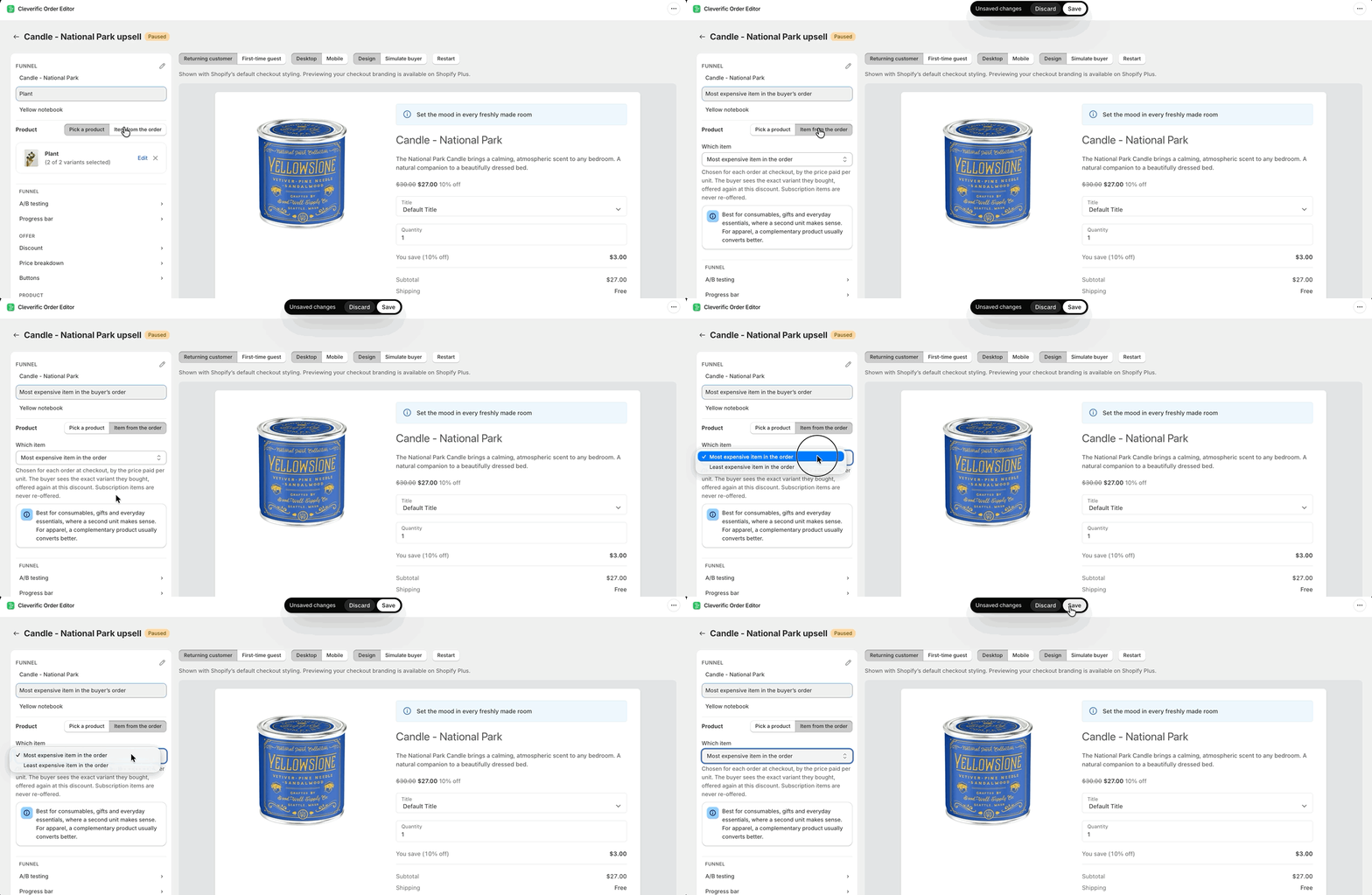
Click any of the steps to see how it looks in the preview and to change its product and settings below.
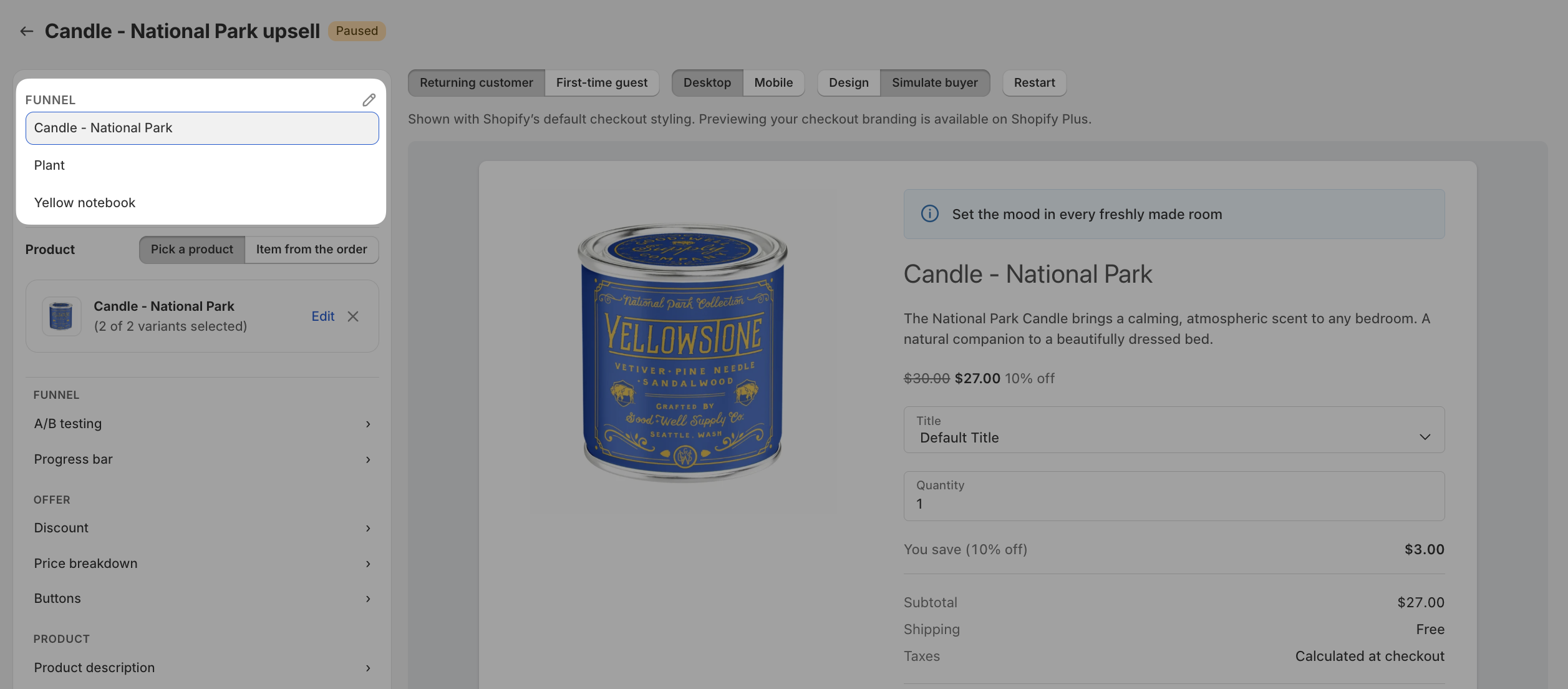
To swap the product on a step, click Edit on the product card under Product.
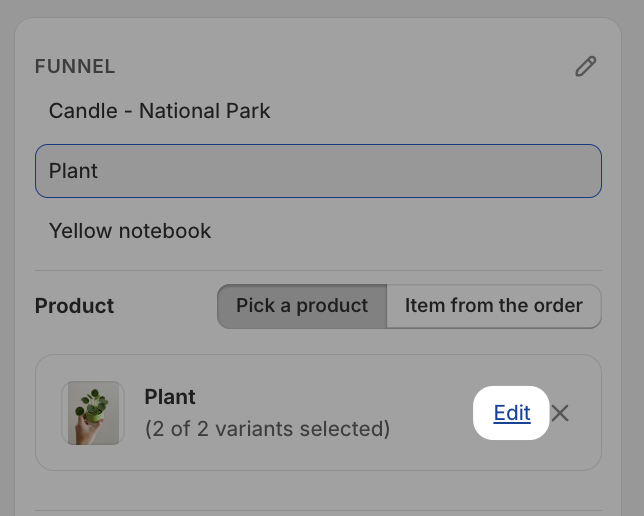
You can also choose Item from the order to offer something from the customer's order instead, as explained in Re-offering the most or least expensive item from the customer's order.
Add, remove or reorder your funnel steps
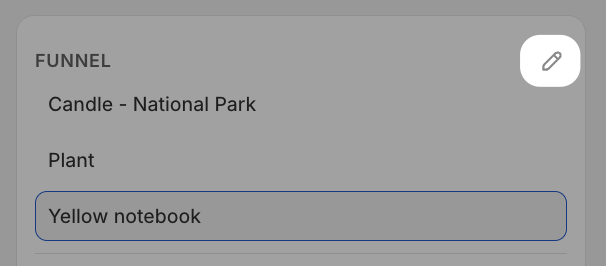
Click the pencil icon beside Funnel.
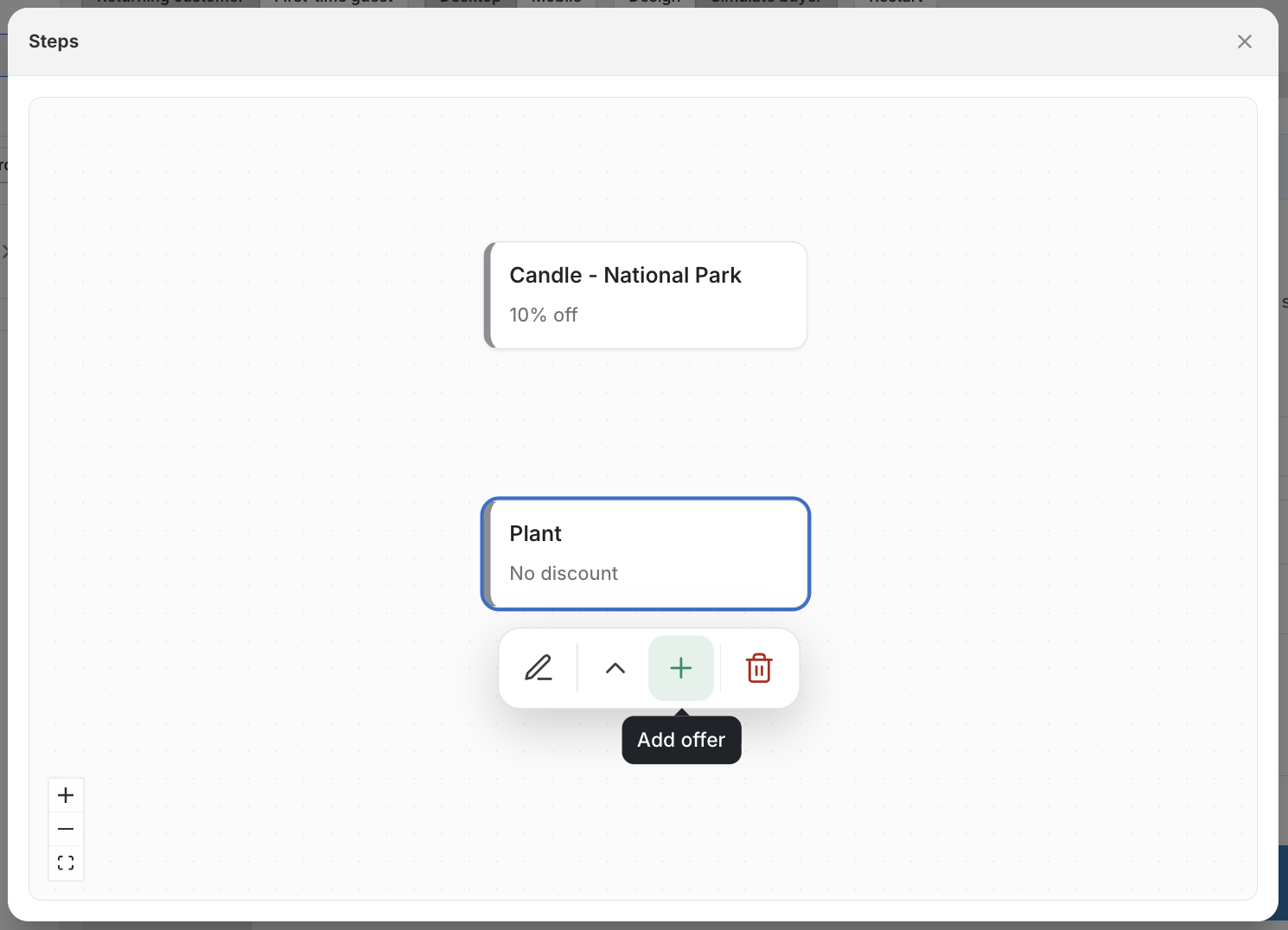
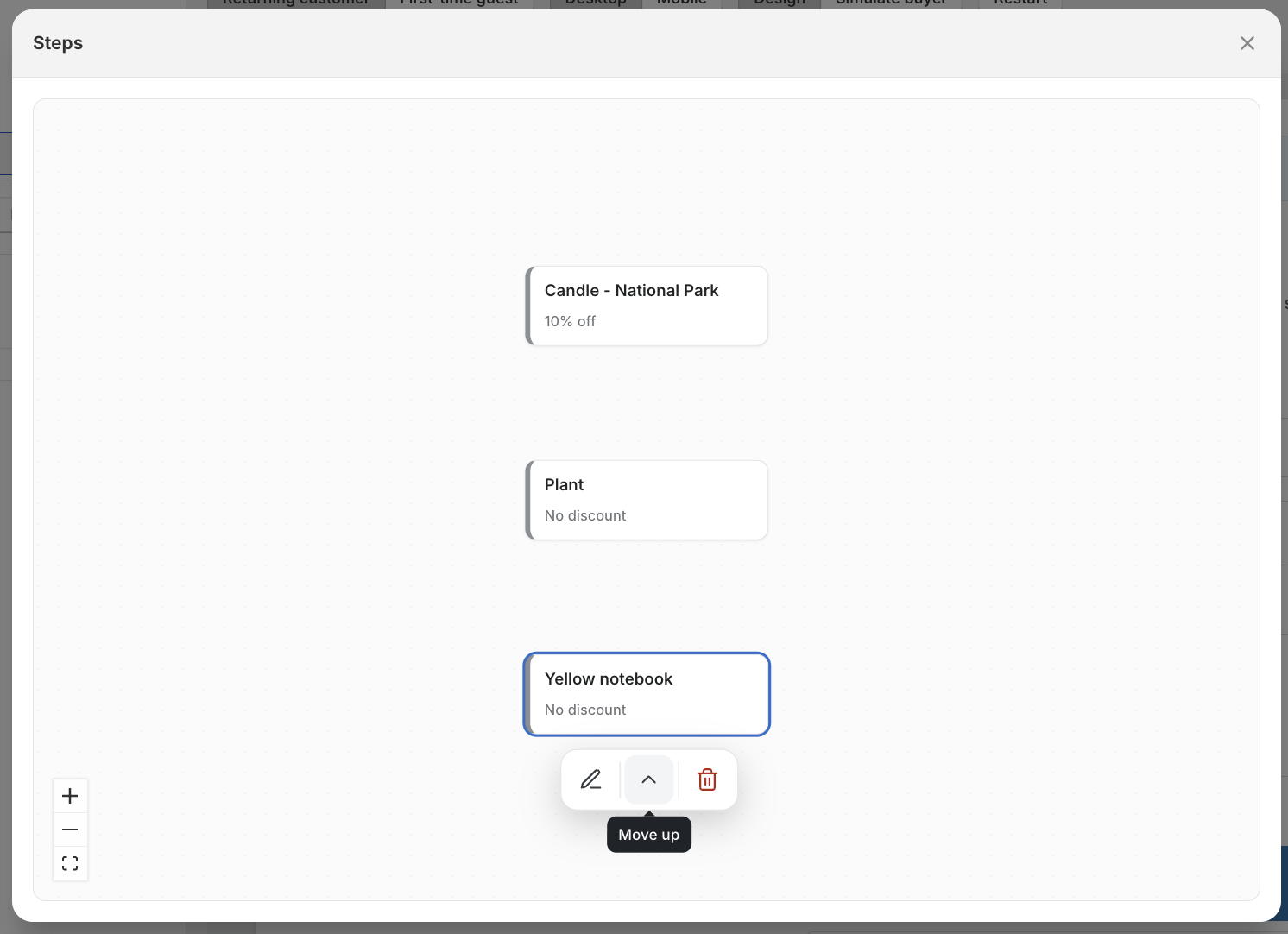
To add an offer, click the add icon on a step and choose where the new offer goes: On the same page, After they accept or After they decline. The example below shows the Steps view for a Single page funnel.
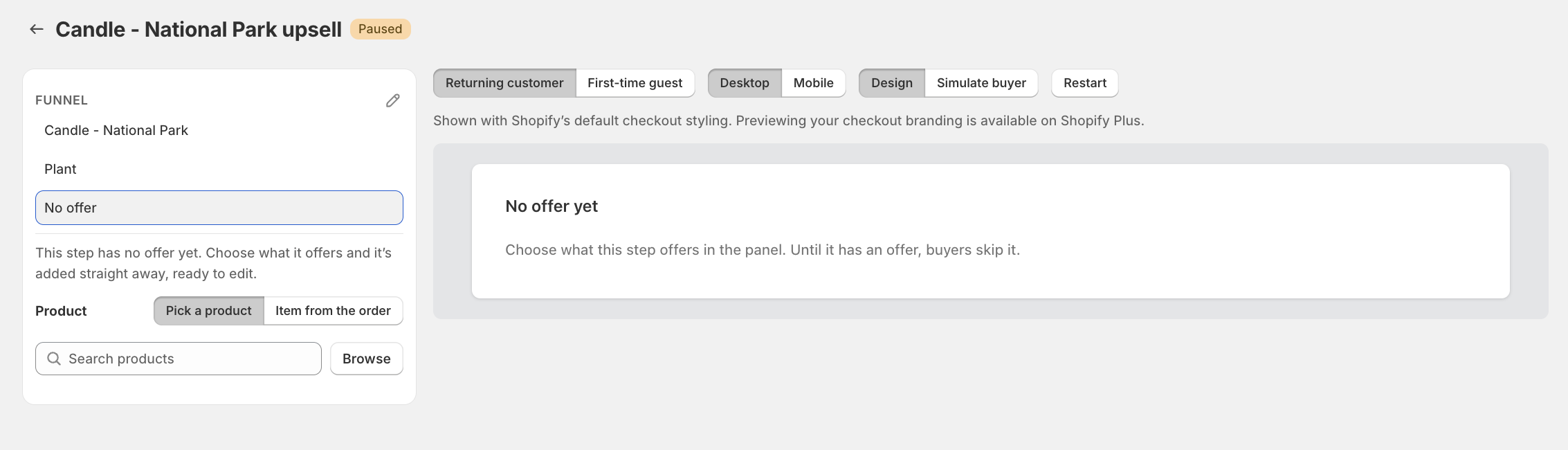
Choose what the new step offers: Pick a product, Item from the order or A collection. The offer is added right away.
Use Move up and Move down to reorder steps, or Remove to delete one.
Click Edit offer on a step to close the window and see that step in the preview.
If you remove the step you were looking at, the preview goes back to the first step. A collection only shows up while the funnel doesn't offer any products yet.
Where each setting lives
Below the steps, the panel groups every setting into sections. Settings listed under Funnel apply to the whole funnel. The rest apply to the offer you have selected, and a section shows Off when it is disabled for that offer. Each section below is linked to the specific article that covers it in detail.
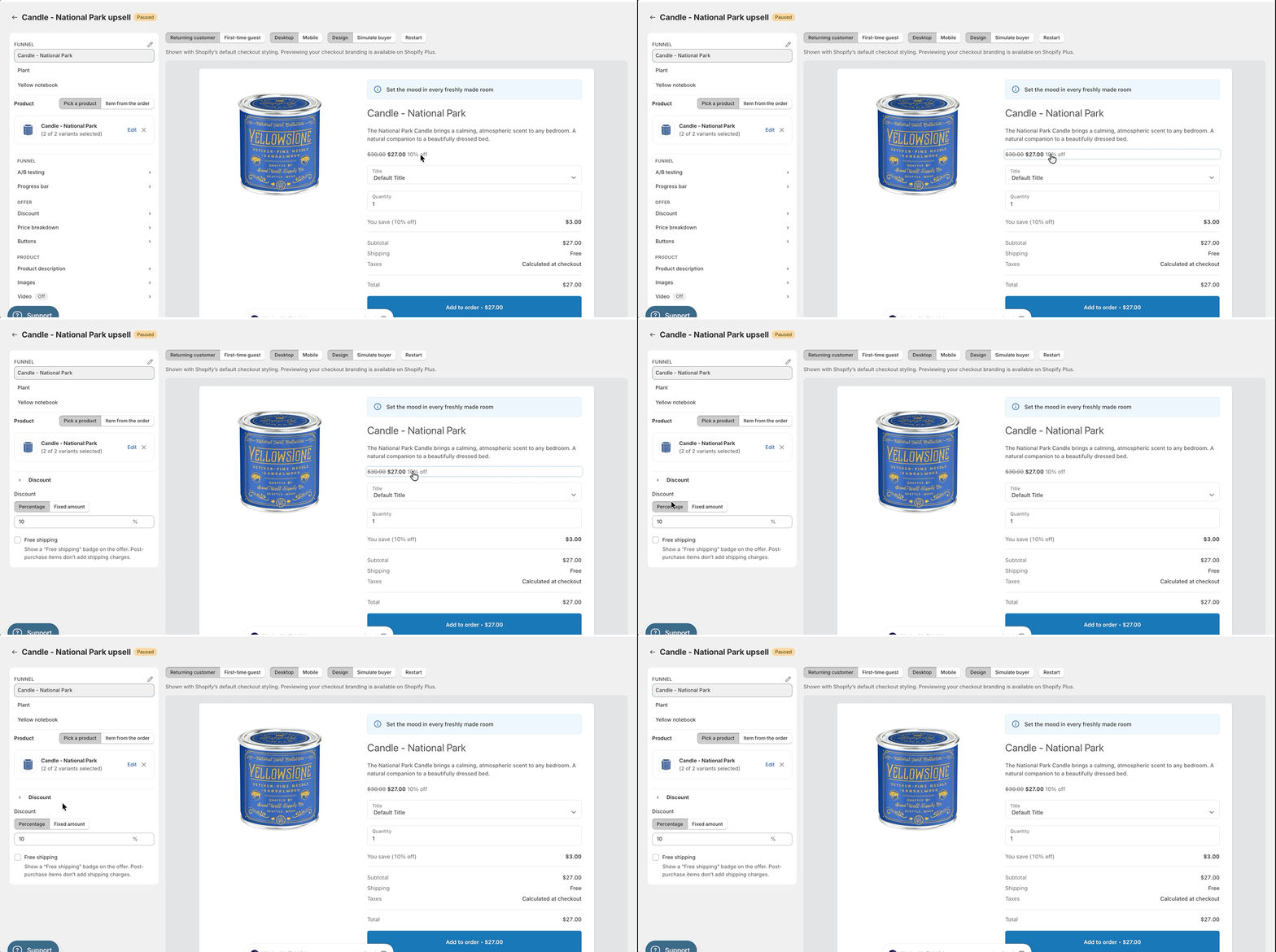
Tip: To jump straight to a section, hover a block in the preview to outline it, then click it.
Sections overview
Funnel
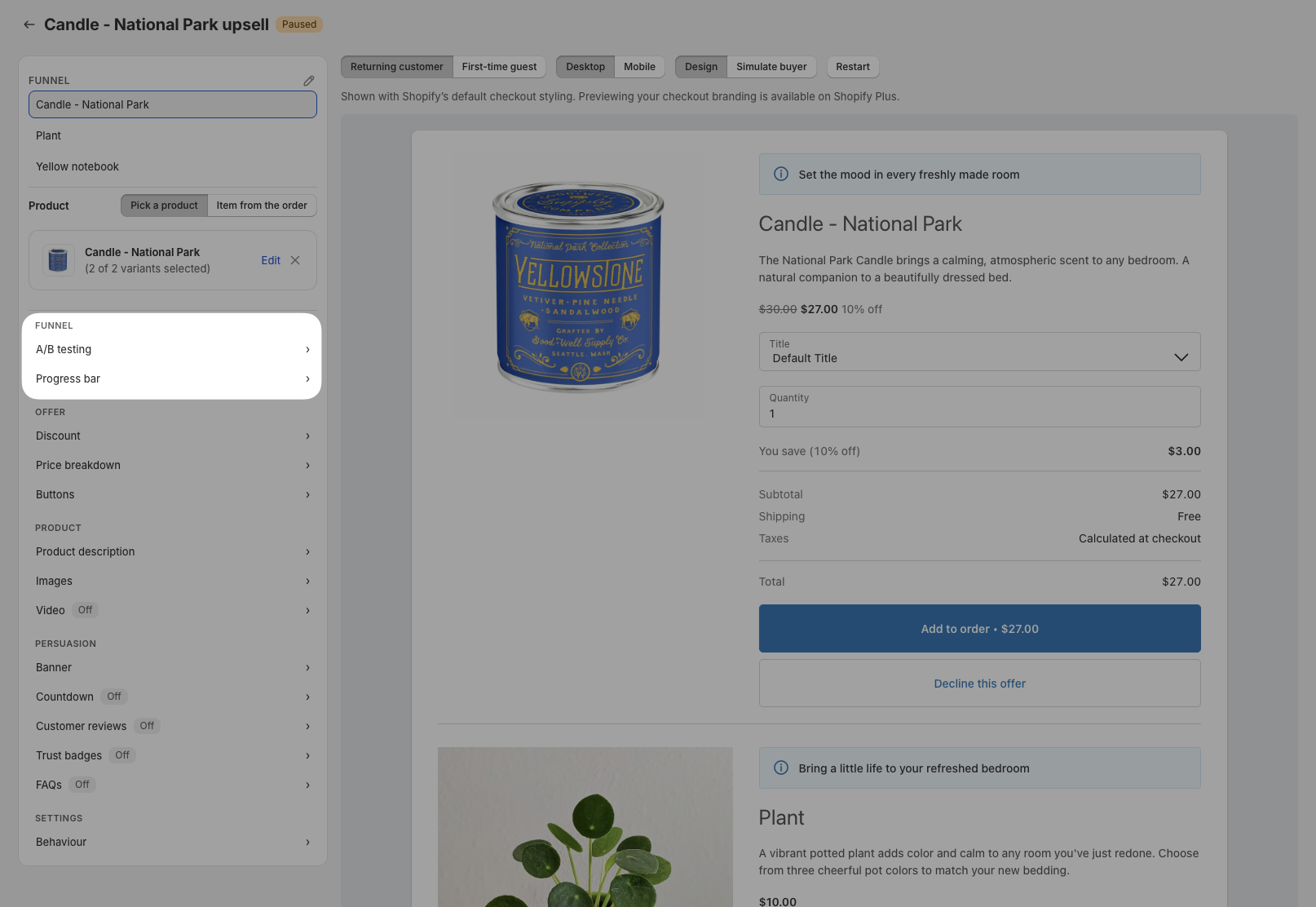
A/B testing: Test two versions of an offer against each other, with traffic split between them. Applies to the whole funnel. See Setting up A/B testing on a post-purchase offer.
Progress bar: Show buyers a progress bar across the funnel's offers. Applies to the whole funnel, and saves right away once you confirm. See Showing a progress bar on post-purchase offer pages.
Layout: Switch between Grid and Carousel, and choose how many products a buyer can take. Only visible on Grid and Carousel funnels, applies to the whole funnel, and saves right away once you confirm. See Showing a collection funnel as a carousel on the post-purchase page.
Offer
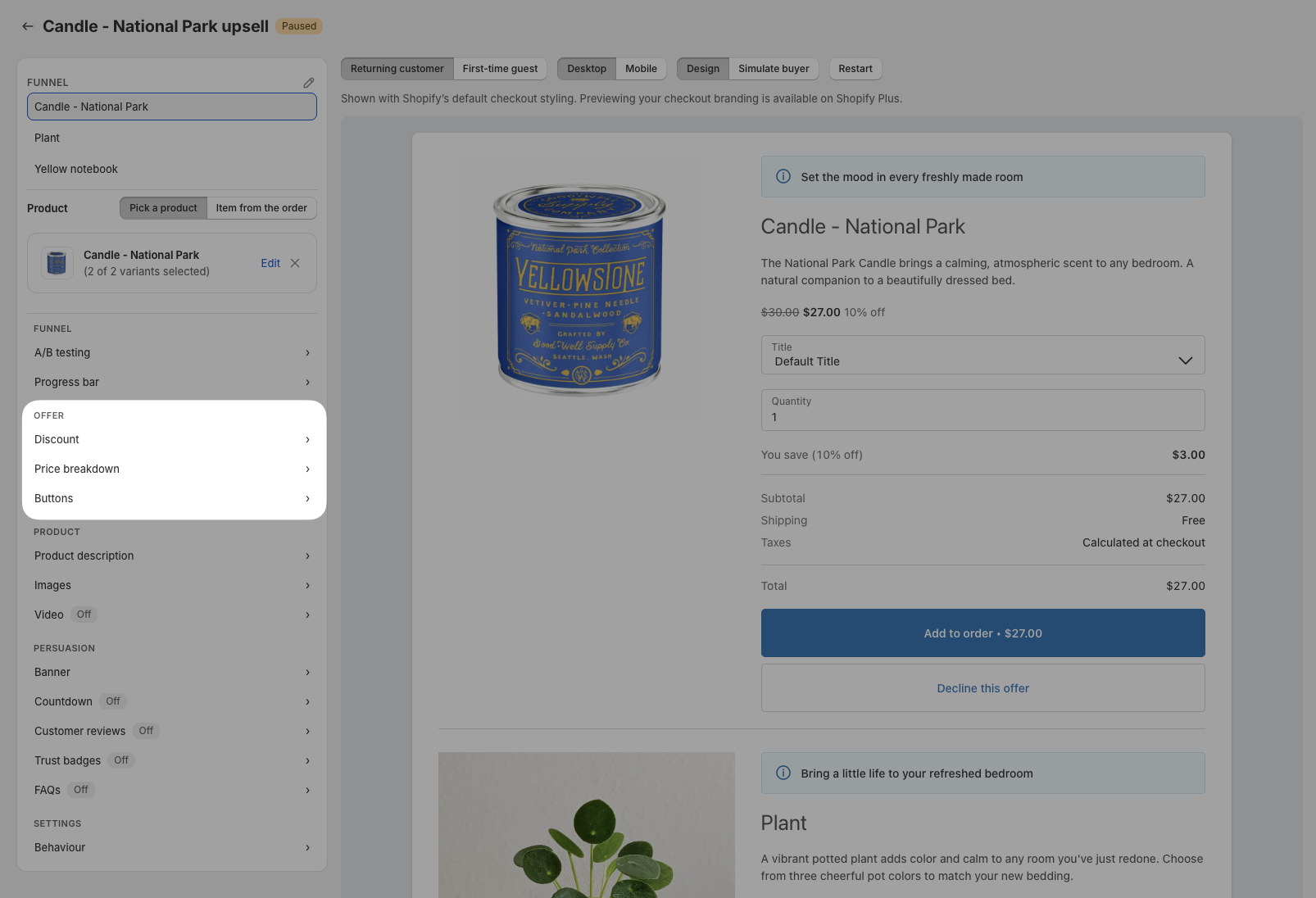
Discount: Set the discount on an offer and show a Free shipping badge. Applies to the offer you have selected. See Understanding the offer settings in Cleverific's Upsells.
Price breakdown: Choose which price lines buyers see, such as the subtotal, shipping and taxes. Applies to the offer you have selected. See Customizing the price breakdown on a post-purchase offer.
Buttons: Change the button text, add an extra buy button, or ask buyers to confirm before they accept. Applies to the offer you have selected. See Repeating the buy button on a post-purchase offer.
Product
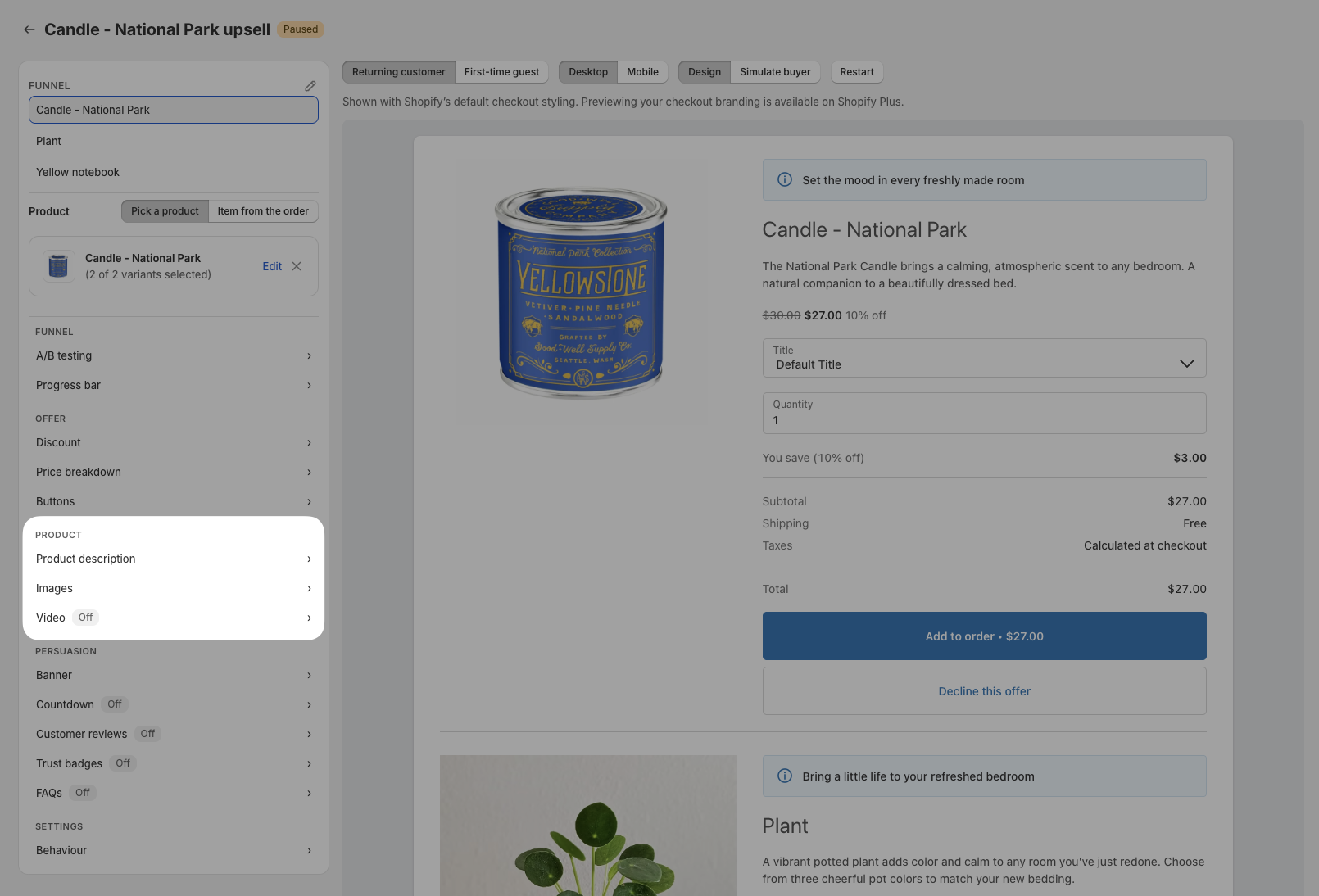
Product description: Edit the description shown on the offer. Applies to the offer you have selected, on funnels that aren't Grid or Carousel. See Customizing the 1-click Upsells Post Purchase page's UI.
Images: Show multiple product images and add image badges. Applies to the offer you have selected. See Showing multiple product images on a post-purchase offer and Adding image badges to a post-purchase offer.
Video: Add a video to the offer. Applies to the offer you have selected. See Adding a video to a post-purchase offer.
Cards: Choose the products shown as cards. Only displayed on Grid and Carousel funnels, where it replaces the sections above. See Allowing customers to pick several products on a Grid or Carousel offer page.
Persuasion
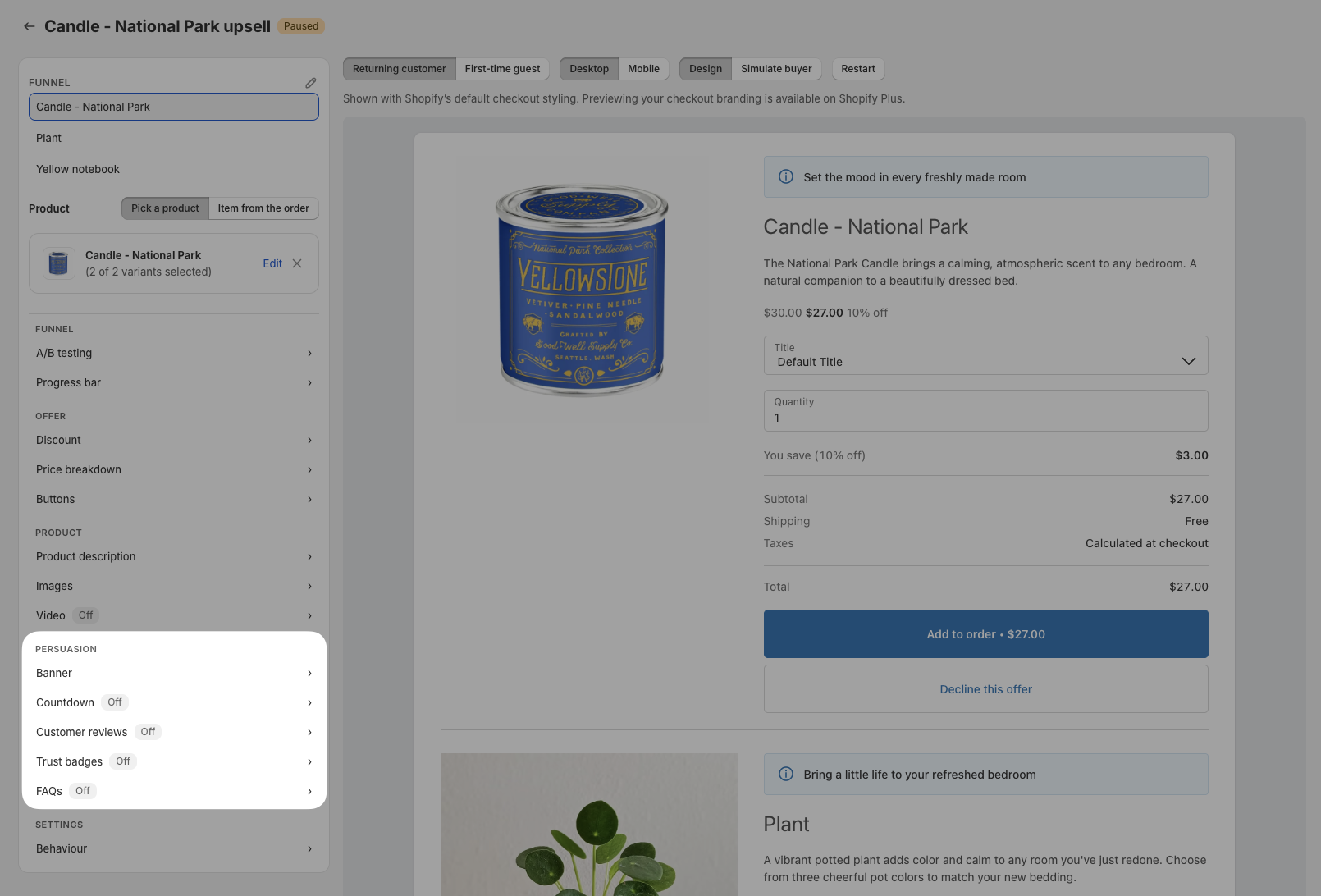
Banner: Add and style the banner above the offer. Applies to the offer you have selected. See Styling and formatting the banner on a post-purchase offer.
Countdown: Add a countdown timer to the offer. Applies to the offer you have selected. See Customizing the countdown timer on a post-purchase offer.
Customer reviews: Show reviews on the offer, and turn star ratings on or off. Reviews apply to the offer you have selected. Star ratings apply to every funnel in your store, and save right away once you confirm. See Showing customer reviews on a post-purchase offer and Showing star ratings on post-purchase offers.
Trust badges: Add trust badges to the offer. Applies to the offer you have selected. See Adding trust badges to a post-purchase offer.
FAQs: Add questions and answers to the offer. Applies to the offer you have selected. See Adding FAQs to a post-purchase offer.
Settings
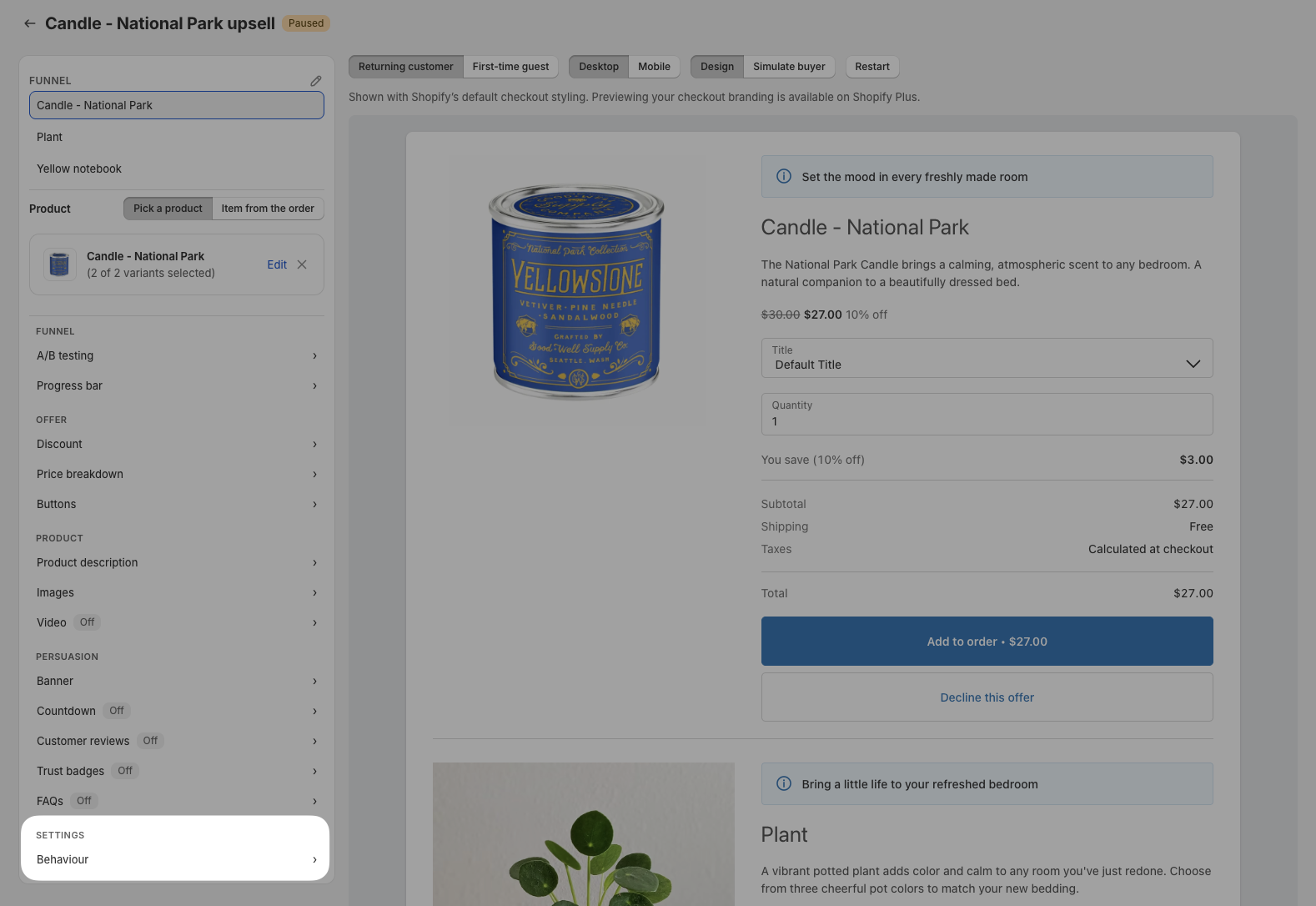
Behaviour: Show an offer even if the product is already in the order, and tag the order when the offer is accepted. Applies to the offer you have selected. See Understanding the offer settings in Cleverific's Upsells.
Save your changes
Click Save in the top bar to keep your changes. On a funnel that is already live, Cleverific asks you to confirm with Save and push live before the changes reach buyers.
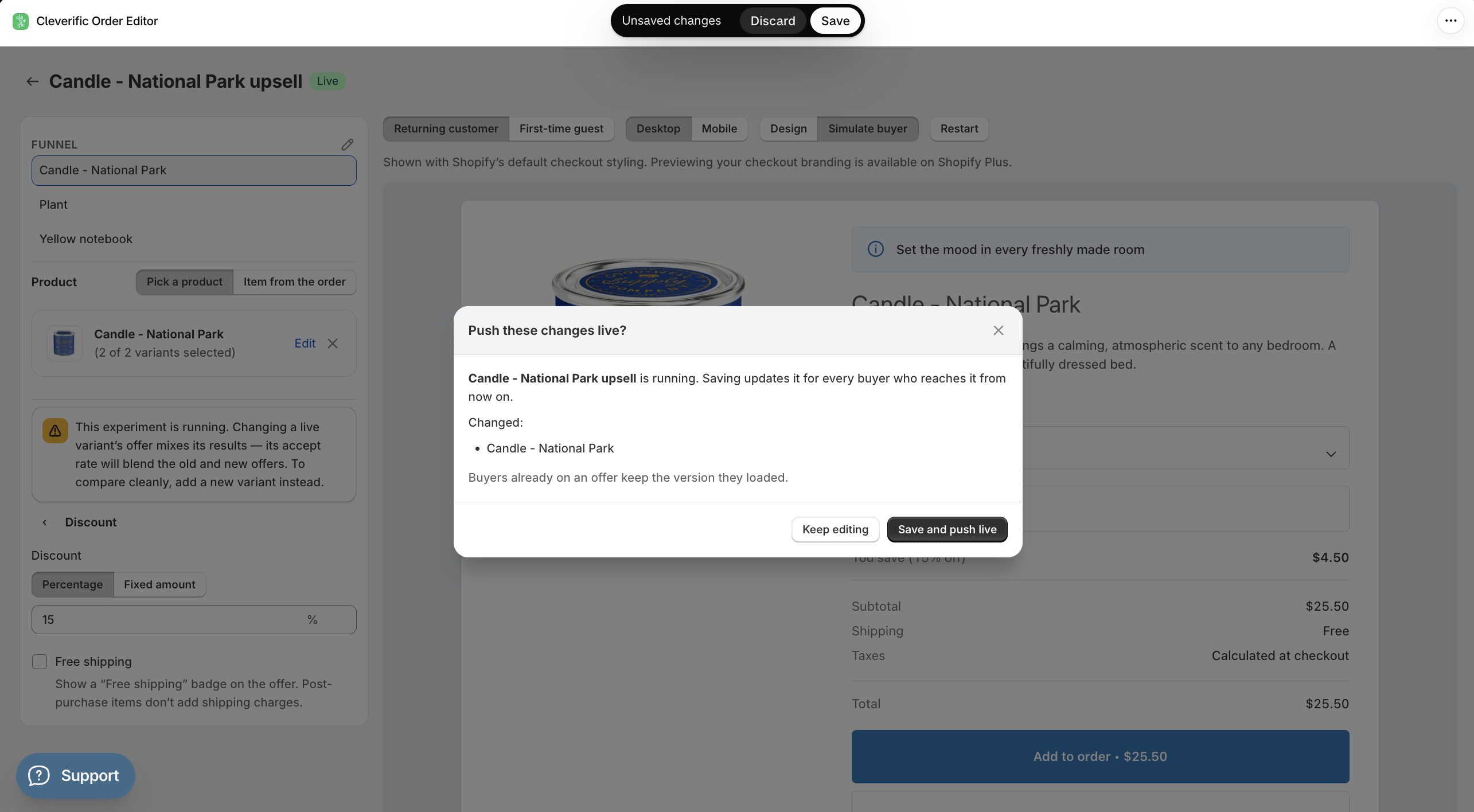
The progress bar, star ratings, and the layout of a Grid or Carousel funnel reach beyond the offer on screen. Each one asks you to confirm, says how far it reaches, and saves right away without the Save button.
Walk through the buyer paths
You can use Simulate buyer to check how the funnel flows before it goes live, including what a buyer sees after accepting or declining each offer.
Click Simulate buyer.
Click through the offer as a buyer would, accepting or declining at each step.
Click Restart to go back to the first step and try another path.
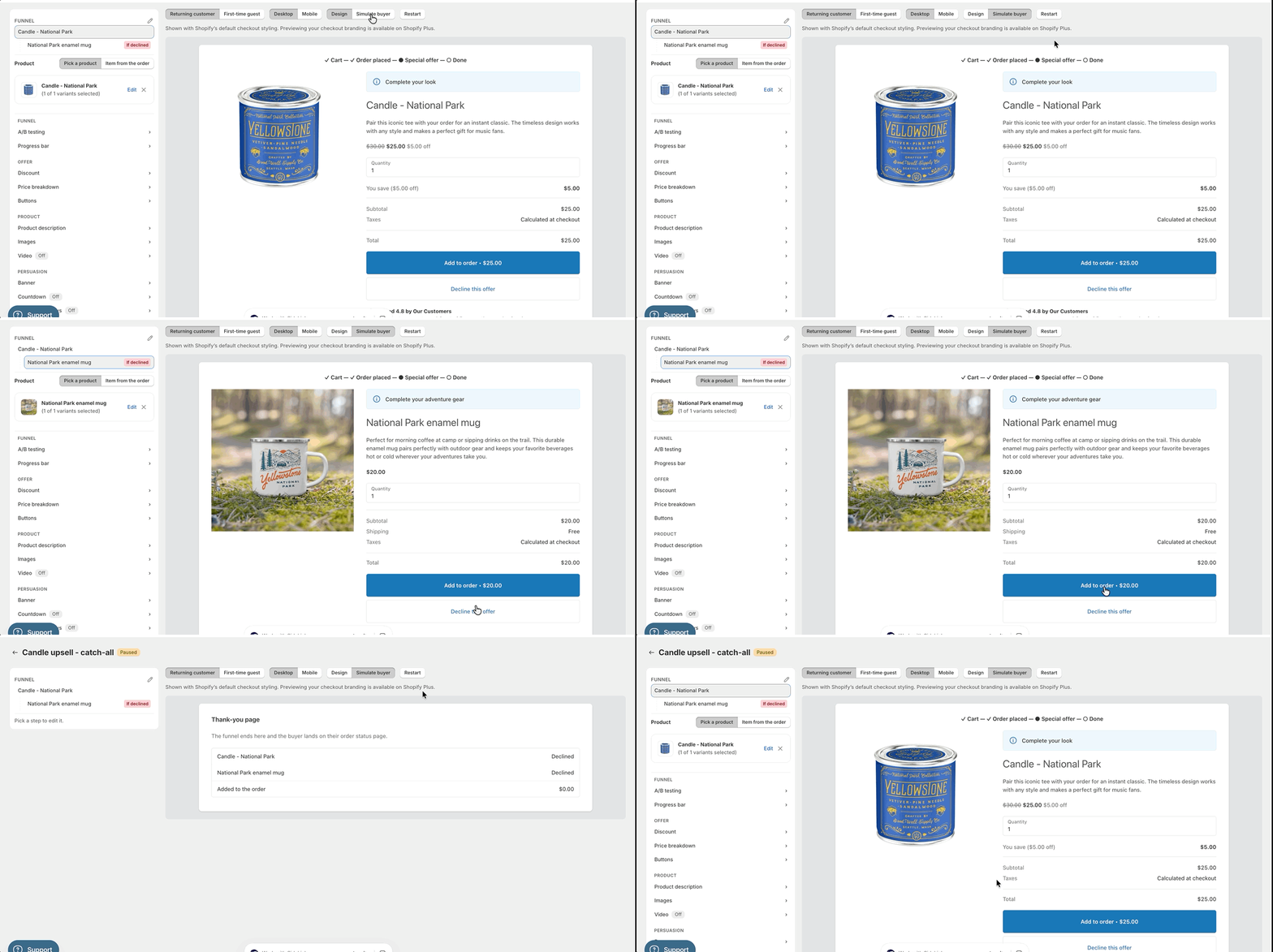
You can switch between Returning customer and First-time guest, and between Desktop and Mobile, to see how the page changes for each buyer and device. Click Design next to Simulate buyer to return to editing.
Unreachable steps
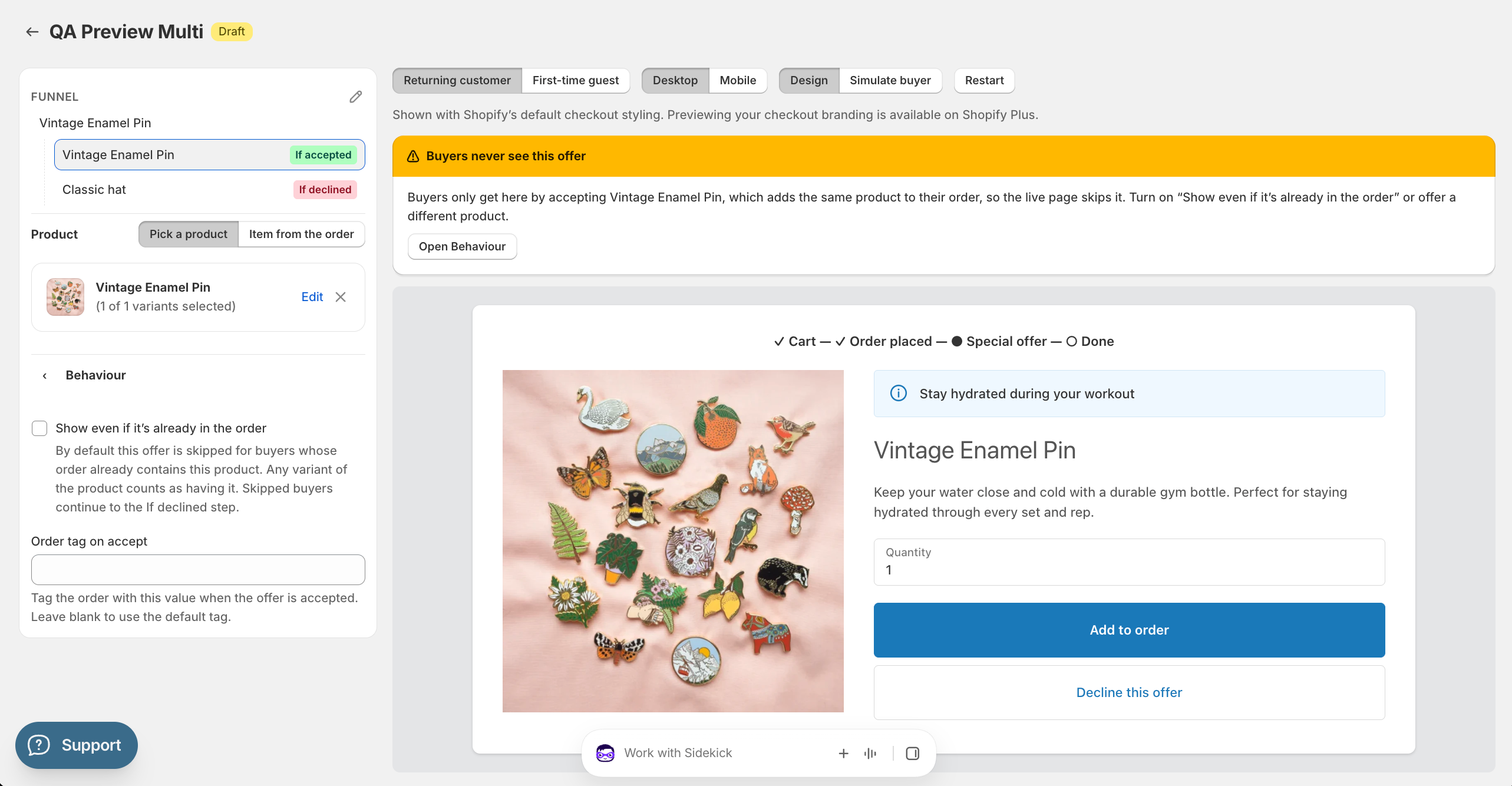
If a later step offers the same product a buyer just accepted, the post-purchase page skips it. The editor still lets you open that step, and shows a Buyers never see this offer warning. Click Open Behaviour in the warning, then check Show even if it's already in the order to show the offer anyway.
Checkout branding on Shopify Plus
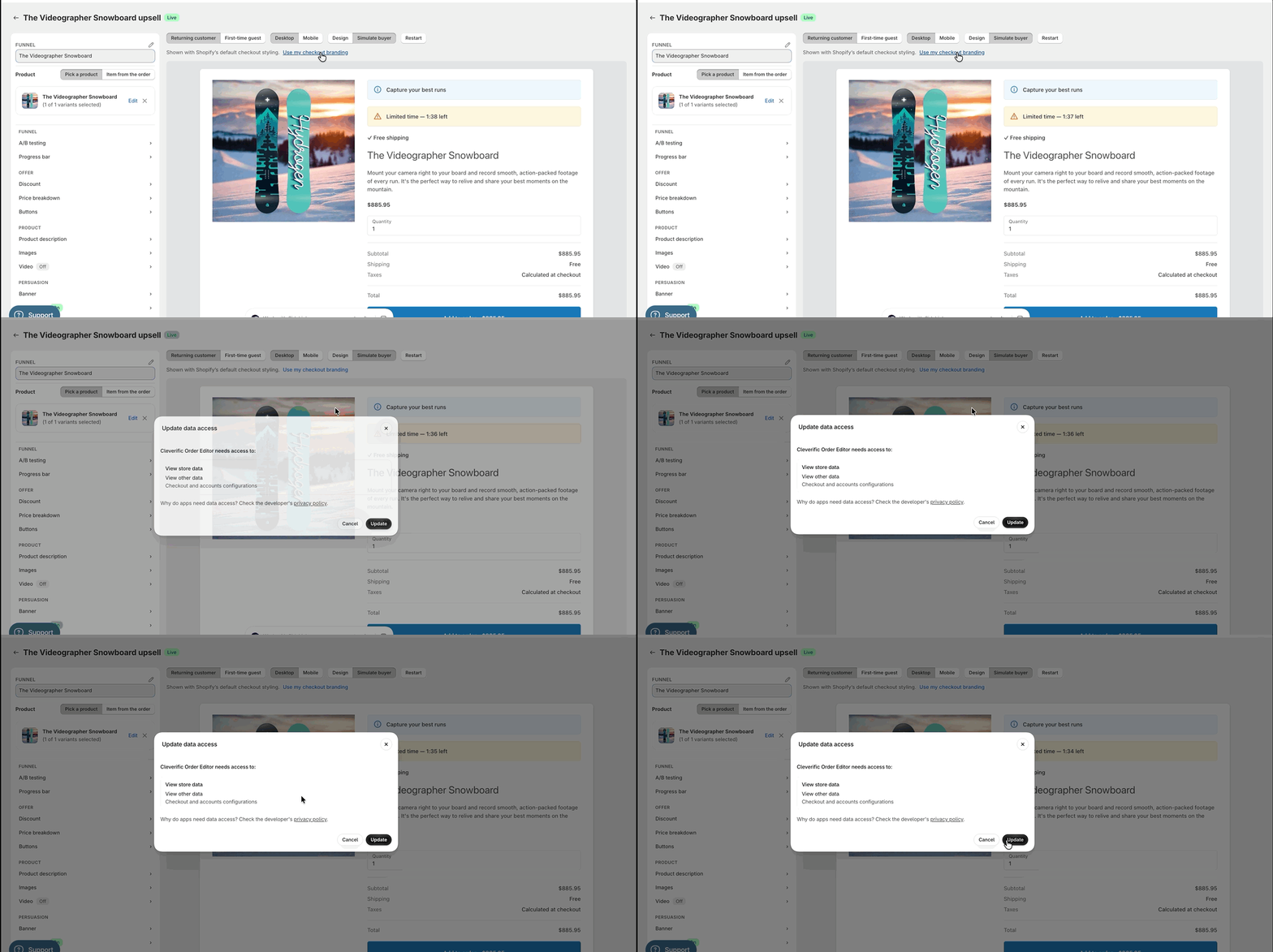
The preview uses Shopify's default checkout styling. On Shopify Plus, click Use my checkout branding and grant access to preview the page with your store's accent, background and text colors.
Known limitations
Targeting rules and the schedule stay on the funnel page. See Post-purchase funnel targeting rule types and Scheduling an upsell funnel to go live or pause automatically.
Tax shows "Calculated at checkout" and is left out of the total.
Archived funnels can be previewed but not changed.