

Showing a collection funnel as a carousel on the post-purchase page
Updated 2 weeks ago
In Cleverific, you can show a collection funnel as a carousel on the post-purchase page. Customers see two offers at a time and use the previous and next arrows to browse the rest of the collection. Carousel is not selected by default, and existing Grid funnels stay on Grid until you switch them.
Create a carousel funnel
Go to Apps > Cleverific.
From the nav menu, click Upsells.
Click Create funnel.
Select Carousel.
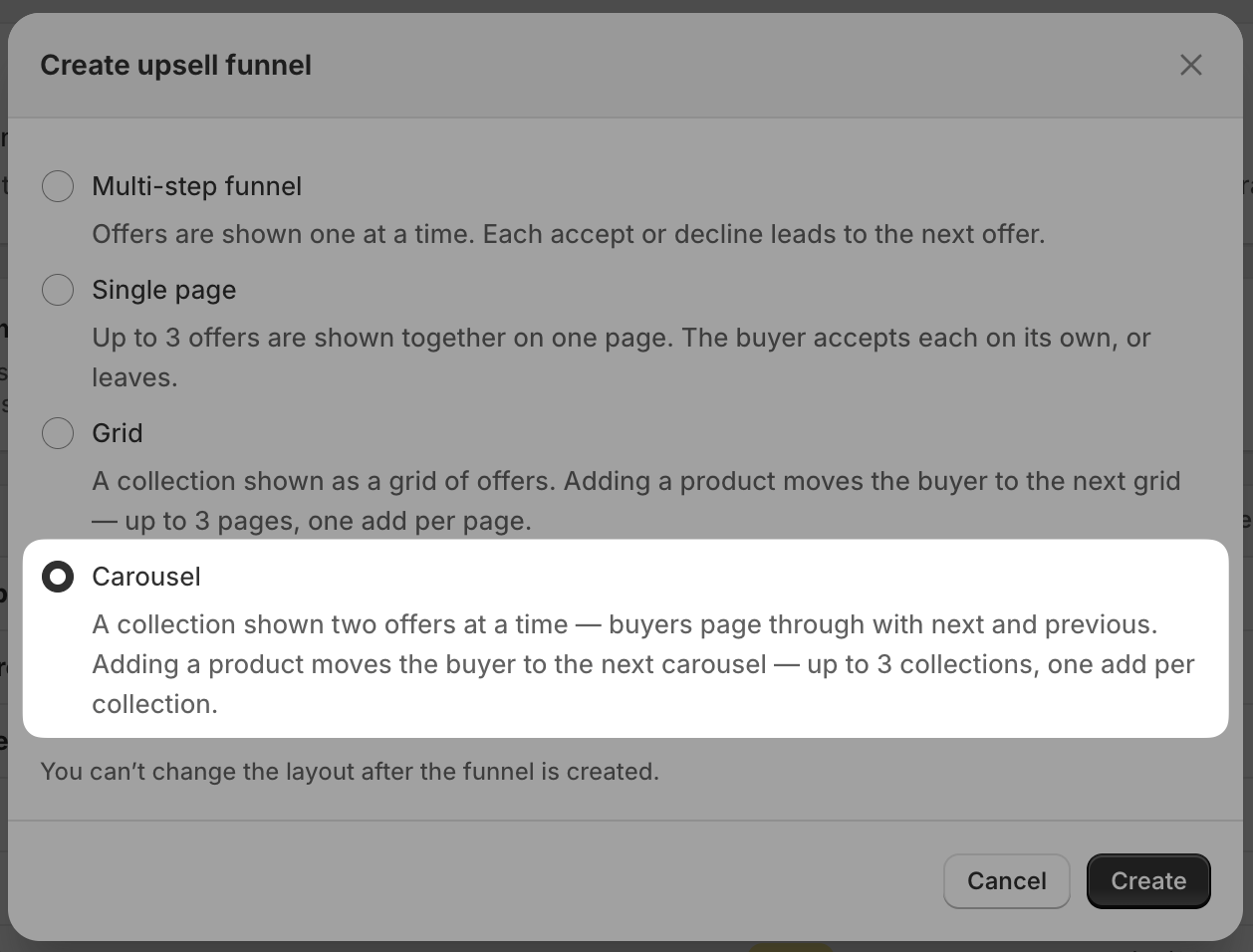
Click Create.
Add your collections the same way you would for a Grid funnel, as described in Setting up a post-purchase offer with Cleverific. Each carousel shows one collection, and you can chain up to 3 collections.
Switch an existing Grid funnel to Carousel
Grid and Carousel use the same collections, offers, and targeting, so you can switch between them at any time, including on a live funnel.
Go to Apps > Cleverific.
From the nav menu, click Upsells.
Open the Grid funnel you want to change, then click Design. For an overview of the funnel editor, see Building and previewing an upsell funnel.
In the left panel, under Funnel, click Layout > Carousel. Click Change layout to confirm.
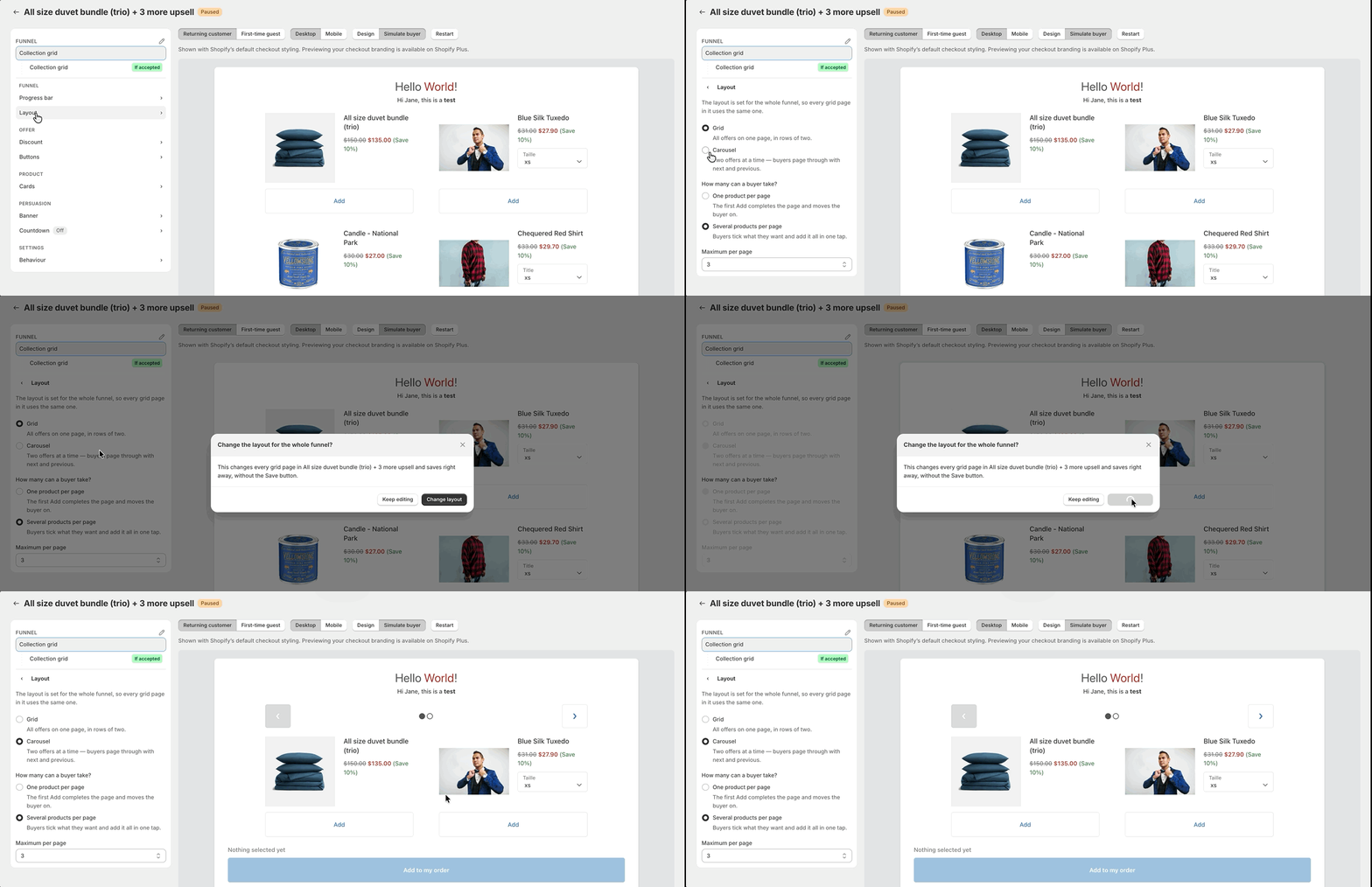
The change saves right away, without the Save button, and the funnel's type changes to Carousel in your funnels list. To go back, select Grid in the same section.
You can't change a collection funnel into a Multi-step funnel or Single page after creating it, but switching between Grid and Carousel is always available. Archived funnels open in Design as preview only, so the layout can't be changed.
What your customers see
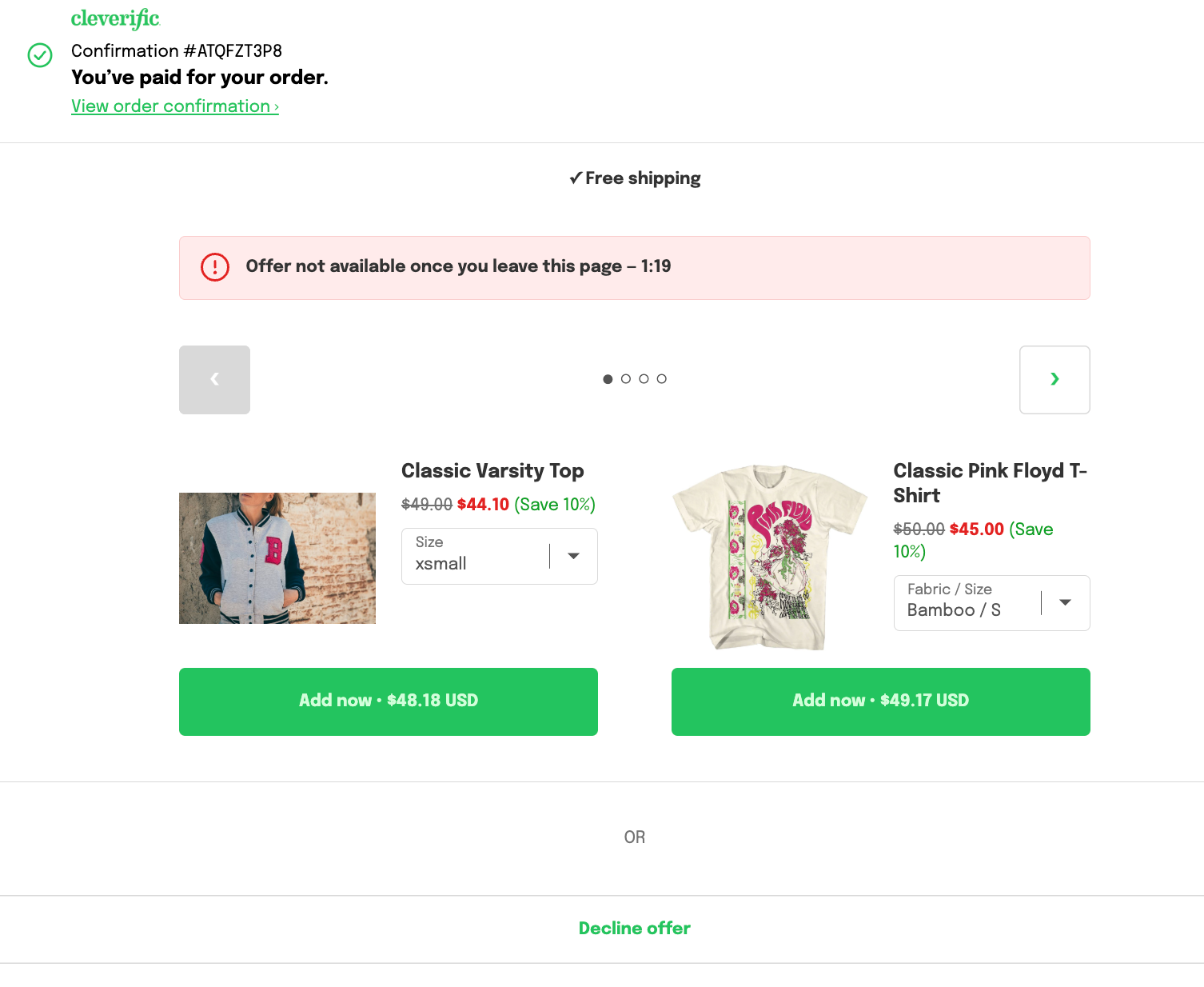
Two offers are shown at a time, with previous and next arrows and a dot for each page below them.
The arrows and dots only appear when the collection has more than two offers. With two or fewer, the page looks the same as a Grid.
A variant the customer picks stays selected when they move to another page and come back.
The arrows are disabled while an offer is being added to the order.
After adding a product, the customer moves on to the next collection in the funnel.