

Scheduling an upsell funnel to go live or pause automatically
Updated 2 weeks ago
In Cleverific, you can schedule an upsell funnel to go live and pause automatically at set times, instead of activating or pausing it yourself. A funnel has no schedule by default.

Set a schedule
Go to Apps > Cleverific > Upsells and open the funnel you want to schedule.
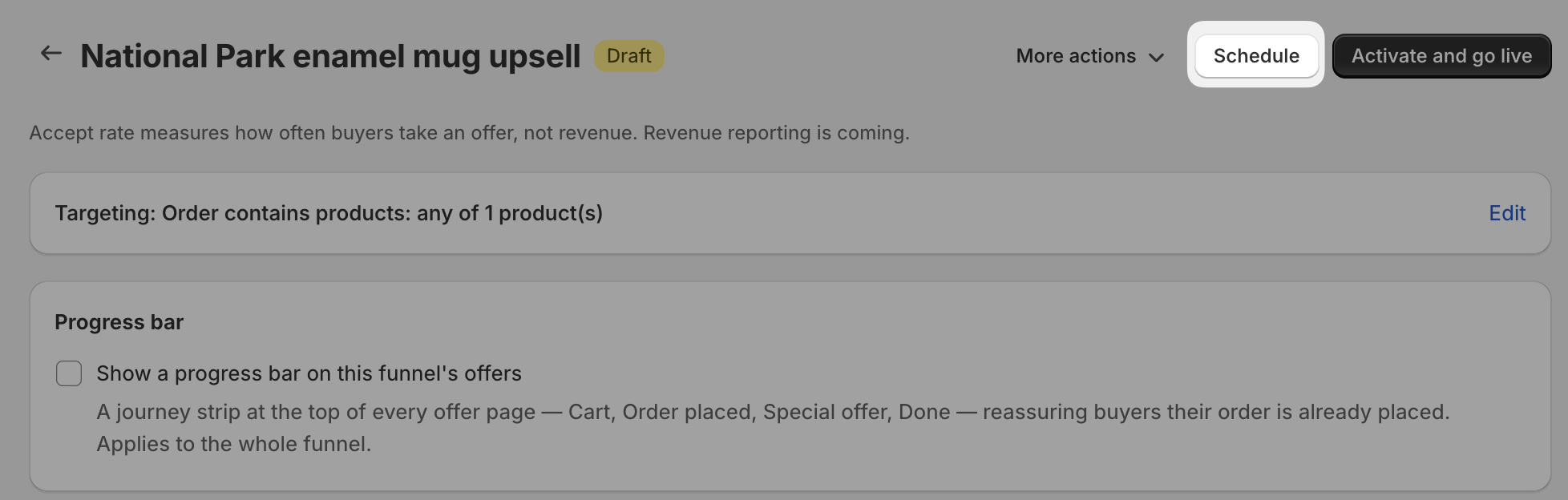
Click Schedule in the top right (it will show Edit schedule once a schedule is already set).
In the Go live field, enter the date and time you want the funnel to activate. Leave it empty to activate the funnel yourself.
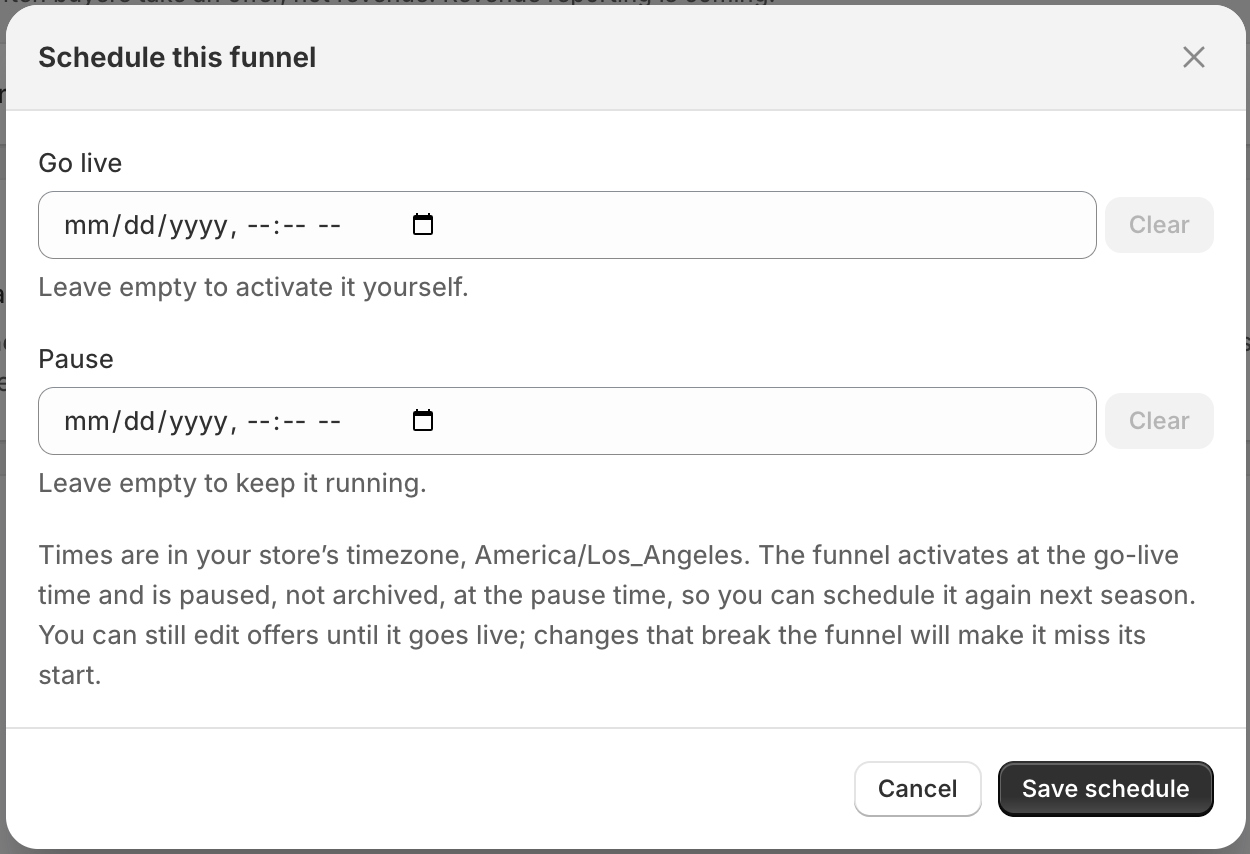
In the Pause field, enter the date and time you want the funnel to stop serving. Leave it empty to keep it running once it goes live.
To clear a date you already set, use the Clear button next to any of these fields.
Click Save schedule.
Both times use your store's timezone.
When you set a go-live time, Cleverific checks that the funnel is complete first, the same check it runs when you turn a funnel on yourself. For example, every step needs at least one active offer. If something's missing, you won't be able to save the schedule until you fix it.
Scheduled pause

When the pause time hits, Cleverific pauses the funnel rather than archiving it, so you can give it a new schedule later, for example, to bring back a seasonal offer next year.
You can still edit a funnel's offers while it's waiting to go live, but a change that breaks the funnel can make it miss its scheduled start.