Adding FAQs to a post-purchase offer
Updated 3 weeks ago
In Cleverific, you can add up to 5 questions and answers to a product offer, so customers get the details that usually stop them from tapping Add, right on the post-purchase page. FAQs are empty by default, so existing offers look the same until you add a question.
This article explains how to add and arrange FAQs, and what customers see.
Add FAQs to an offer
Go to Apps > Cleverific.
From the nav menu, click Upsells.
Open the funnel, then click Design. For an overview of the funnel editor, see Building and previewing an upsell funnel.
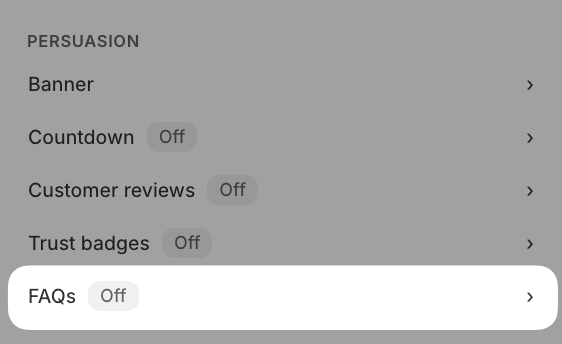
In the left panel, under Persuasion, click FAQs
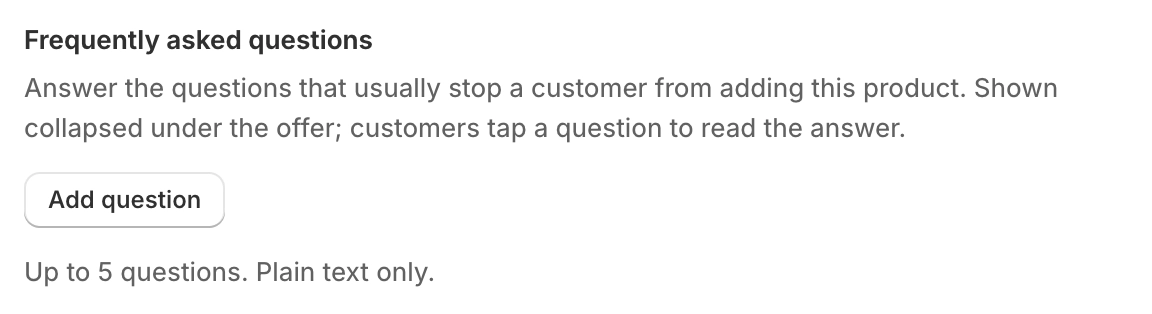
Click Add question.
Enter the Question and its Answer. Repeat for each question you want to add.
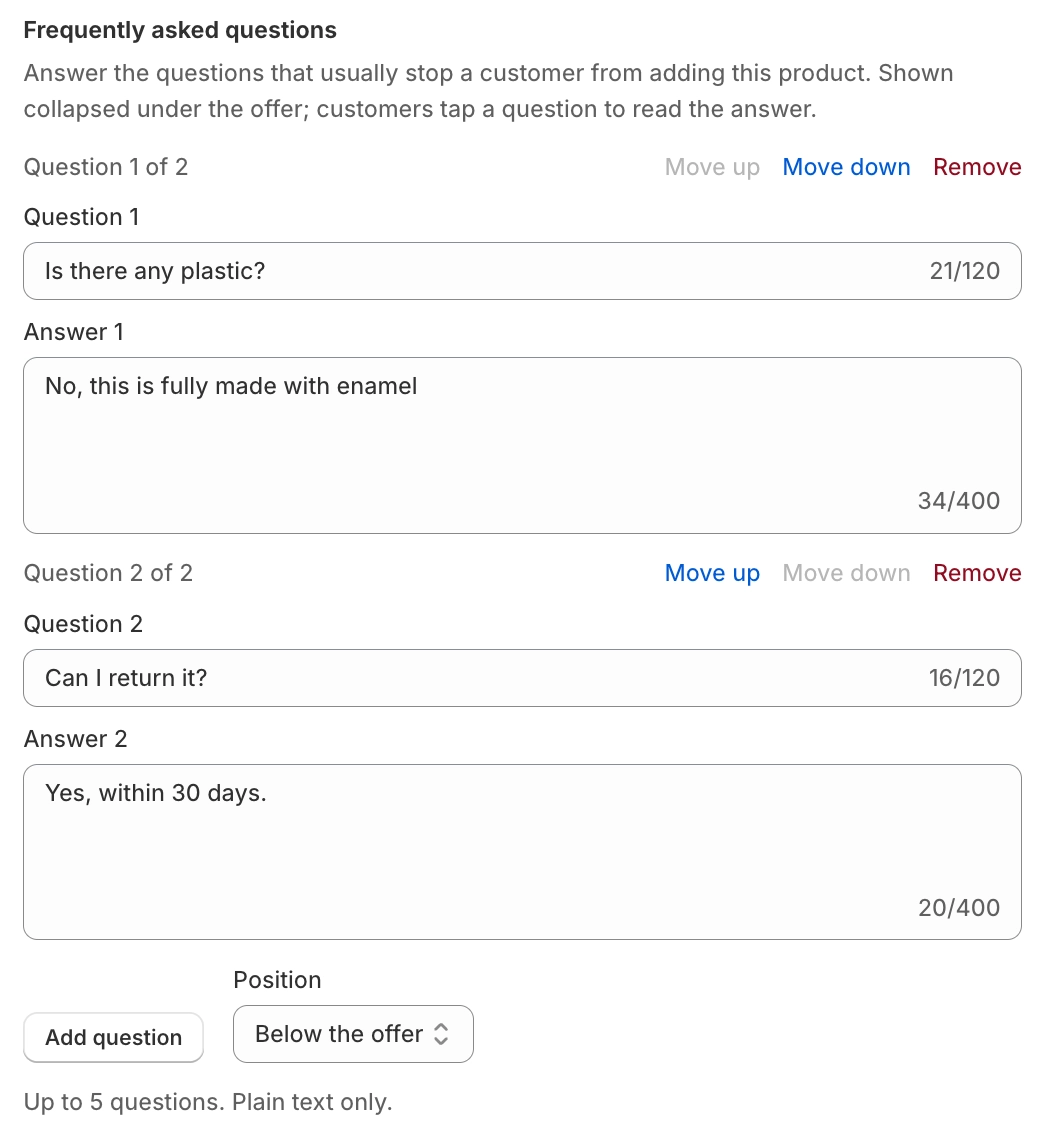
Choose a Position: Below the offer or Above the offer.
Click Save in the top bar.
FAQs are only available on product offers. Grid and Carousel funnels, which show a collection, don't have a FAQs section.
Edit, reorder, or remove questions
Use Move up and Move down to change the order customers see.
Click Remove to delete a question. Removing every question hides the block from the offer.
Each question and answer must both be filled in before you can save. Complete the empty field or remove that question.
Questions can be up to 120 characters and answers up to 400 characters. Add question is disabled once an offer has 5 questions.
What your customers see
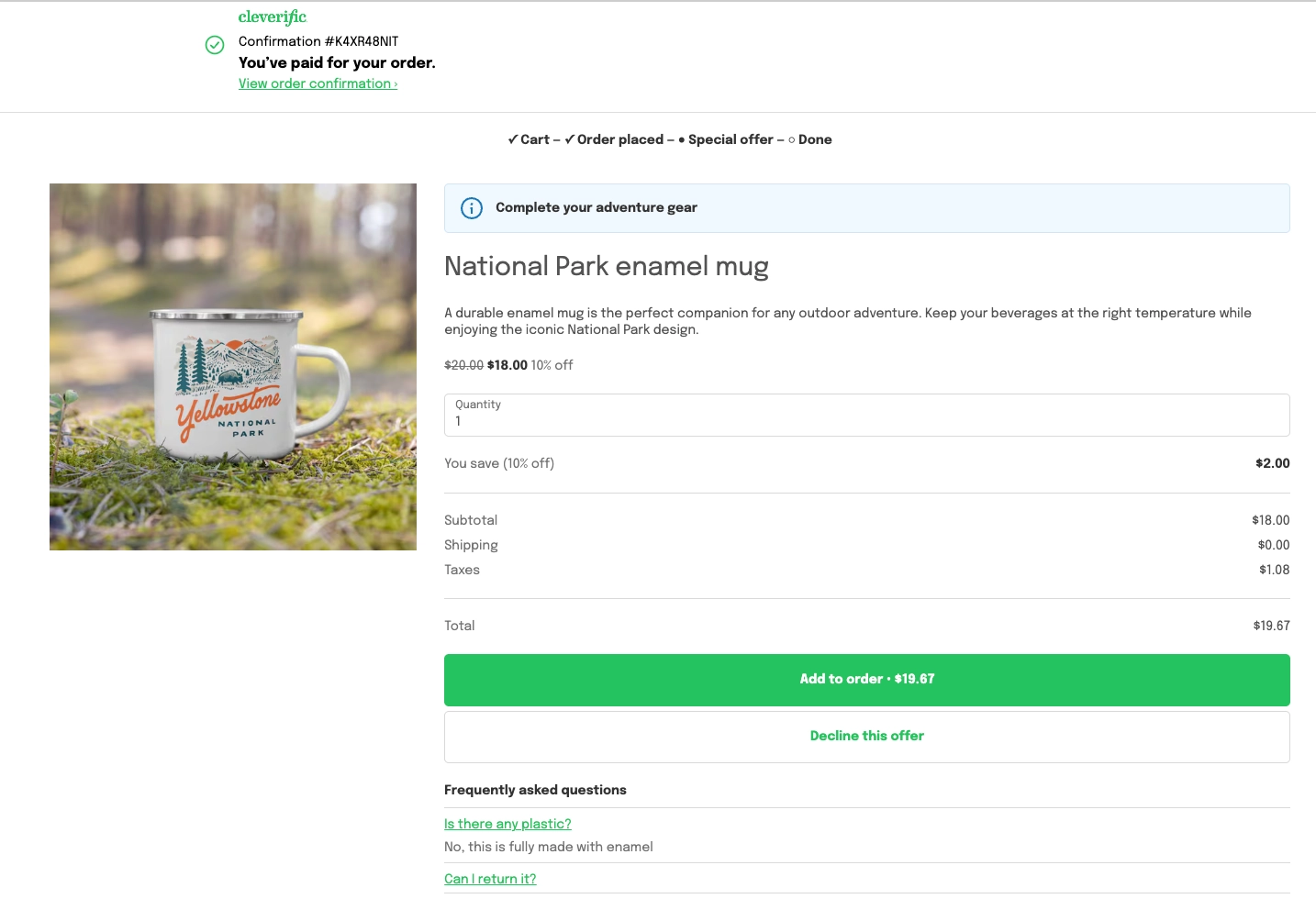
A Frequently asked questions block appears below the offer (after the Decline button) or above it, depending on the position you chose. Answers stay collapsed until the customer taps a question, and only one answer is open at a time.