

Customizing the countdown timer on a post-purchase offer
Updated last week
In Cleverific, you can show a countdown timer on a post-purchase offer, set its length in minutes and seconds, write your own timer text, and choose what happens when it reaches 0:00. The timer is disabled by default.
This article explains how to set up the timer and what customers see.
Set up the timer
Go to Apps > Cleverific.
From the nav menu, click Upsells.
Open the funnel, then click Design. For an overview of the funnel editor, see Building and previewing an upsell funnel.
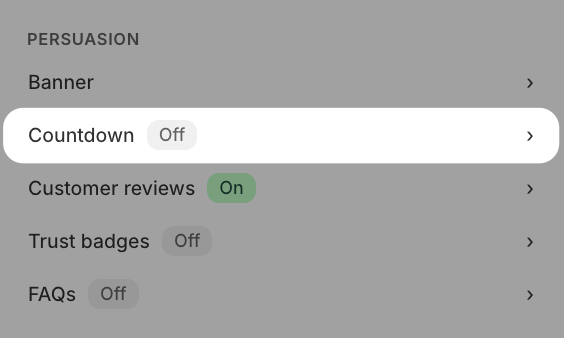
In the left panel, under Persuasion, click Countdown.
Check Show a countdown timer.
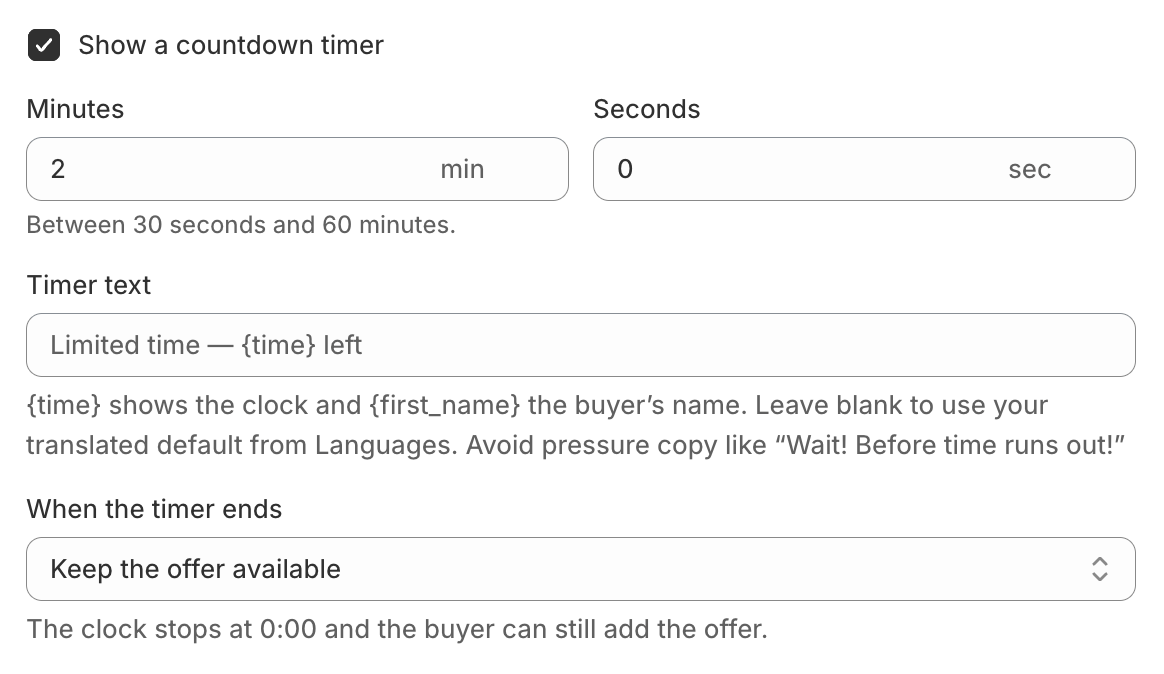
Enter the length in Minutes and Seconds. It can be anywhere from 30 seconds to 60 minutes.
You can enter a Timer text (this is optional). Type
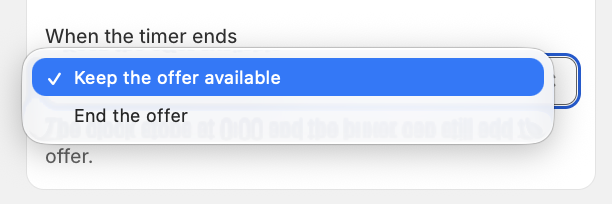
{time}where the clock should appear and{first_name}for the customer's first name, for example "{first_name}, this deal is held for {time}". If you leave the text empty, a default message is used.Click the When the timer ends dropdown and select either Keep the offer available or End the offer.
Click Save in the top bar.
With End the offer, the customer moves on as if they had declined, and a Decline is recorded in your funnel's analytics. With Keep the offer available, the clock stops at 0:00 and the customer can still add the offer. Existing timers use Keep the offer available.
What your customers see
On the post purchase page, they'll see the timer text and the clock count down on the offer. If your text doesn't include {time}, the clock is added at the end. Guests who haven't ordered before see no name where {first_name} is, so make sure you write the text so it still reads well without a name.

Timers on Grid funnels
Grid funnels use the same timer length and text, set under Persuasion > Countdown in Design. A Grid page always ends when its timer reaches 0:00, so there is no When the timer ends choice.