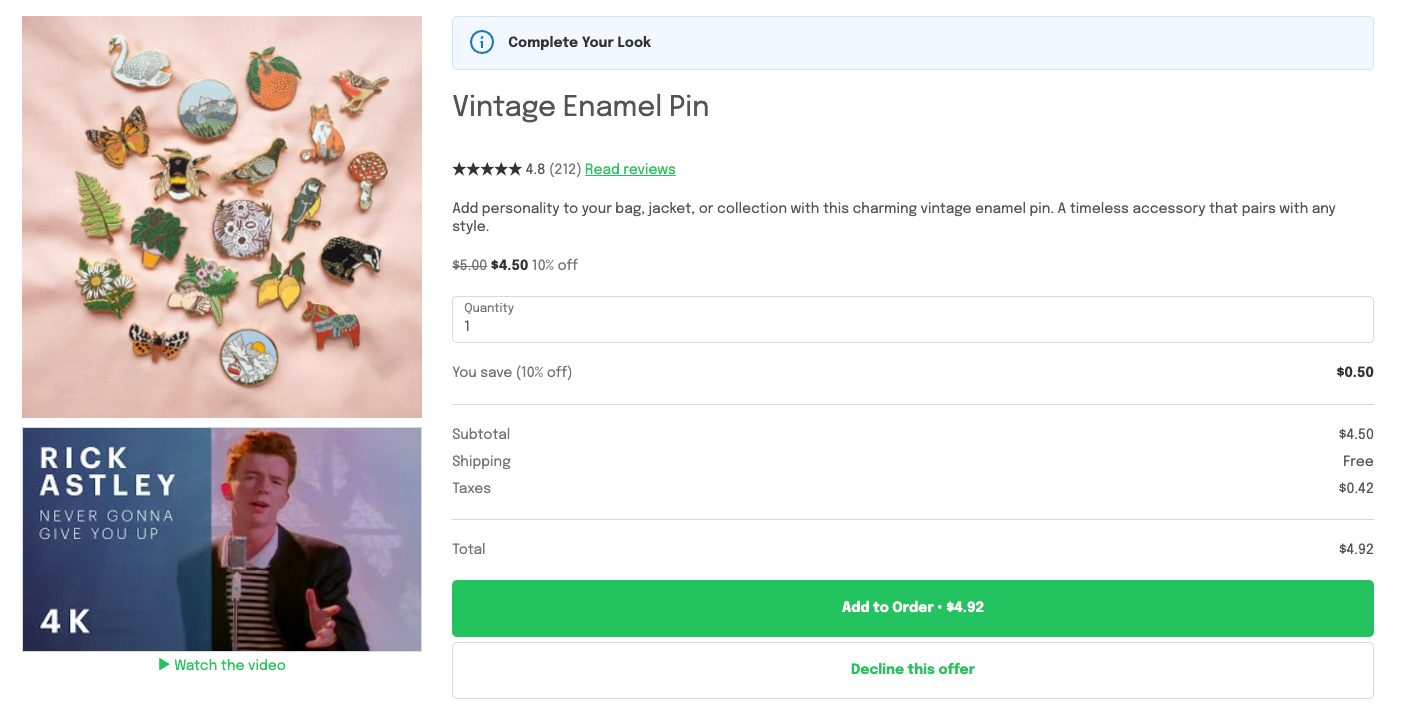
Adding a video to a post-purchase offer
Updated 2 weeks ago
In Cleverific, you can add a video to a product offer on the post-purchase page by pasting a link, so customers can watch a demo before adding it to their order. Offers have no video by default.
This article explains how to add a video, choose where it appears, and what customers see.
Add a video to an offer
You can paste a YouTube, Vimeo, Loom, or Wistia link, or a direct link to an .mp4, .webm, or .mov file. Vimeo videos need to be public or unlisted.
Go to Apps > Cleverific.
From the nav menu, click Upsells.
Open the funnel, then click Design. For an overview of the funnel editor, see Building and previewing an upsell funnel.
In the left panel, under Product, click Video.
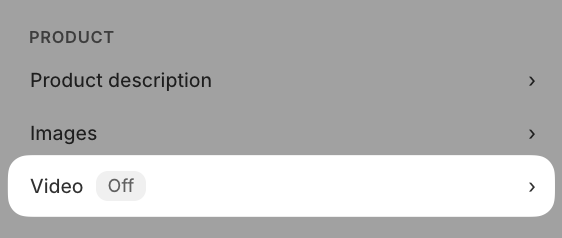
Paste the link into Video link.
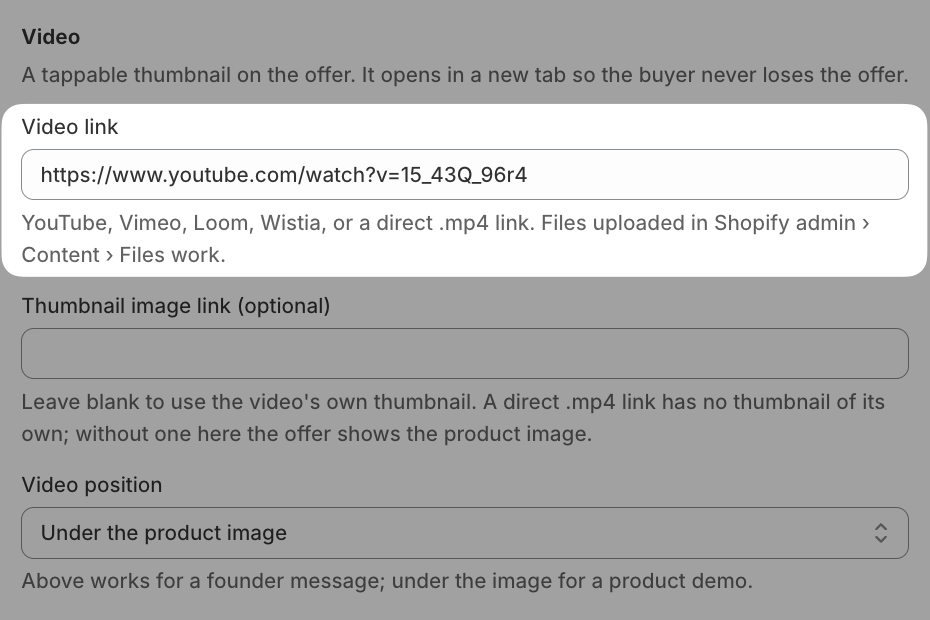
You can paste an https image link ending in .jpg, .png, .webp, or .gif into Thumbnail image link to use your own thumbnail. This is optional.
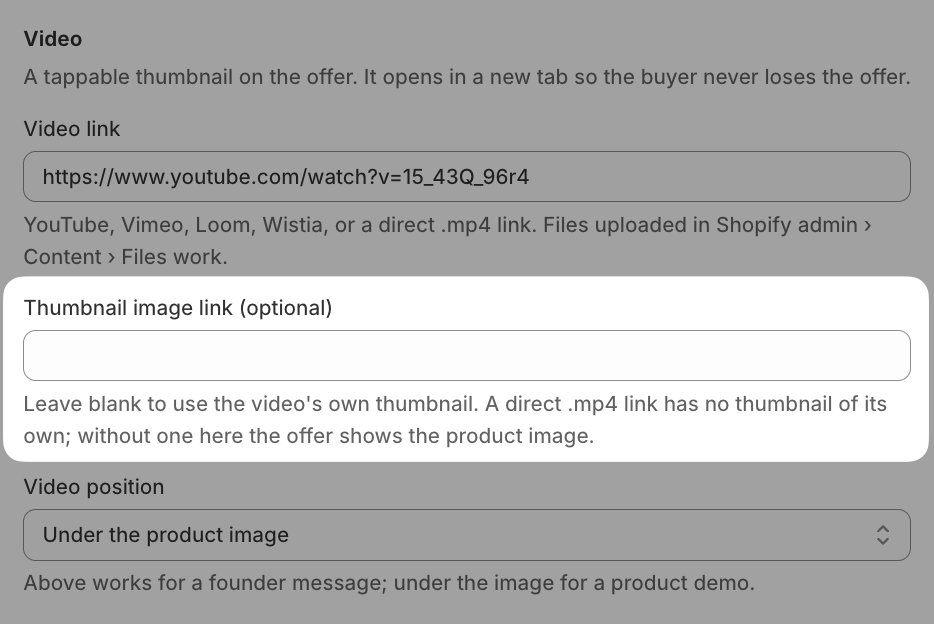
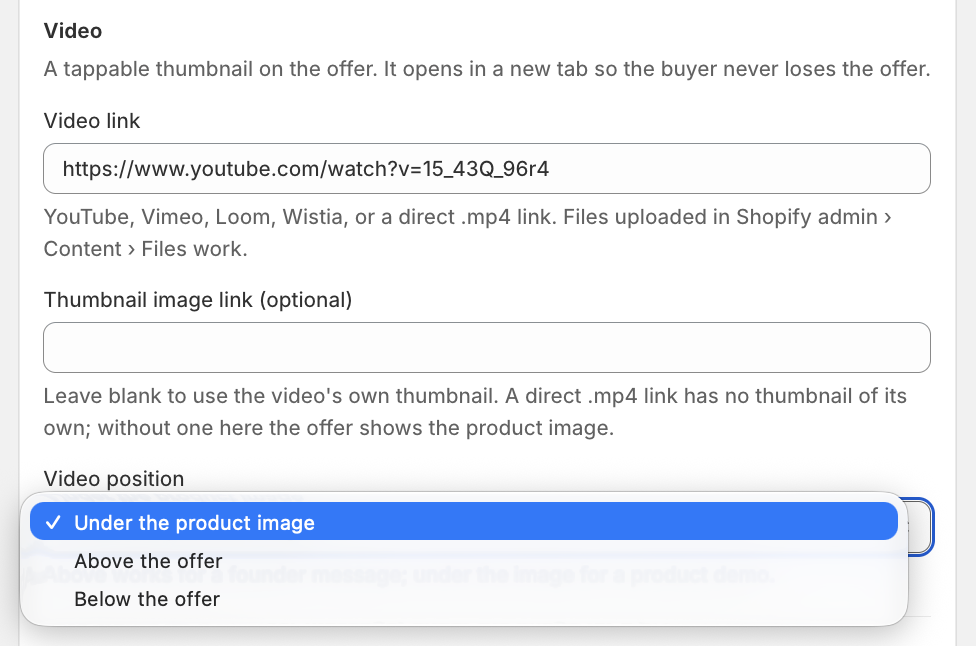
Choose a Video position: Above the offer, Under the product image, or Below the offer.
Click Save in the top bar.
Video is only available on product offers. Grid and Carousel funnels, which show a collection, don't have a Video section.
Check the preview
After you save your changes, a preview card shows the video title, its provider, and its length. The thumbnail comes from the provider unless you entered your own.
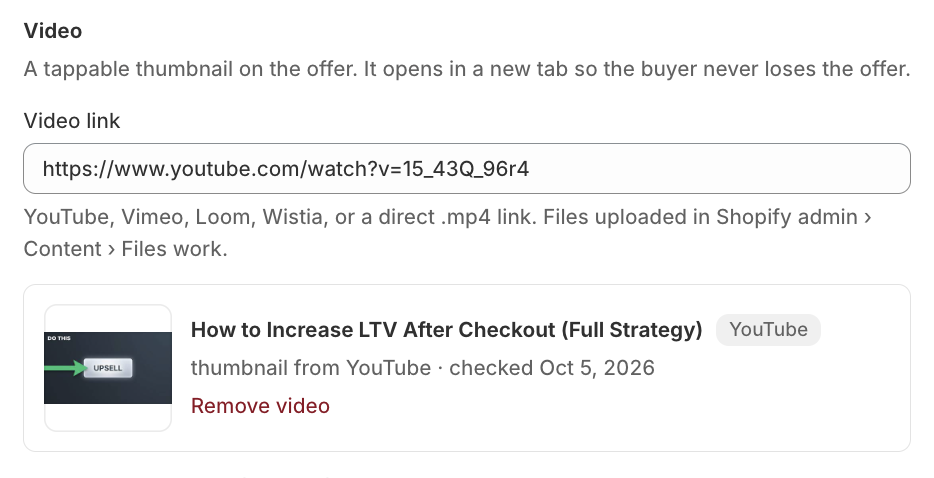
A direct video file has no provider thumbnail, so the product image is used instead.
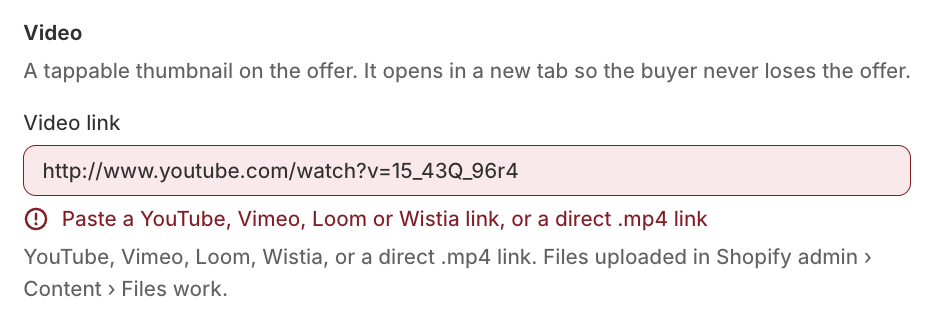
If the link can't be used, the reason appears under the field, and nothing is saved. You can fix the link and save again.
Remove a video
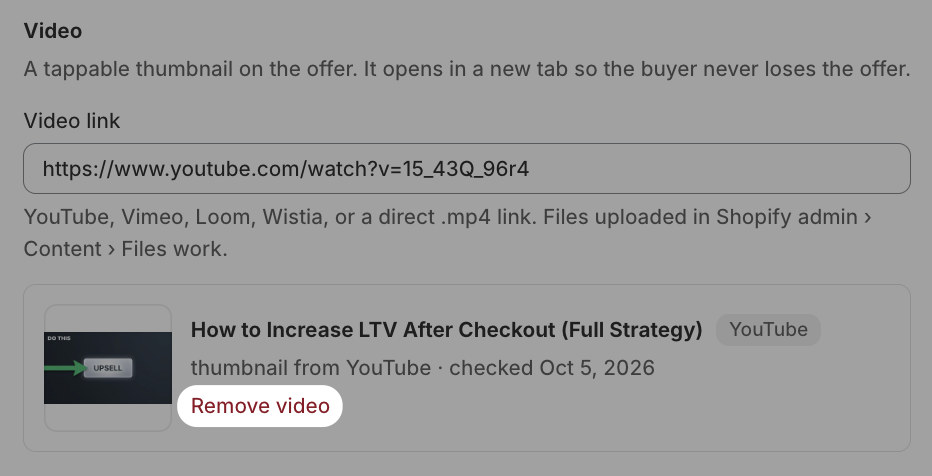
Click Remove video, then click Save. Customers will no longer see the video, and links to its player page show a message that the video is no longer available.
What your customers see
The offer shows a thumbnail with a link to watch the video. Tapping either opens the video on its own page in a new tab, and Back to your offer returns the customer to the offer, which stays open the whole time. Any countdown timer keeps running.