

Repeating the buy button on a post-purchase offer
Updated 2 weeks ago
In Cleverific, you can repeat the accept button above or below a product offer, so customers on a phone can accept without scrolling to the bottom. The extra buy button is disabled by default, so existing offers look the same until you choose a position.
This article explains how to enable it and when customers see it.
Add an extra buy button
Go to Apps > Cleverific.
From the nav menu, click Upsells.
Open the funnel, then click Design. For an overview of the funnel editor, see Building and previewing an upsell funnel.
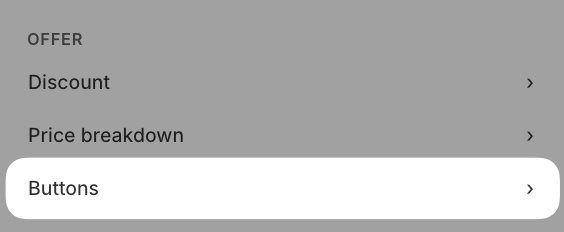
In the left panel, under Offer, click Buttons.
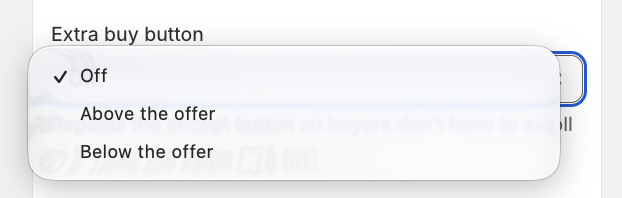
Open the Extra buy button dropdown and choose Above the offer or Below the offer.
Click Save in the top bar.
Select Off to keep a single accept button.
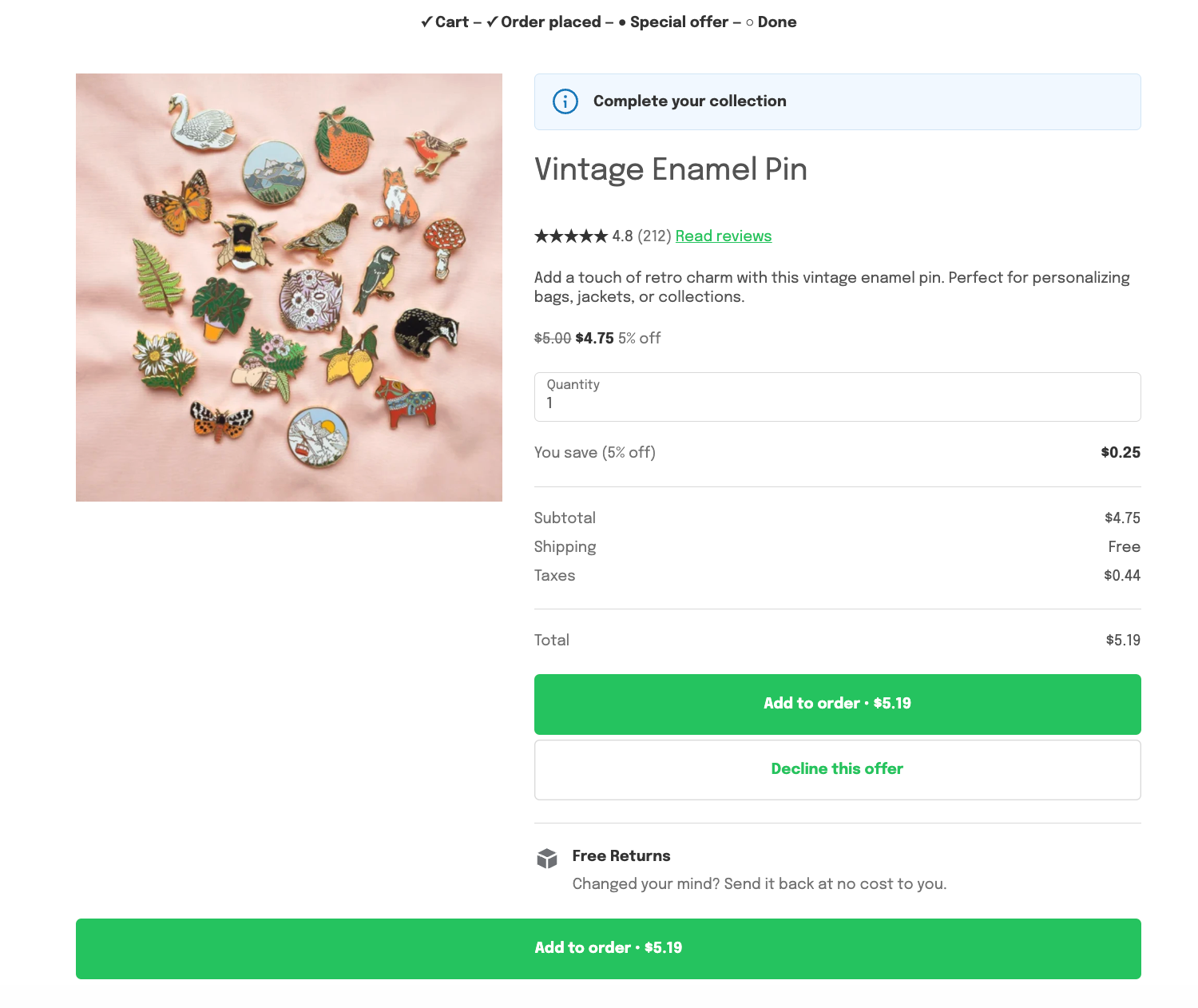
With Below the offer, the extra button only shows when something sits under the accept and decline buttons, such as trust badges, FAQs, customer reviews, or a video positioned below the offer. With nothing there, the offer shows its usual single accept button.
What your customers see
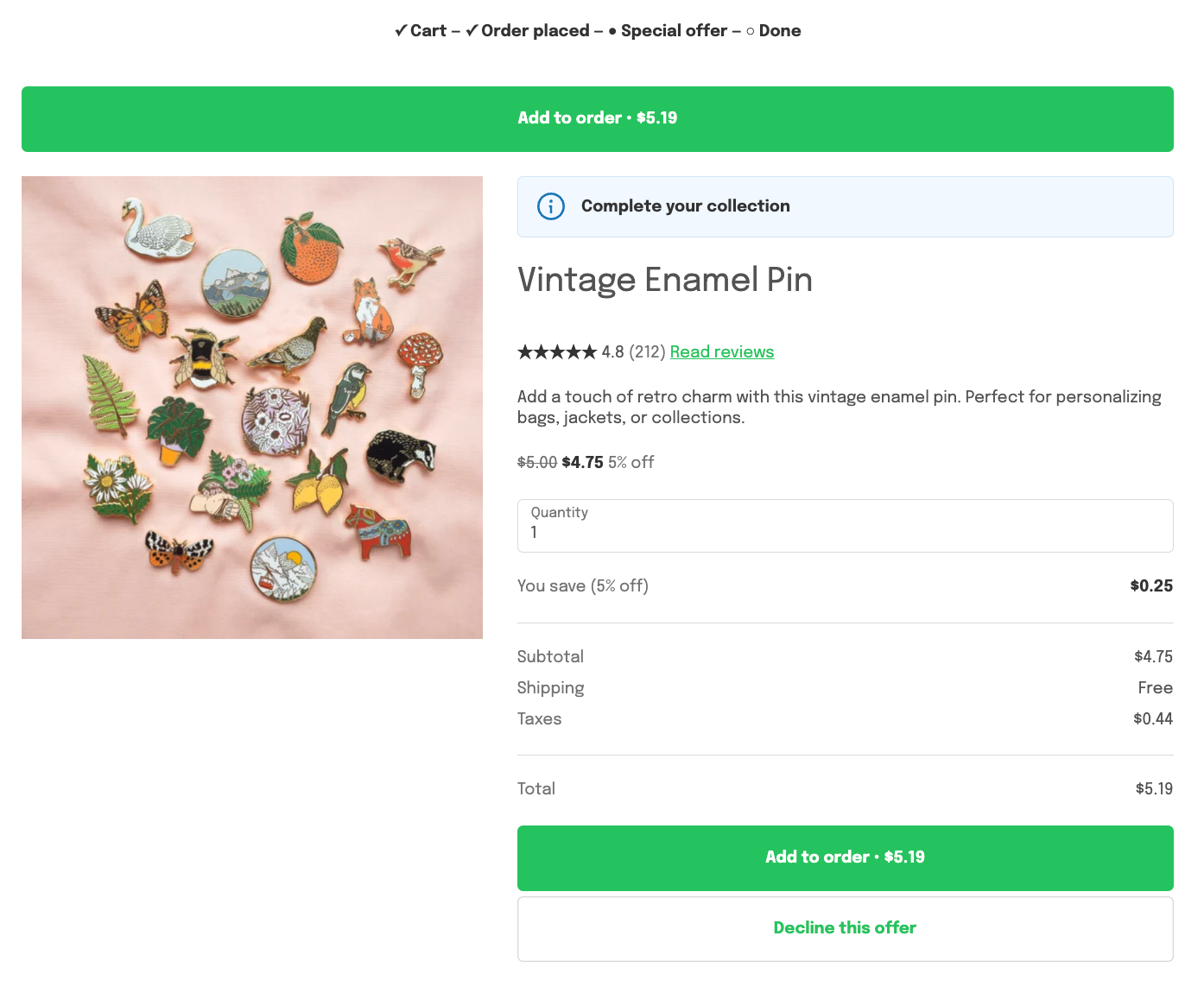
With Above the offer, a second accept button appears above the offer card, under the banner.
With Below the offer, it appears after the blocks placed below the buttons. The accept and decline buttons at the bottom of the card stay where they are.
Both accept buttons use your CTA text. Tapping either one adds the item to the order. If the offer requires confirmation, both buttons switch to the confirm label after the first tap, and a second tap on either one accepts the offer once.
Known limitations
The extra buy button is only available on product offers. Grid and Carousel funnels, which show a collection, don't have the setting.
Both accept buttons show the same wording.