

Adding image badges to a post-purchase offer
Updated 2 weeks ago
In Cleverific, you can add up to 2 image badges to a product offer, such as a Bestseller sticker or your own logo, so key selling points stand out on the post-purchase page. Image badges are empty by default, so existing offers look the same until you add one.
This article explains how to add a badge, the image options, and where badges appear. For text badges with an icon, see Adding trust badges to a post-purchase offer.
Add an image badge
Go to Apps > Cleverific.
From the nav menu, click Upsells.
Open the funnel, then click Design. For an overview of the funnel editor, see Building and previewing an upsell funnel.
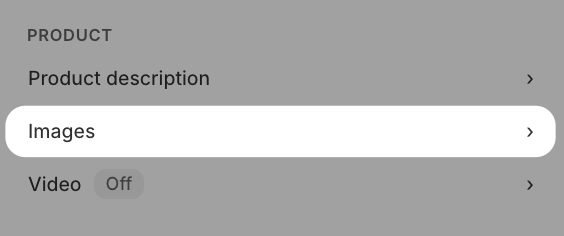
In the left panel, under Product, click Images.
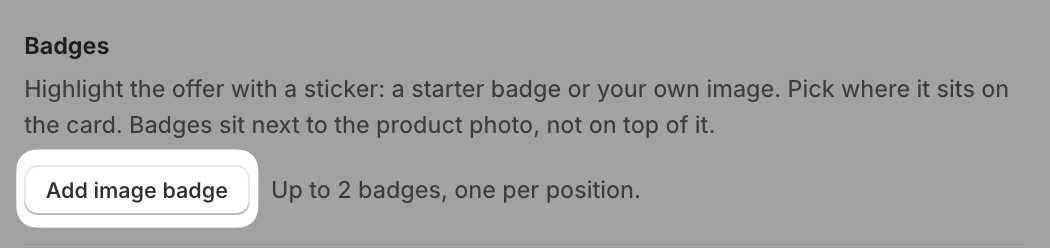
Click Add image badge.
Open the Image 1 select and choose a starter badge (Starter: Bestseller, Starter: New, Starter: Limited time, Starter: Free shipping, Starter: Lowest price, or Starter: Trending), or choose Image link and paste the link to your own image into Image link 1.
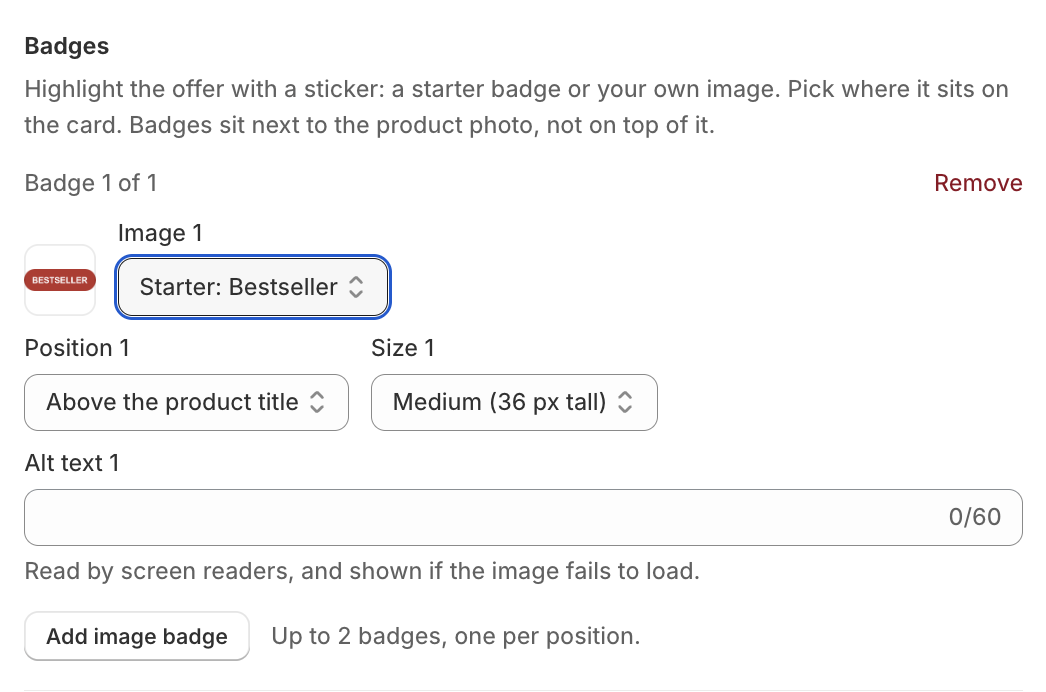
Choose a Position, a Size, and enter the Alt text.
Click Save in the top bar.
Positions and sizes
Each badge takes its own position, so a second badge can't use a position the first one already has.
Position: Above the product title, Beside the price, Above the product image, or Below the product image.
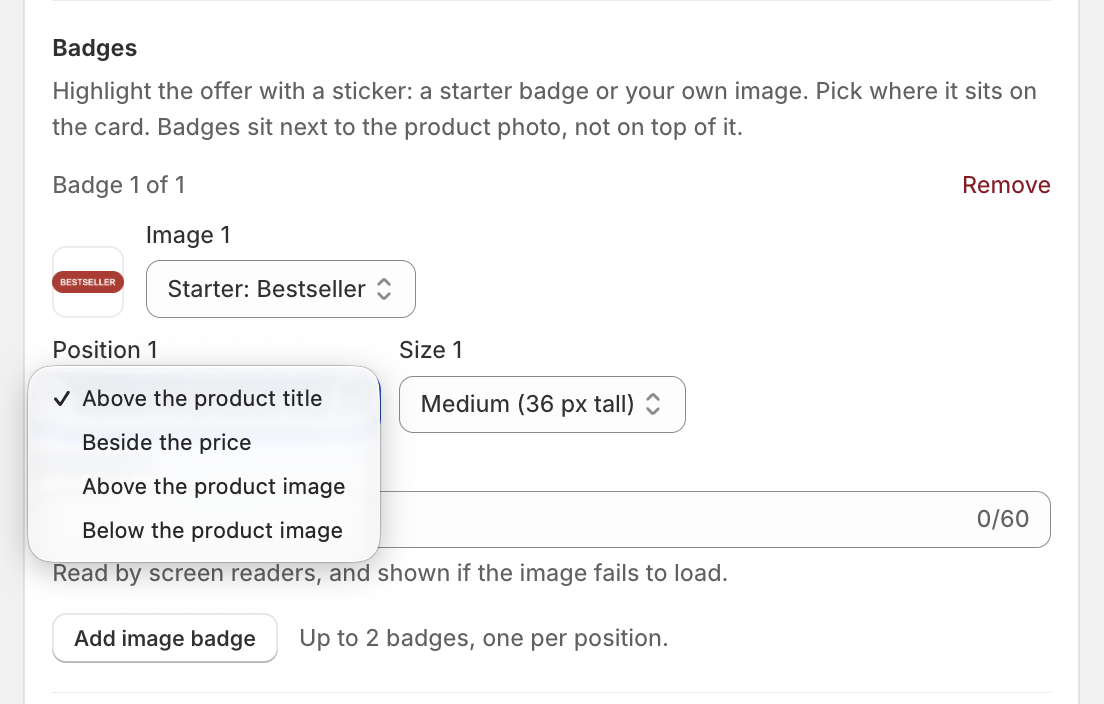
Size: Small (24 px tall), Medium (36 px tall), or Large (48 px tall).
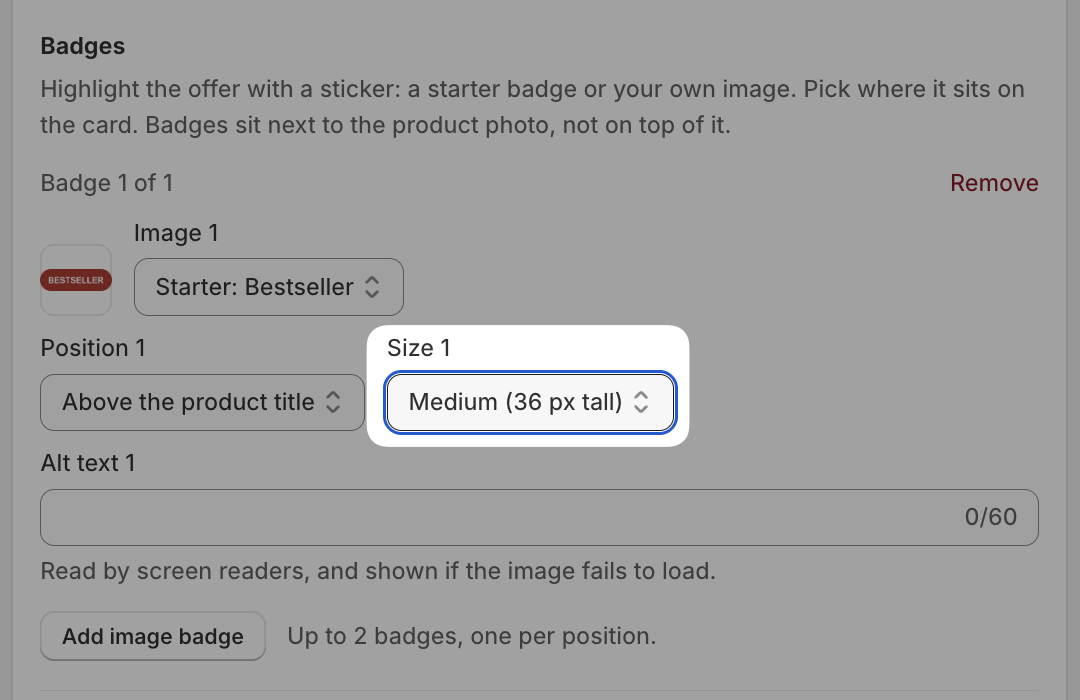
Alt text: up to 60 characters. Screen readers read it, and customers see it if the image fails to load.
Click Remove on a badge to delete it.
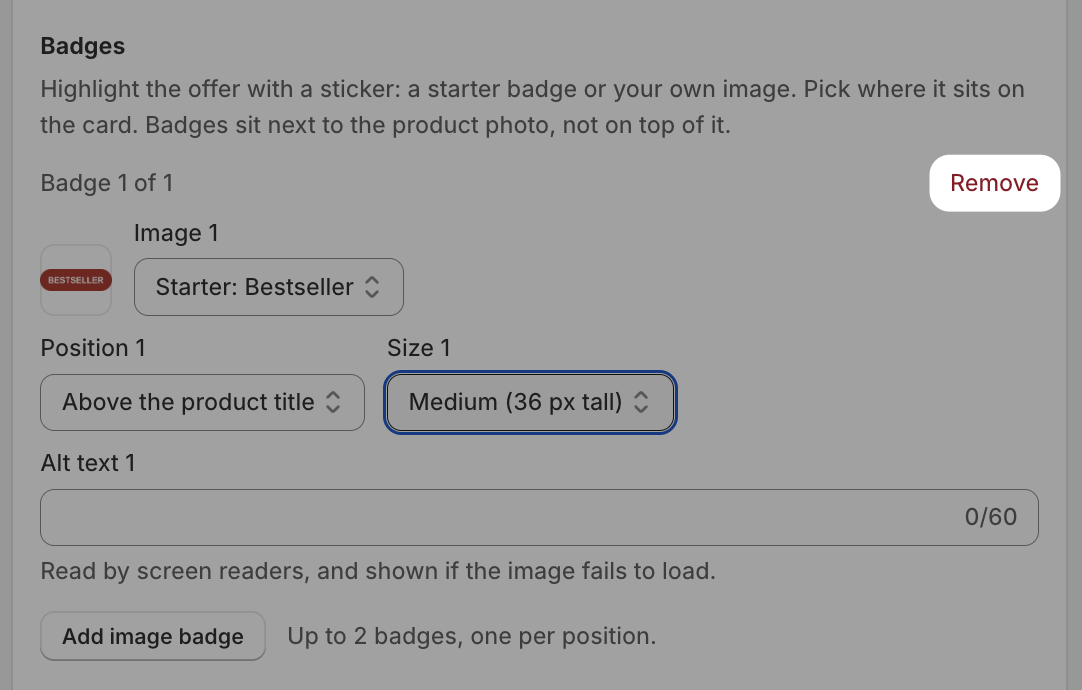
The Add image badge button is disabled once an offer has 2 badges.
Use your own image
Your image link has to start with https and point to a PNG, JPEG, WebP, or SVG file. Cleverific checks the link when you paste it and shows the image size once it loads.
Saving will be blocked if a link:
Is blank
Doesn't start with https
Doesn't load blocks saving.
Includes an image larger than 2000 pixels on their longest side
Cleverific only checks the link when you save. If you later delete the image from where it is hosted, customers see the alt text and a broken image icon in the badge's spot, and the offer still works.
What your customers see
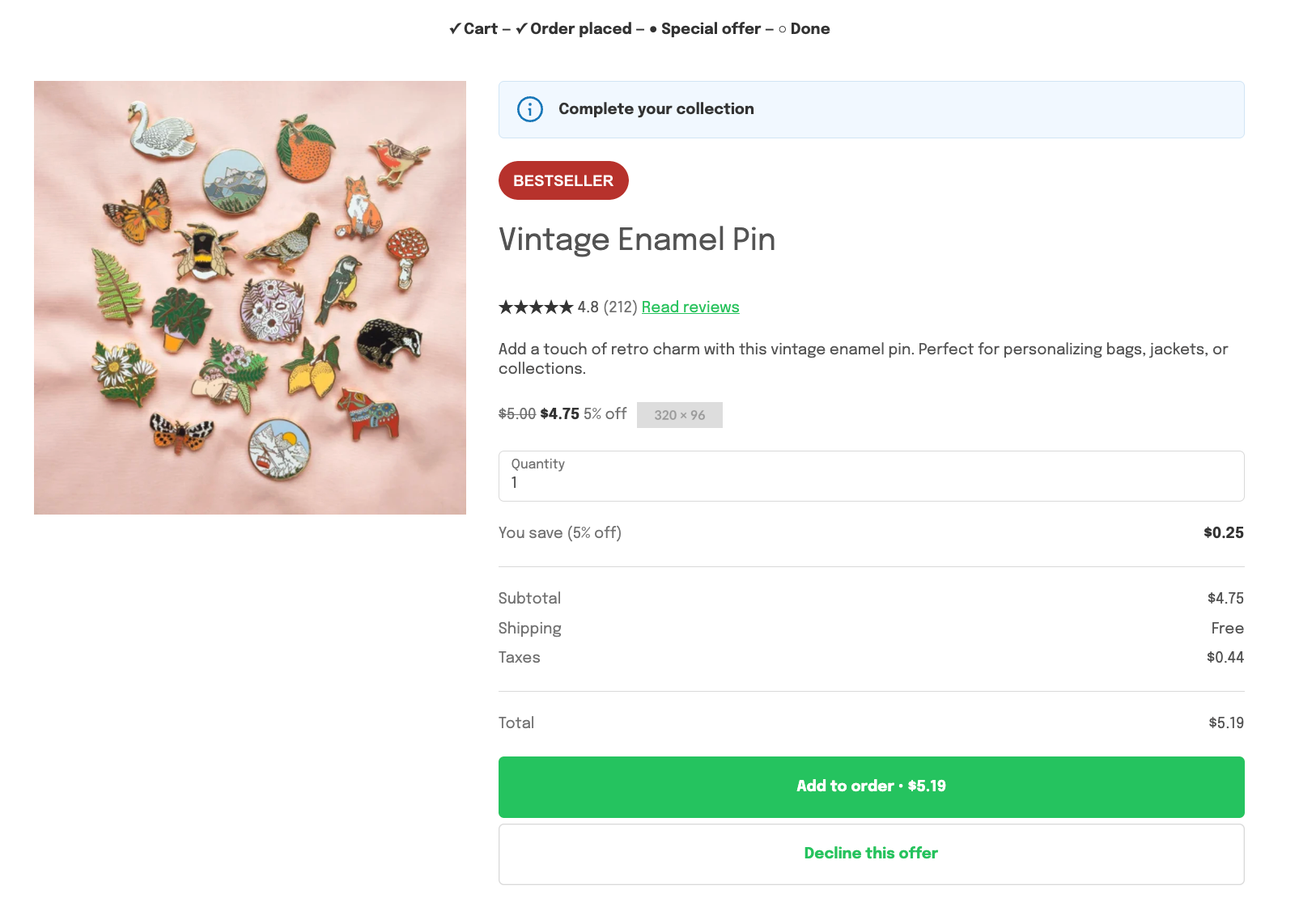
Badges appear in the position you chose, centered above or below the product photo rather than on top of it. On narrow screens, a badge placed beside the price moves under the price.
Known limitations
Badges can't overlap the product photo; above or below the image is the closest option.
Image badges are only available on product offers. Grid and Carousel funnels, which show a collection, don't have image badges.