Showing a progress bar on post-purchase offer pages
Updated 2 weeks ago
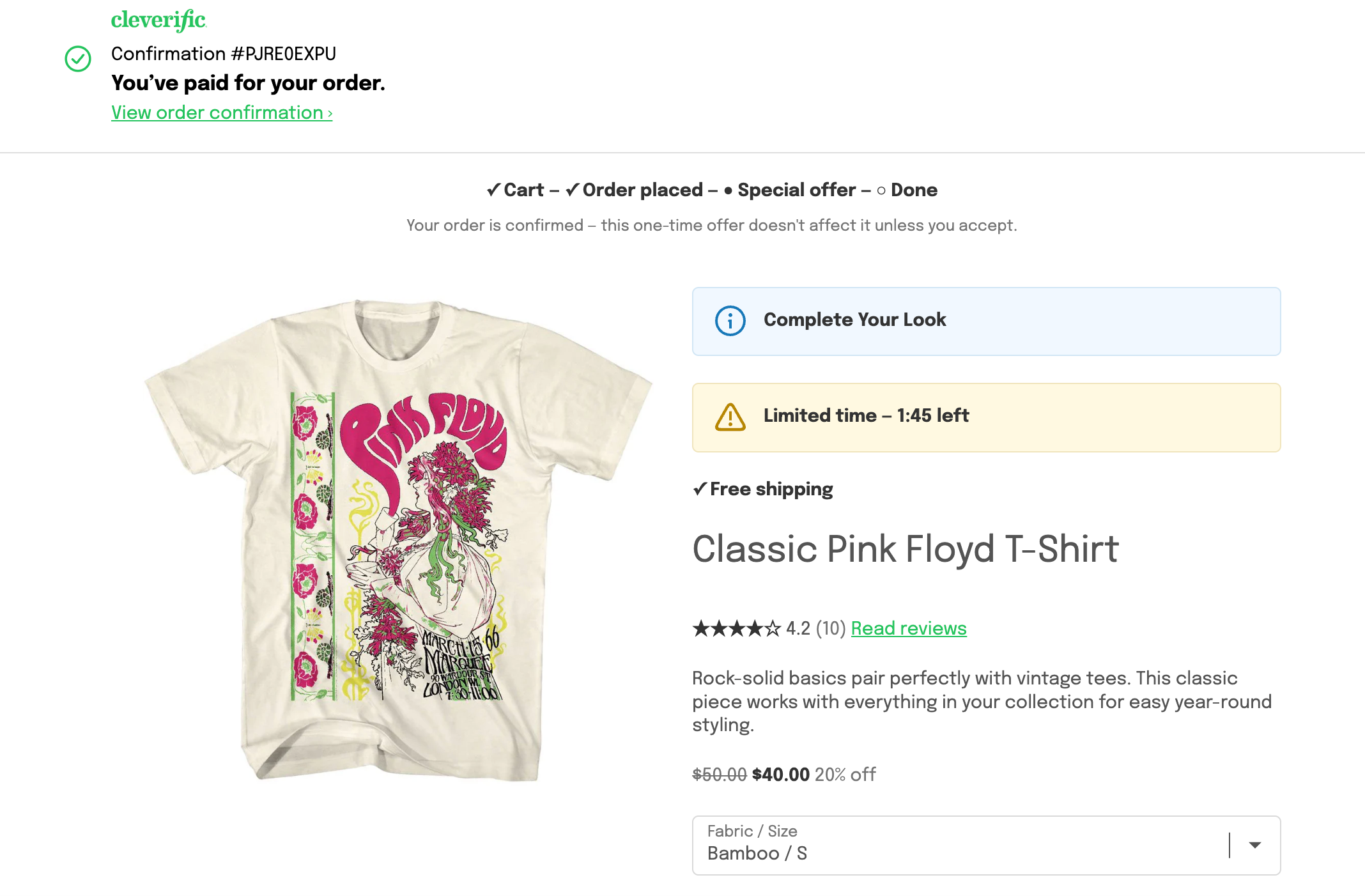
In Cleverific, you can show a progress bar at the top of every offer page in a post-purchase funnel, so customers can see their order is already placed before they look at the offer. The progress bar is enabled by default on new funnels, using the Labeled style. Funnels that existed before the progress bar was added have it disabled until you enable it.
Enable the progress bar
Go to Apps > Cleverific.
From the nav menu, click Upsells.
Open the funnel you want to change, then click Design. For an overview of the funnel editor, see Building and previewing an upsell funnel.
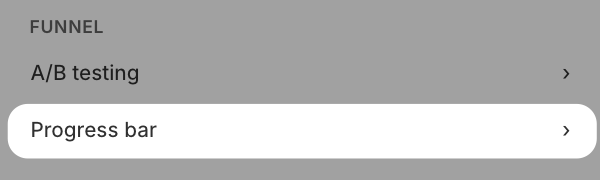
In the left panel, under Funnel, click Progress bar.
Check Show a progress bar on this funnel's offers, then click Change progress bar to confirm.
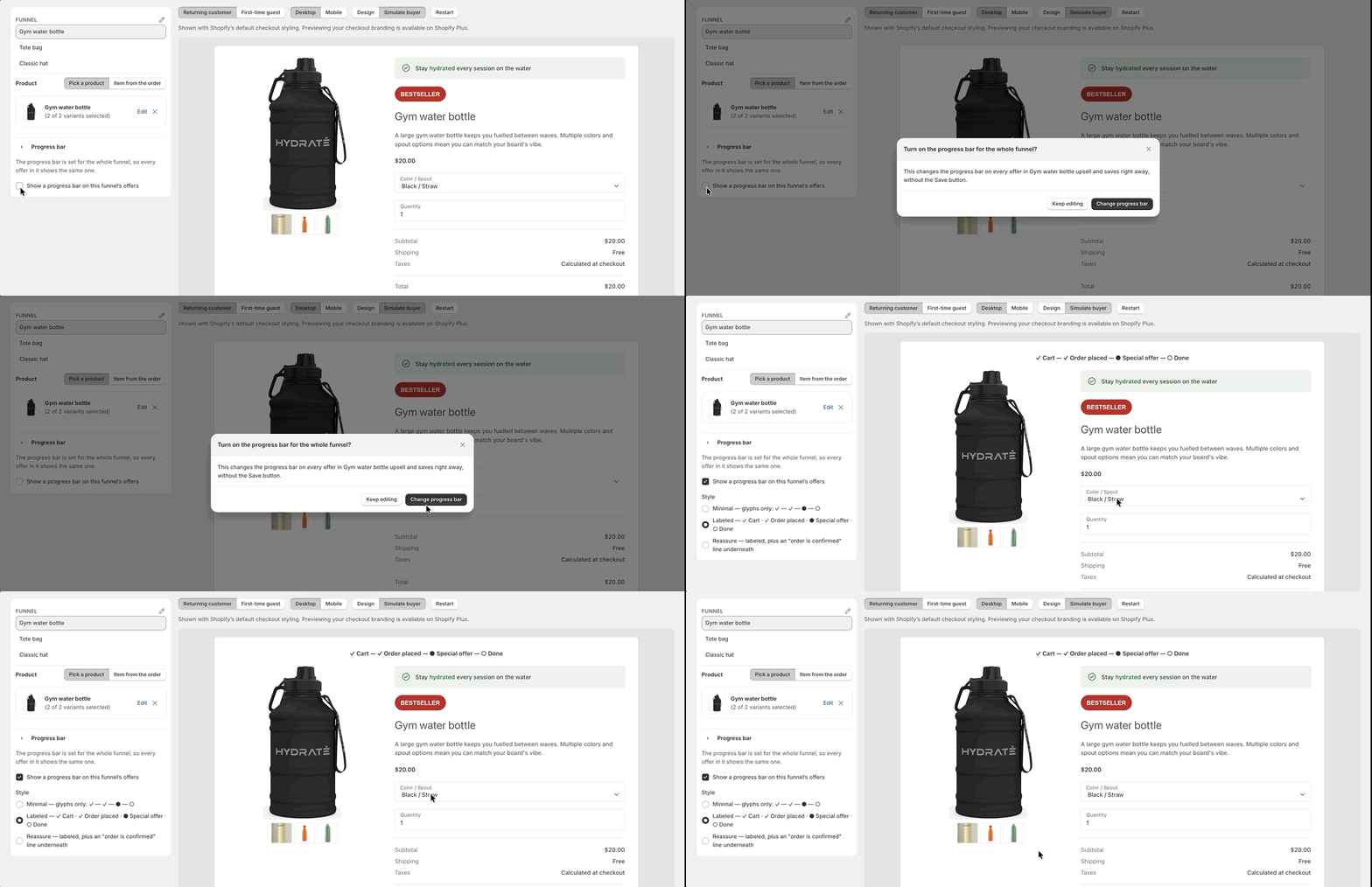
Under Style, select either Minimal, Labeled, or Reassure, then click Change progress bar to confirm.
Changes save right away, without the Save button, and apply to every offer page in the funnel. Archived funnels open in Design as preview only, so the progress bar can't be changed.
To remove the progress bar, uncheck the same box and confirm. For building the rest of the funnel, see Setting up a post-purchase offer with Cleverific.
What your customers see
The progress bar shows four steps, with Cart and Order placed checked and Special offer marked as the current step. It stays the same as customers move through each offer in the funnel.
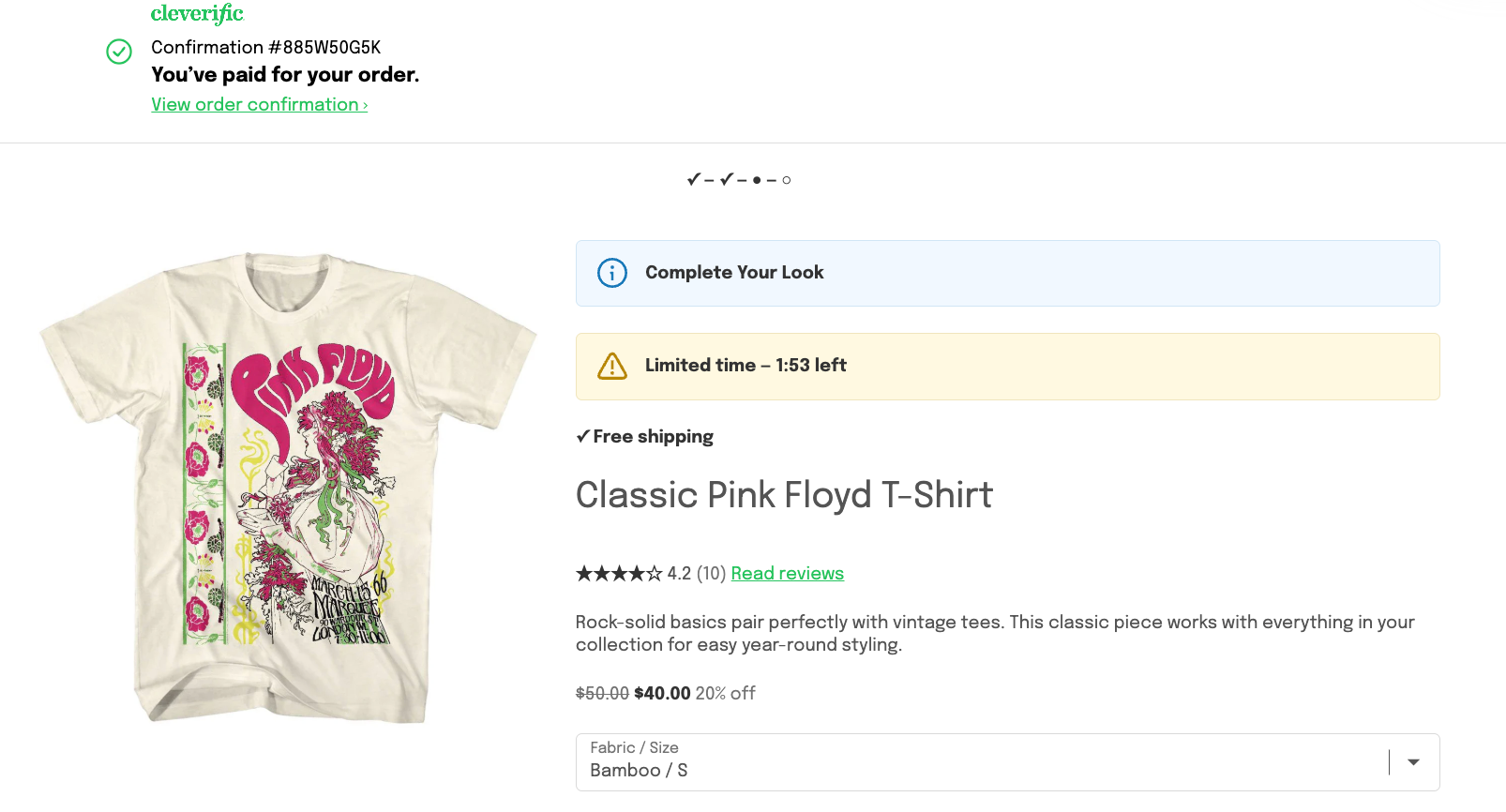
Minimal: checkmarks and dots only, with no step names.
Labeled: the step names Cart, Order placed, Special offer, and Done.
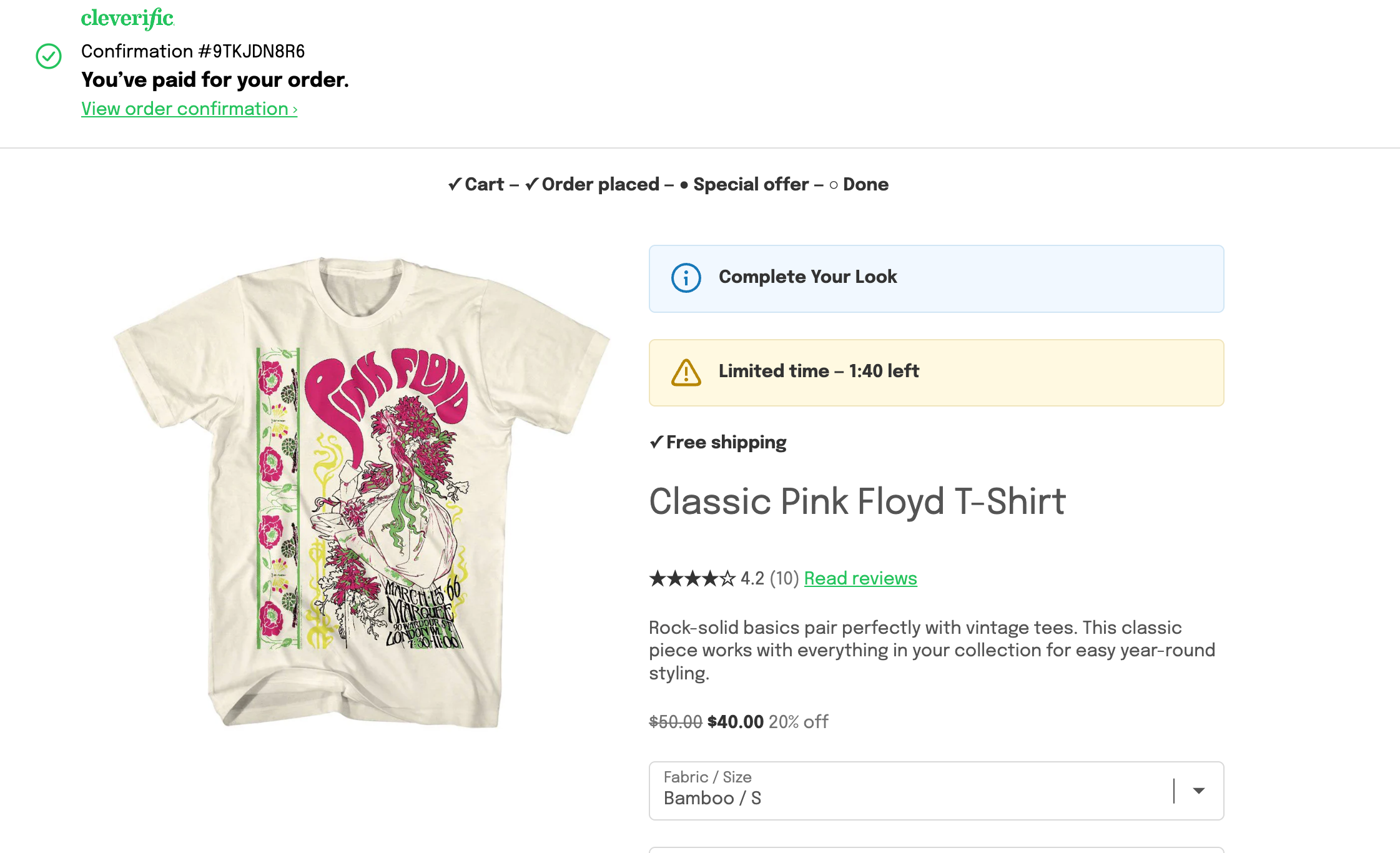
Reassure: the Labeled progress bar, plus a line underneath telling customers their order is confirmed and the offer doesn't change it unless they accept.